Core applications are those which are deployed to a specific set of devices. This may be every laptop, every desktop, every device of a specific make/model, or even every machine across the estate.
Overview of the recommended approach

Applications in ManagementStudio can be linked to a device in more than one way, and that’s expected behaviour. An application may be linked to a device because a user ran it on that device (here the link is created by an Inventory Connector). At the same time, the same device can also receive additional application links through Blueprint Stacks, where Core Apps are assigned automatically because the device was added to the Blueprint Stack. This means a device can legitimately show both “real” usage‑based applications and “core” blueprint‑driven applications side by side.
Viewing a Device's Applications
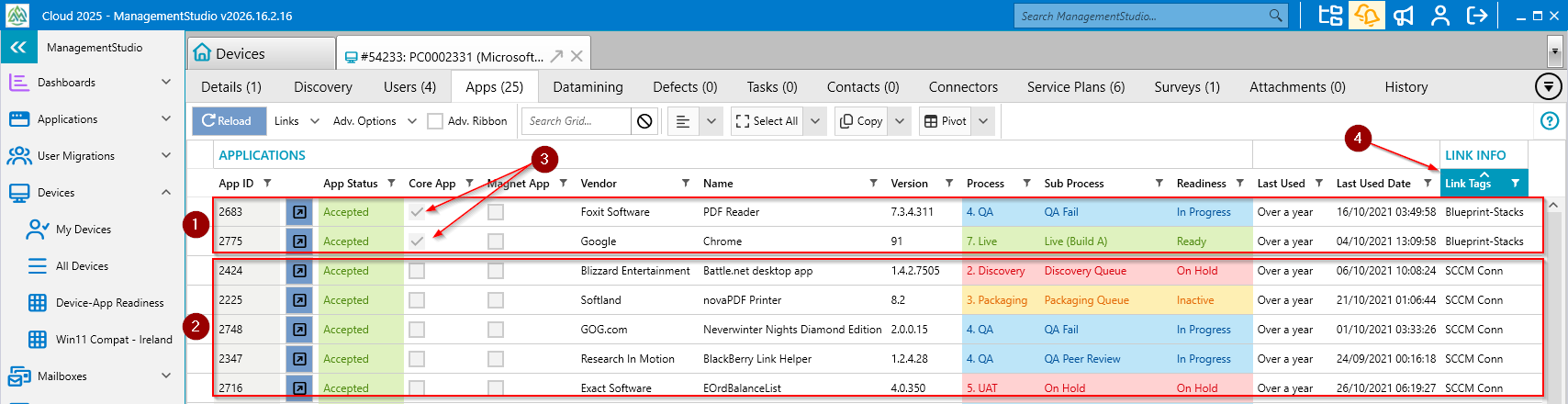
A device's linked applications can come from multiple sources, as shown by the screenshot above.
- Core applications
- Applications linked via Inventory Connector (SCCM or MECM in this case)
- Checkbox shows which applications are core
- Link Tags show the source of the link such as Blueprint-Stack for Core Apps
Advantages of This Approach
- The core applications for any device type or build (or all devices) are automatically linked to those devices
- The links are dynamic:, meaning that as the list of core applications changes, the linked applications will change
- Separate sets of core applications can be linked to different sets of devices
- The core applications are visible in the Applications tab for each device
- The applications linked when a user runs an application (i.e. from an inventory connector) are still visible in the device where the application was used, but can be differentiated from the core applications
- The core applications are not linked to User Migration records, which ties in with the standard approach where core applications are deployed to devices rather than users
Overview of the Setup

Setup Steps
Part 1: Defining the Core Applications
- In Administration -> Applications -> Grid Config set the IsCoreApp field to Visible -> Save Changes (no need to restart)
- In Administration -> Blueprints -> Create a Blueprint folder called App Stacks or similar
- Create a Blueprint in this folder with a name which represents a set of core applications such as Desktop Core Apps or EMEA Core Apps
- Restart the ManagementStudio client
- In Applications -> Core Applications mark the core applications by selecting them, right-clicking -> Update Fields -> Checkboxes -> Core App -> Checked
- Add the core applications to that new Blueprint by selecting them, right-clicking -> Blueprints -> Add To -> App Stacks -> EMEA Core Apps
Part 2: Defining the Devices to be Linked to the Core Applications
The devices must be in the same Blueprint as the core applications for the links to be created.
- Create an ESM plan which adds the relevant devices to the Blueprint created above.
- Ensure that this is scheduled to run daily
- Run the plan and verify that the correct devices have been added to the Blueprint
See here for an article showing how to create this type of ESM plan.
Part 3: Creating the Links Between the Core Applications and Devices
- In Admin -> Blueprints-> Add the following Blueprint stack types:
- App-Device Stack - Dynamic Devices
- App-Device Stack - Dynamic Apps

- If there will be multiple different sets of core applications then also set Unique Device Folder - Move new Duplicates on the Blueprint Folder created above. This will prevent any machine from belonging to multiple Blueprints for different sets of core applications
- The Blueprint(s) should appear as follows:

Part 4: Test the Configuration
- In Administration -> Global Settings -> Global Policies -> click Run Now on Sync Blueprint Stacks
- Once this task is complete view one of the devices to verify that the core applications are linked to that device. The Core App column shows which are core applications.
Was this article helpful?
That’s Great!
Thank you for your feedback
Sorry! We couldn't be helpful
Thank you for your feedback
Feedback sent
We appreciate your effort and will try to fix the article