TABLE OF CONTENTS
- Overview
- Example: Default Rationalisation Rule - Suggest only
- Example: Custom Rationalisation Rule - Active
- Example - Static Magnet Application Rule
- Example - Dynamic Magnet Applications
Overview
The ACE:AI Connector for ManagementStudio provides a powerful, rule‑driven framework for analysing, rationalising, and automating application decisions at scale. By defining flexible logic that evaluates application metadata, version patterns, and vendor‑specific behaviours, ACE enables teams to standardise outcomes and reduce manual effort across complex migration or transformation projects.
The examples below illustrate how different rule types can be configured, from simple rationalisation suggestions to more advanced, dynamic behaviours. These can help you understand how ACE interprets application data and how to tailor rules to your organisation’s needs.
Example: Default Rationalisation Rule - Suggest only
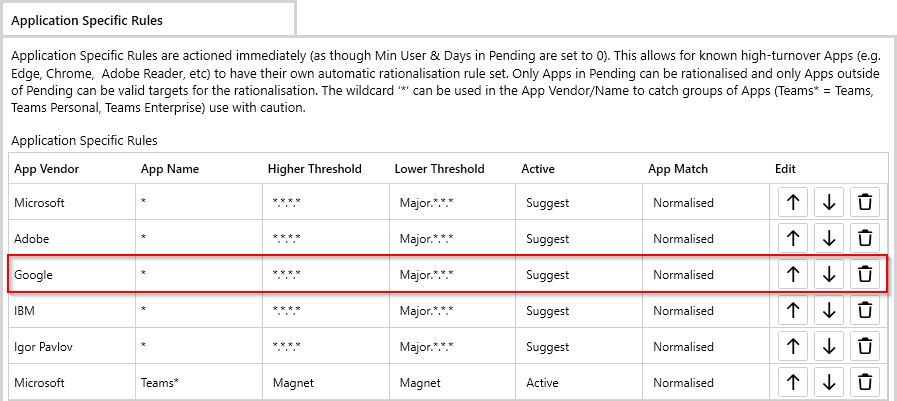
The rule outlined in red (below) will suggest that all applications from Google should be rationalised up to the highest version in Accepted (*.*.*.*), and rationalised down if the major version of the Accepted application matches the major version of the Pending application (Major.*.*.*).
Note that this rule will not automatically rationalise any application records as it is set to Suggest. The suggestion is presented in the ACE:AI Rationalisation window.
Note that this rule requires that there's a matching target application in Accepted
| Pending Application | Accepted Application | Which Threshold is Evaluated? | Does the Rule Apply? | Explanation |
|---|---|---|---|---|
| 46.1 | 95.2 | Higher Threshold | Yes | The Higher Threshold (rationalise to higher versions) is set to *.*.*.* which means all lower versions in Pending will be auto-rationalised to the Accepted application |
| 95.5 | 95.2 | Lower Threshold | Yes | The Lower Threshold (rationalise to lower versions) is set to Major.*.*.* which means higher versions where the major version matches (in this case 95) will be auto-rationalised to the Accepted application |
| 97.5 | 95.2 | Lower Threshold | No | The Lower Threshold (rationalise to lower versions) is set to Major.*.*.* which means higher versions where the major version matches will only be auto-rationalised to the Accepted application. In this case the major version of the Pending app is 97, and the major version of the Accepted app is 95. |
Example: Custom Rationalisation Rule - Active
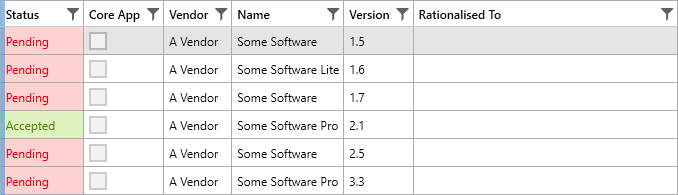
The rule below will:
- Auto-rationalise all lower versions of "A Vendor Some Software" application (including the "Lite" and "Pro" editions) up to the highest Accepted version (2.1) because the Higher Threshold is set to *.*.*.* which

| Pending Application | Accepted Application | Which Threshold is Evaluated? | Does the Rule Apply? | Explanation |
|---|---|---|---|---|
| 1.5 & 1.6 & 1.7 | 2.1 | Higher Threshold | Yes | The Higher Threshold (rationalise to higher versions) is set to *.*.*.* which means all lower versions in Pending will be auto-rationalised to version 2.1. |
| 2.5 | 2.1 | Lower Threshold | Yes | The Lower Threshold (rationalise to lower versions) is set to Major.*.*.* which means only higher versions where the major version matches will be auto-rationalised to the Accepted application. In this case the major versions of both the Pending and the Accepted apps are 2, so the 2.5 will be auto-rationalised to 2.1. |
| 3.3 | 2.1 | Lower Threshold | No | The Lower Threshold (rationalise to lower versions) is set to Major.*.*.* which means only higher versions where the major version matches will be auto-rationalised to the Accepted application. In this case the major version of the Pending app is 3, the major version of the Accepted app is 2, so the Pending app is not auto-rationalised. |
Example - Static Magnet Application Rule
See here for an overview of Magnet Applications.
Static Magnet Application Rules provide the ability to auto‑rationalise multiple versions of Pending applications to a single target application (the ACE Magnet). They support wildcards in the vendor name and application name, meaning multiple variations of an application (for example, Chrome, Chrome Installer) can be auto‑rationalised to a single target application.
Unlike Dynamic Magnet Applications, Static Magnet Application Rules require you to define explicit rules. However, they offer greater flexibility thanks to their support for wildcards in both vendor and application names.
This example shows the two main steps required to create a Static Magnet Application Rule:
Set ACE Magnet on the target application
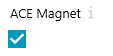
First, choose the application that will act as the rationalisation target.
Open Applications -> All Applications.
Locate and open the application you want to use as the ACE Magnet.
Place a tick by ACE Magnet.
Click Save Changes. This marks the application as the ACE Magnet that other Pending applications will be rationalised to.
Create a Static Magnet Application Rule in the ACE:AI Connector

Browse to Administration -> Extensions -> Connectors -> ACE:AI.
Go to the Application Specific Rules.
Click Add New Setting.
Add an App Vendor and App Name, use * wildcards to match the variations you want to rationalise, for example:
- App Vendor: Google*
- App Name: Chrome*
Set the Higher Threshold and Lower Threshold to Magnet.
Set Active to Active.
Set App Match to Normalised to match on the normalised name (recommended), otherwise set it to Real.
Click Save Changes.
When the ACE:AI Connector runs an examination, all Pending applications that match your wildcard criteria will be auto‑rationalised to the ACE Magnet target application. This can be triggered by clicking Run ACE Examination Now or by setting a schedule in the ACE:AI Connector.
Note: there should only ever be one ACE Magnet for each target application. Having multiple applications with the same name marked as the ACE Magnet will cause unpredictable behaviour.
Example - Dynamic Magnet Applications
See here for an overview of Magnet Applications.
Dynamic Magnet Applications provide the ability to auto‑rationalise multiple versions of Pending applications to a single target application (the ACE Magnet). They do not support wildcards in the vendor name and application name. Instead, the vendor name and application name must exactly match the ACE Magnet target.
Dynamic Magnet Applications require less configuration that Static Magnet Application Rules, but provide less flexibility.
This example shows the two steps required to enable Dynamic Magnet Applications:
Enable the feature (this step only need to be completed once).
- Browse to Administration -> Extensions -> Connectors -> ACE:AI.
- Go to the Application Specific Rules.
- Place a tick in Enable Dynamic Magnet Apps Rules.
- Click Save Changes.
Set ACE Magnet on the target application
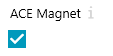
First, choose the application that will act as the rationalisation target.
Open Applications -> All Applications.
Locate and open the application you want to use as the ACE Magnet.
Place a tick by ACE Magnet.
Click Save Changes. This marks the application as the ACE Magnet that other Pending applications (with an exact vendor and name match) will be rationalised to.
When the ACE:AI Connector runs an examination, all Pending applications that exactly match your criteria will be auto‑rationalised to the ACE Magnet target application. This can be triggered by clicking Run ACE Examination Now or by setting a schedule in the ACE:AI Connector.
Note: there should only ever be one ACE Magnet for each target application. Having multiple applications with the same name marked as the ACE Magnet will cause unpredictable behaviour.
Further Support
If you require further support, please visit ManagementStudio's Service Desk to search the knowledge base or create a new support ticket.
Was this article helpful?
That’s Great!
Thank you for your feedback
Sorry! We couldn't be helpful
Thank you for your feedback
Feedback sent
We appreciate your effort and will try to fix the article