TABLE OF CONTENTS
- Overview
- Import SSL Certificate onto IIS Server
- Enable the New Certificate in IIS
- Configure and Test ManagementStudio
- Further Support
Overview
This guide provides step-by-step instructions to configure ManagementStudio to use a Secure Socket Layer (SSL) connection, switching the application from HTTP (non-secure) to HTTPS (secure). Following these steps will enable encrypted communications for ManagementStudio.
Import SSL Certificate onto IIS Server
- Open the Start menu and search for
Run. - Type
mmcand click OK. - In the MMC window, select File → Add/Remove Snap-in.
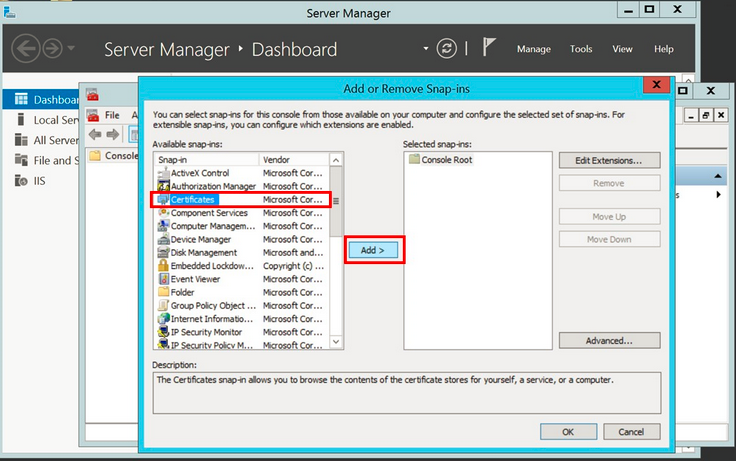
- Choose Certificates and click Add.
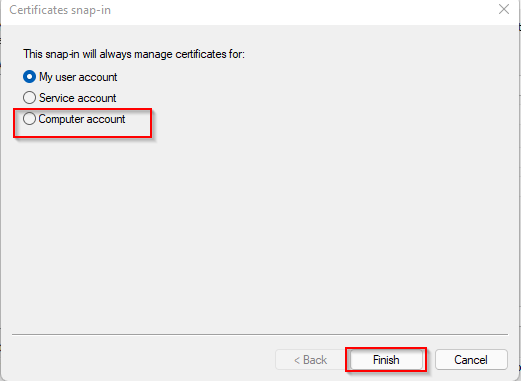
- Select Computer Account, then click Next and Finish.
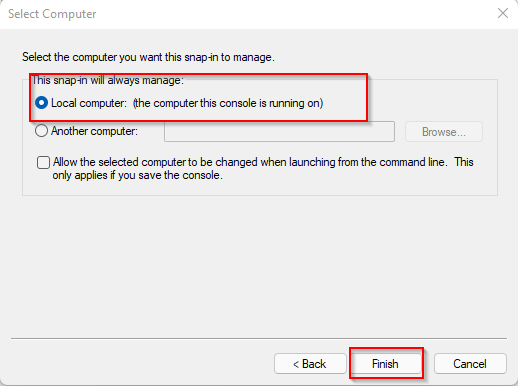
- Choose Local Computer, click Finish. Close the standalone snap-in and add/remove snap-in windows if prompted.
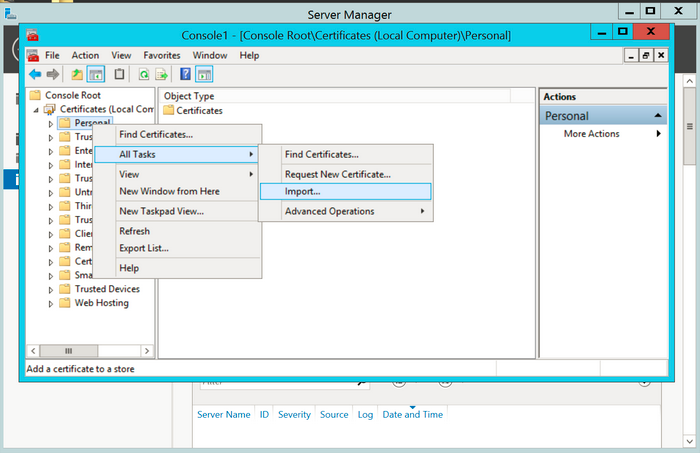
- Expand the Certificates (Local Computer) console tree. Navigate to the Personal folder and expand it.
- Right-click Personal and select All Tasks → Import.
- Use the Certificate Import Wizard to import your primary certificate from the
.pfxfile. When prompted, choose to automatically place certificates in certificate stores based on the type of certificate. - Upon successful import, click OK in the confirmation dialog.
Enable the New Certificate in IIS
- Open the Start menu and launch Administrative Tools → Internet Information Services (IIS) Manager.
- In IIS Manager, select the server name.
- Expand the Sites node.
- Select the ManagementStudio site.
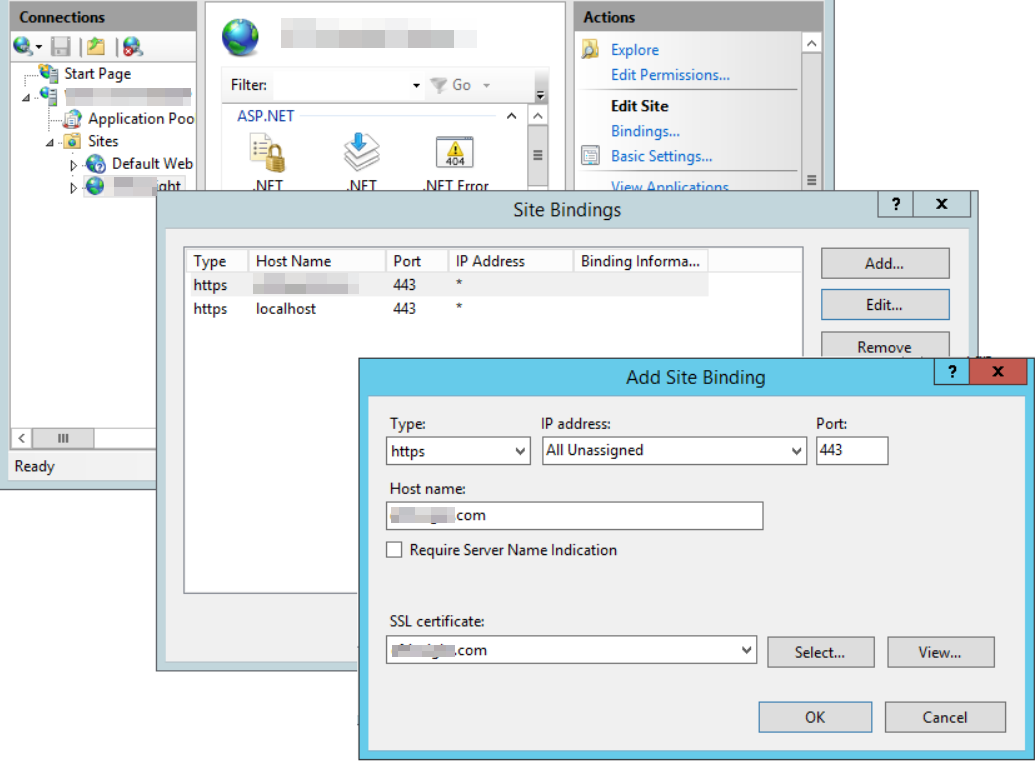
- In the Actions panel, click Bindings.
- In the Site Bindings window, select the site's hostname and click Add (or Edit to update an existing binding).
- In the Add Site Bindingwindow, complete the following fields:
- Type:
https - IP address: Select the site’s IP address or choose
All Unassigned - Port: Typically
443for SSL - Host name: Enter the appropriate DNS name
- SSL certificate: Select the imported certificate
- Type:
- Click OK to save the binding.
- Click Close to exit the Site Bindings dialog.
- In the Actions panel, click Restart to apply the changes.
Configure and Test ManagementStudio
Appsettings.json
Navigate to the [IIS Website folder] directory and open the
Appsettings.jsonfile with a text editor (e.g., Notepad).Edit the
LocalSiteUrlvalue to use the new HTTPS URL.Example:
Before:
"LocalSiteUrl": "http://localhost:90",After:
"LocalSiteUrl": "https://localhost:443",Save the file.
In IIS Manager, expand Sites and select the ManagementStudio website.
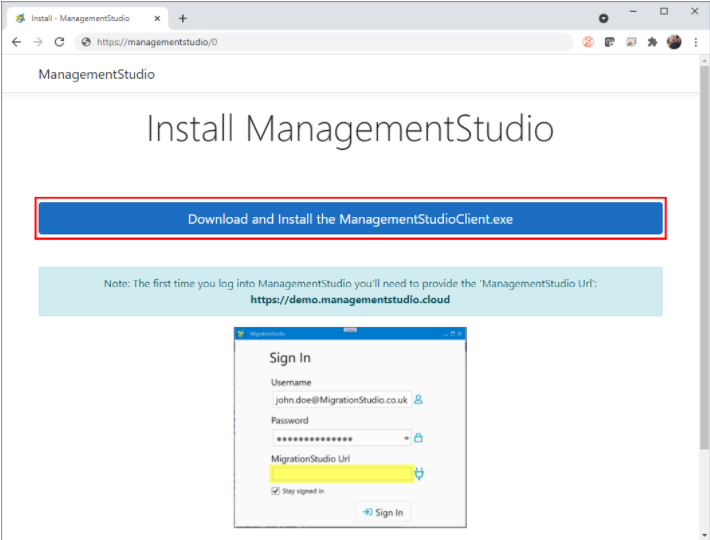
Click Browse Website. In the browser, append
/0to the website URL (e.g.,https://localhost:443/0) and press Enter to confirm the site loads securely.
Close the browser.
Network Client
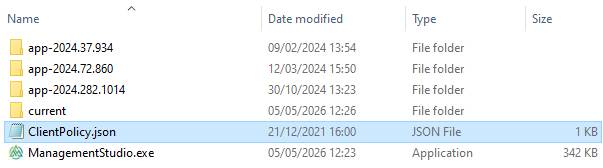
- If a Network Client is in use, browse to that folder.
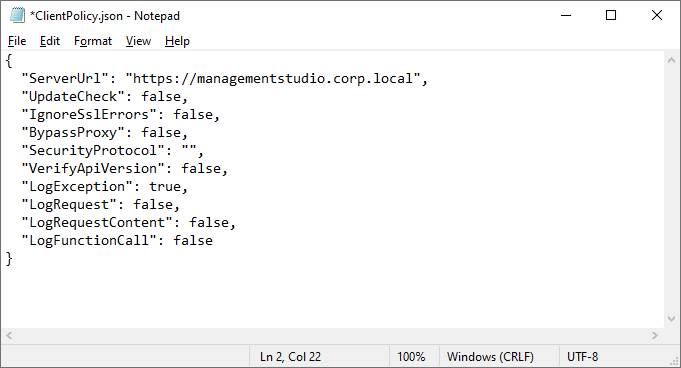
- Edit ClientPolicy.json in Notepad.
- Change http to https in the ServerUrl.
ManagementStudio Settings
Launch ManagementStudio.
Enter your username and password.
In the ManagementStudio URL field, enter the new HTTPS URL (e.g.,
https://localhost:443).Click Sign In.
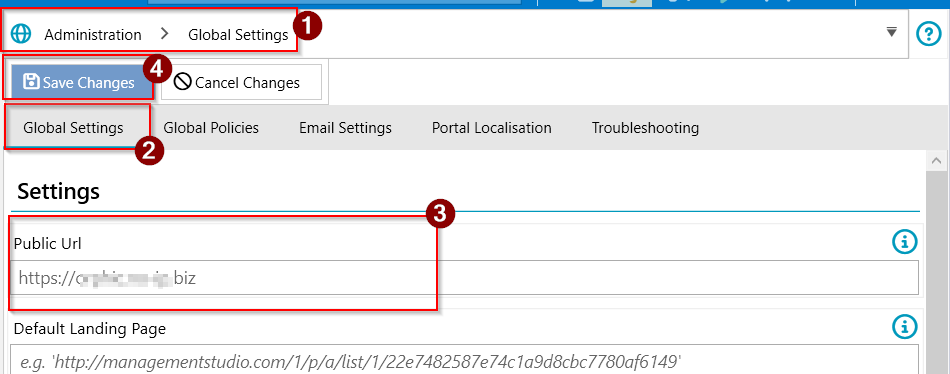
Navigate to Administration → Global Settings (1).
Select Global Settings (2).
Update the
Public URL(3) with the new HTTPS URL.Click Save Changes (4).
Restart ManagementStudio and log in.
Distribute the new HTTPS URL to all users for secure access.
Further Support
For additional assistance, visit the ManagementStudio Service Desk to search the knowledge base or submit a support ticket.
Was this article helpful?
That’s Great!
Thank you for your feedback
Sorry! We couldn't be helpful
Thank you for your feedback
Feedback sent
We appreciate your effort and will try to fix the article