TABLE OF CONTENTS
License and Updates Panel
Overview
The License & Updates panel in ManagementStudio provides functionality to:
- Manage the ManagementStudio licence
- Create new projects
- Update ManagementStudio software
The multi-project feature enables sharing of resources across multiple projects. For example, an organisation could leverage data from an existing Windows 10 migration project for other initiatives such as mobile phone migrations, business continuity planning, or laptop delivery to remote users. Projects can use either unique or shared objects across these functions.
Licensing in ManagementStudio operates on a Universal License basis. Each User, Device, Mailbox, or Bespoke object consumes a single licence, but these objects can participate in multiple projects without requiring additional licences.
While licence synchronisation with the ManagementStudio Cloud server usually occurs automatically, administrators may manually add licence keys if internet connectivity is unavailable.
Software updates are managed through this panel using an encrypted ZIP file.
Manually Adding a Licence Key
If the ManagementStudio instance cannot connect to the Licence server, a manual licence key can be applied.
- In the License & Updates panel, select Apply Key.
- Paste the provided licence key into the text box and click OK.

The licence details will update, displaying:
- Number of Universal Tickets available
- Maintenance expiry date
- Number of projects permitted
- Licences consumed by each module

Modules consuming licence tickets include:
- Applications
- Devices
- User Migrations
- Mailboxes
- Bespoke
Note: Archived or deleted items in these modules continue to consume licence tickets. Review the archived/deleted queues and permanently remove unneeded items to recover licence capacity.
Creating a New Project
- Navigate to Administration → License & Updates.
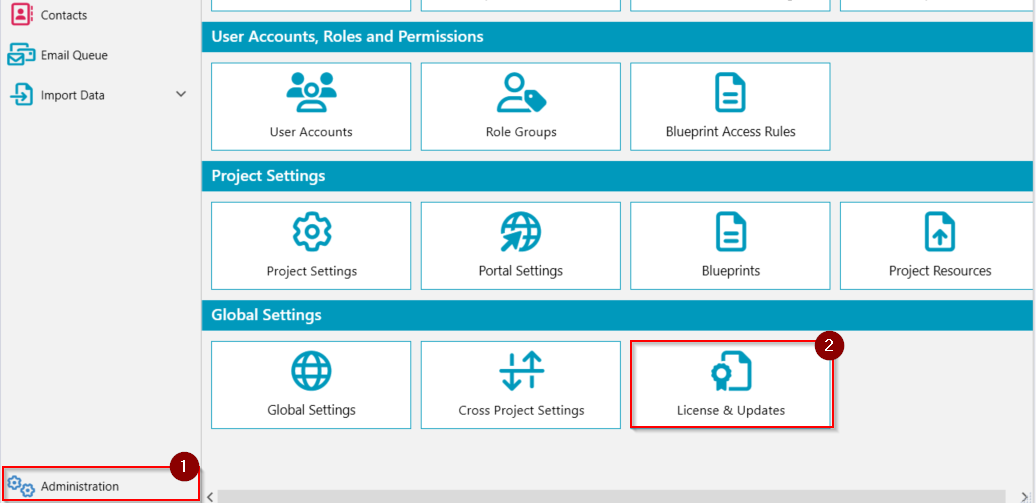
- Click Create New Project.

- In the new window:
- Enter the Project Name.
- Select an Import Project Configoption:
- Default: Uses ManagementStudio recommended configuration (module fields, processes, menus, custom forms, surveys, and roles).
- Custom File: Imports configuration from your custom Excel file, allowing detailed setup of modules, processes, menus, forms, surveys, and roles.
- No Config: Creates a blank project with no default configuration.
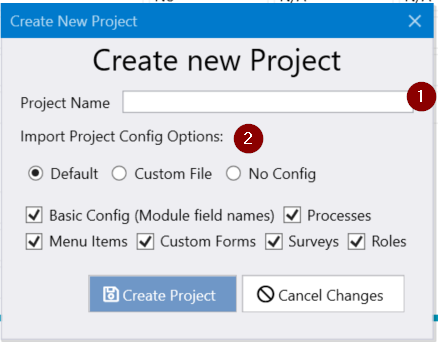
Additional project configuration options include:
| Option | Description |
|---|---|
| Basic Config (Module field names) | Default module names and visible grid fields per module. |
| Processes | Workflow processes for migration lifecycle stages. |
| Menu Items | Default menu items in ManagementStudio. |
| Custom Forms | Predefined forms, e.g., Discovery for Applications module. |
| Surveys | Default surveys provided by ManagementStudio. |
| Roles | Default system roles (e.g., Project Member, Admin). |
- Click Create Project.
- In the Switch to new Project window, click Cancel.
- Close ManagementStudio and restart IIS.
- Reload ManagementStudio to complete project creation.
Projects Overview
In ManagementStudio, a Project represents a collection of:
- User Migrations
- Applications
- Devices
- Mailboxes
- Deployment Units
Multiple projects enable ManagementStudio administrators to support separate environments from a single instance. For example, a managed service provider could set up a distinct project for each customer environment.
Switching Between Projects
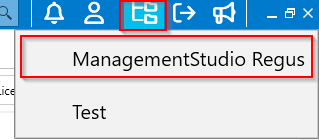
To switch between projects:
- Use the project selector button in the ManagementStudio interface to change to another active project.
Updating ManagementStudio
Prerequisites
- Obtain the installation ZIP file from a ManagementStudio consultant (via download link).
- Ensure you have a ManagementStudio account with administrative privileges.
Update Process
- Download the upgrade ZIP file to an accessible location.
- Navigate to Administration → License & Updates.
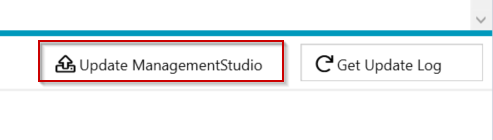
- Scroll to the bottom of the panel and click Update ManagementStudio.
- Browse to select the downloaded ZIP file.
- Click Apply Update Now.
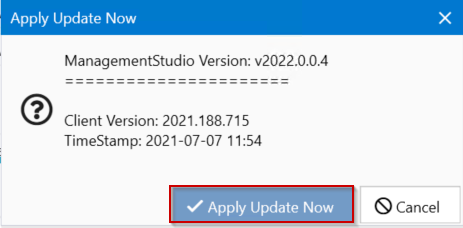
- Wait for the update process to complete. The system will display a confirmation window.
- Click Restart to restart the client.
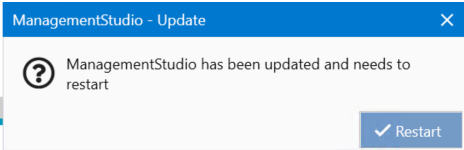
After restart, ManagementStudio will be running the updated version.
Further Support
If you require additional assistance, visit the ManagementStudio Service Desk to search the knowledge base or submit a support ticket.
Was this article helpful?
That’s Great!
Thank you for your feedback
Sorry! We couldn't be helpful
Thank you for your feedback
Feedback sent
We appreciate your effort and will try to fix the article