TABLE OF CONTENTS
- IIS Application Pool Recycling
- Overview
- Solution Summary
- Further Support
IIS Application Pool Recycling
Overview
By default, Internet Information Services (IIS) recycles the Application Pool daily, typically during the early morning hours. When the recycle occurs, ManagementStudio is unloaded from memory. As a result, the Task Scheduler service is interrupted until a user logs into ManagementStudio and IIS reloads the application. This behaviour may cause scheduled tasks set to run early in the morning to fail, if no user session is active at that time.
Solution Summary
To maintain Task Scheduler functionality and allow scheduled scripts to run before users have logged in, IIS should be configured to proactively load ManagementStudio into memory immediately after the Application Pool is recycled.
Required Steps
- Install the Application Initialization module.
- Configure the Application Pool to start immediately.
- Set
Start ModetoAlwaysRunningandIdle Time-outto0. - Set Application Pool recycling time outside working hours.
- Enable Preload for ManagementStudio.
Step-by-Step Configuration
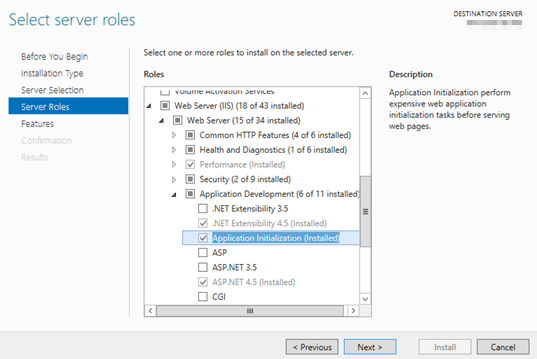
Step 1: Install the Application Initialization Module
- Open Server Manager.
- Navigate to
Server Roles→Web Server (IIS)→Application Development. - Ensure the
Application Initializationmodule is installed.
Step 2: Set Application Pool to Start Immediately
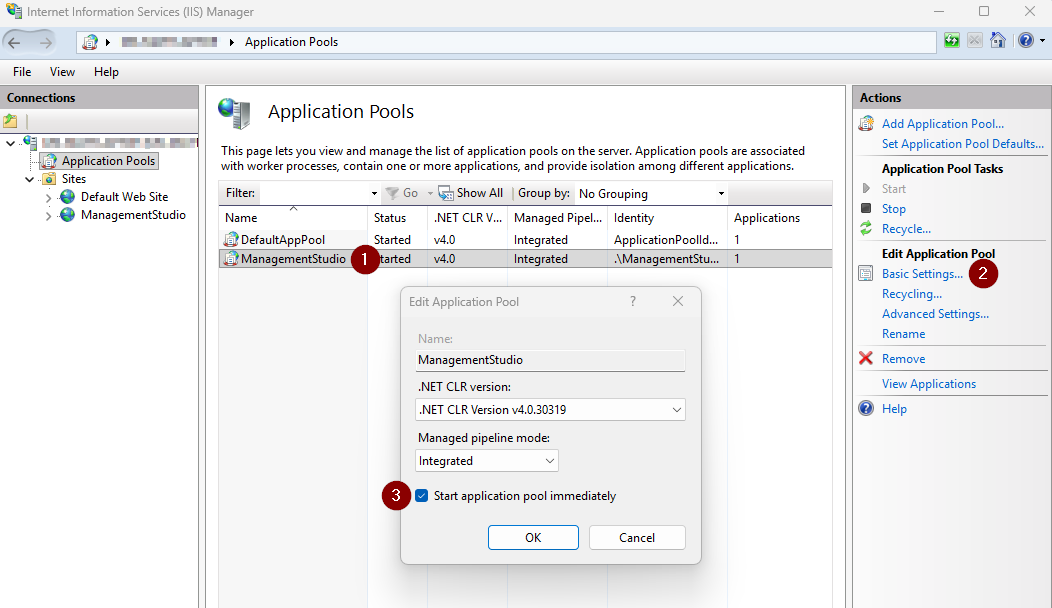
- Open IIS Manager.
- In the middle pane, select the Application Pool used by ManagementStudio.
- In the Actions panel, click
Basic Settings.... - Ensure
Start application pool immediatelyis enabled. - Click
OK.
Step 3: Configure Always Running and Idle Timeout
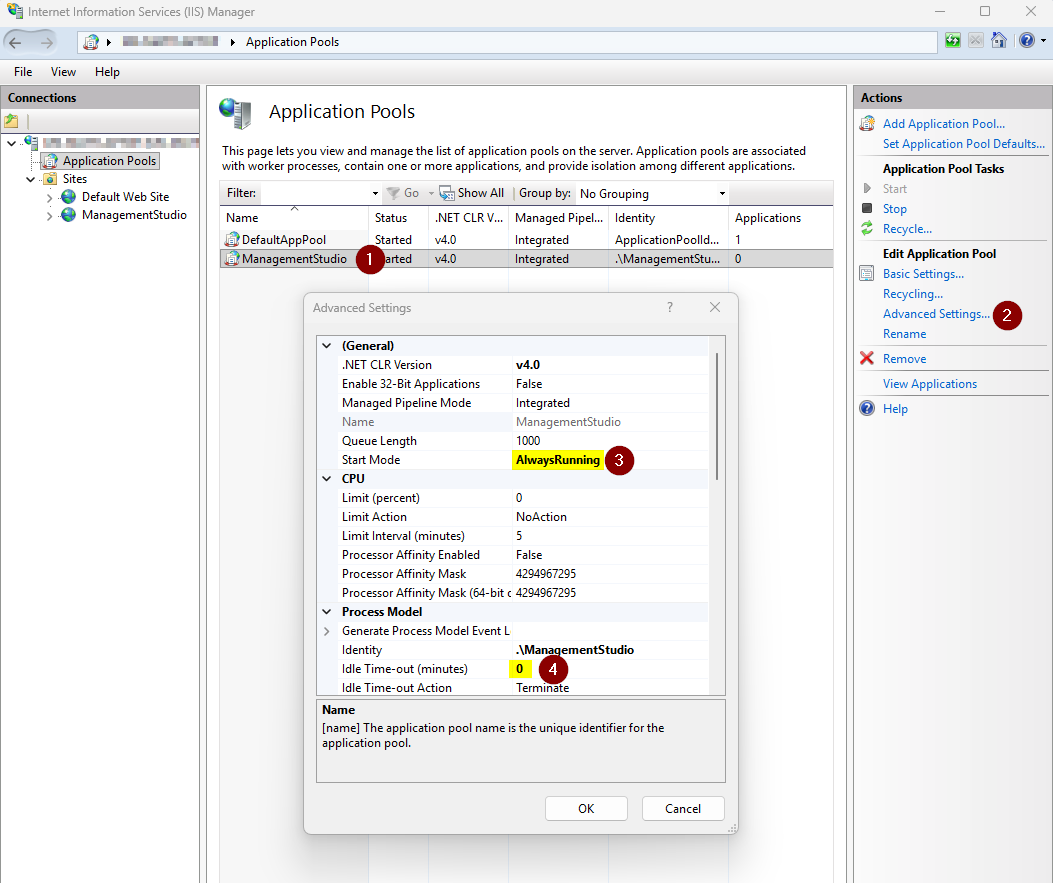
- With the ManagementStudio Application Pool selected, click
Advanced Settings...in the Actions panel. - Set
Start ModetoAlwaysRunning. - Set
Idle Time-out (minutes)to0. - Click
OK.
Step 4: Set Recycling Time for Application Pool
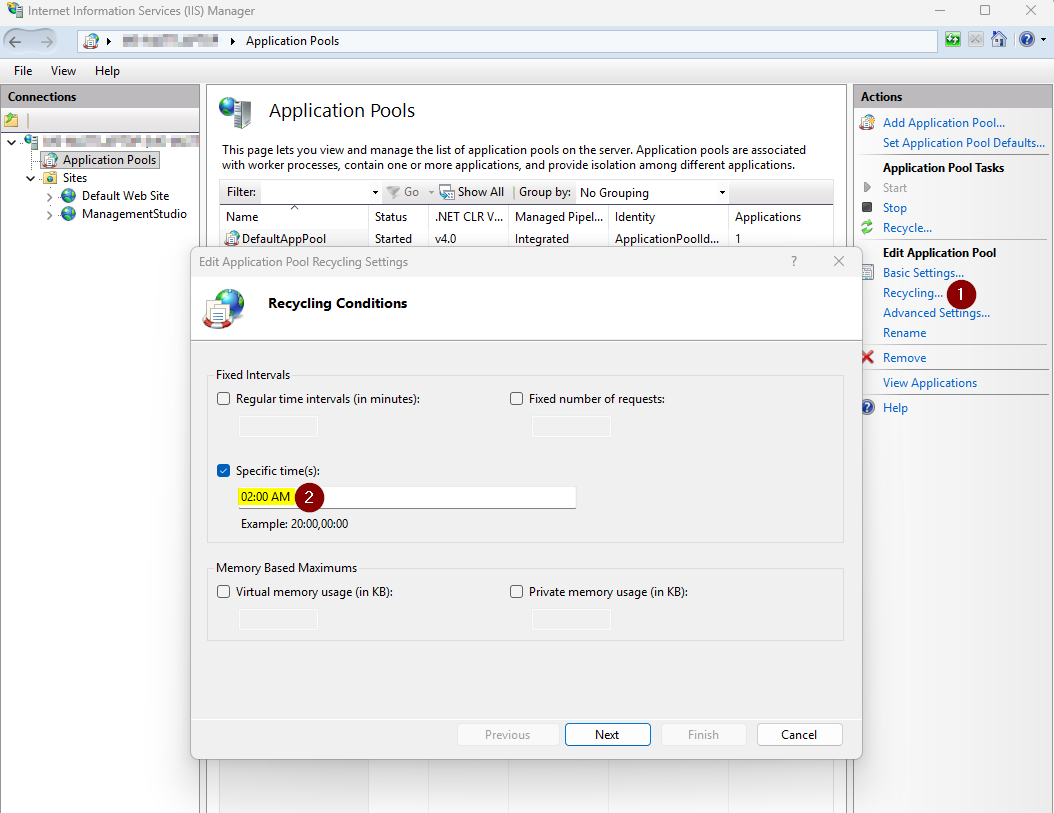
- Select the Application Pool assigned to ManagementStudio.
- Click
Recycling...in the Actions panel. - Specify a recycle time outside normal working hours, for example,
02:00 AM. - Clear all other recycling options to avoid unexpected recycles.
- Click
Next, thenFinish.
Step 5: Enable Preload for ManagementStudio
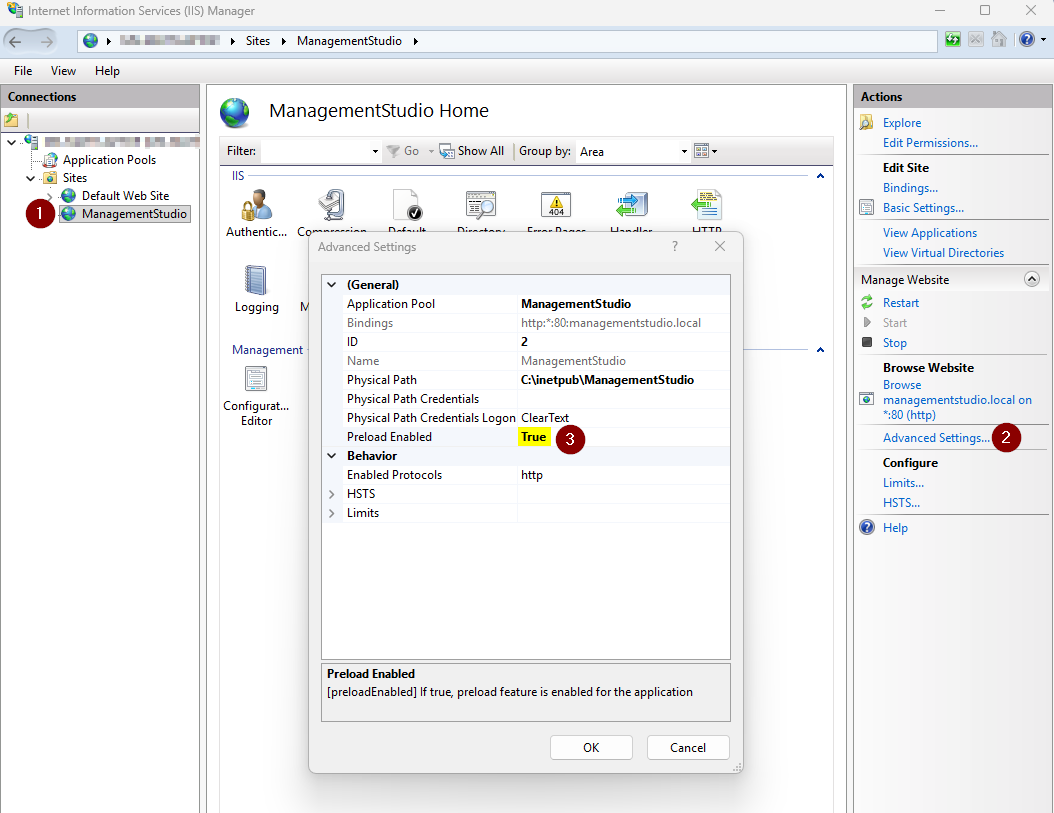
- In IIS Manager, select the ManagementStudio website.
- In the Actions panel, click
Advanced Settings.... - Set
Preload EnabledtoTrue. - Click
OK.
Example: Task Scheduling Scenario
With these settings, ManagementStudio will be automatically reloaded into memory after the scheduled Application Pool recycle (e.g., 2:00 AM). This ensures that Task Scheduler remains active and tasks scheduled for early morning can run successfully, even if no user has logged in yet.
Additional Notes
- These instructions apply to deployments of ManagementStudio running on IIS with scheduled tasks required outside typical working hours.
- Adjust the recycling time according to your environment’s requirements to minimise potential impact.
Further Support
For additional assistance, visit the ManagementStudio Service Desk to search the knowledge base or to submit a support ticket.
Was this article helpful?
That’s Great!
Thank you for your feedback
Sorry! We couldn't be helpful
Thank you for your feedback
Feedback sent
We appreciate your effort and will try to fix the article