TABLE OF CONTENTS
Scheduled Tasks Overview
Scheduled Tasks enable automated, recurring actions that other ManagementStudio components can subscribe to. For example, you can configure a Morning Jobs task to run daily at 08:00. Tasks such as SCCM Sync, AD Sync, dashboard notifications, and SLA Reminders can all be associated with this scheduled task. Multiple jobs can be linked to a single scheduled task, enabling coordinated execution at defined intervals.
Accessing Scheduled Tasks
Navigate to: Administration → Scheduled Tasks Manager
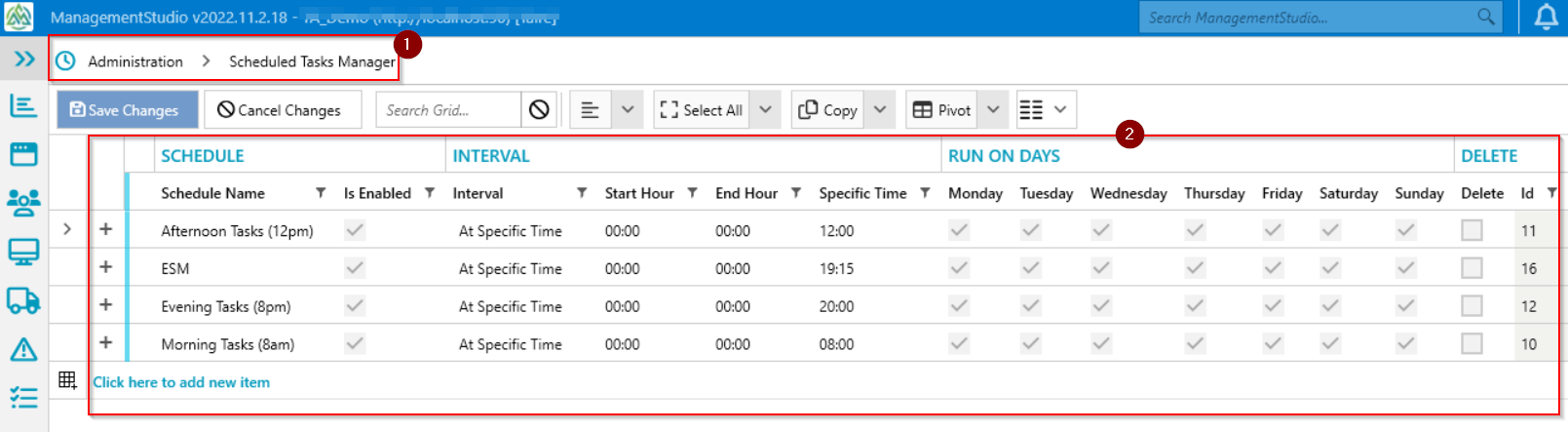
Default Scheduled Tasks
ManagementStudio includes several predefined scheduled tasks. These default tasks can be used as-is, modified, or deleted to suit your requirements.
Schedule Name
Each scheduled task requires a unique and descriptive name. This name appears in selection dropdowns in other modules (e.g., PowerShell Scripts administration) and indicates the enabled/disabled status. Other schedule details (such as timing) are not shown in these dropdowns, so use names that clearly communicate the intended run times.
Examples:
Morning Jobs (08:00)Hourly Reporting JobsNightly Housekeeping (21:00)
Is Enabled
Use the Is Enabled checkbox to temporarily deactivate a schedule. Disabling a schedule will prevent associated jobs from running, but preserves their configuration and associations.
Intervals
The Interval setting, together with Run on Days, determines when a scheduled task will execute.
- You can schedule tasks to run at specific times (e.g., 08:00) or at regular intervals (e.g., every 15 minutes).
- Only quarter-hour marks are valid for specific times:
00,15,30,45minutes past the hour. - You may select built-in intervals for jobs that need to run multiple times per day.
Run on Days
The Run on Days setting specifies which days of the week the scheduled task is permitted to execute.
Examples:
- Schedule heavy processing jobs for weekends only.
- Run a weekly report every Friday.
Delete Schedule
To remove a scheduled task:
- Select the
Deletecheckbox for the desired schedule. - Save your changes.
Important: Deleting a scheduled task will orphan any scripts or jobs linked to it. Orphaned jobs will not run until reassigned to another active schedule.
Sequencing Jobs
When a scheduled task is triggered, all linked jobs are sorted by priority and executed sequentially. Each job starts only after the previous job in the sequence completes.
Collisions
If multiple scheduled tasks are set to run at the same time (e.g., one task runs every 2 hours, another every 4 hours—both trigger together every 4 hours), their jobs are combined. All jobs from the colliding schedules are ordered by priority and executed in a single sequence.
Parallel Tasks
While jobs within a single scheduled task (or schedule collision) are always run in sequence, different scheduled tasks operate independently and can run in parallel.
Example:
If a job started by the 08:00 scheduled task takes two hours to complete, and a separate scheduled task runs at 09:15, both sets of jobs proceed independently and in parallel.
Synopsis
- Jobs within a scheduled task or collision are executed in priority order, one after another.
- Different scheduled tasks (outside of collisions) run in parallel.
Intervals Explained
| Interval | Description | Valid Times/Examples |
|---|---|---|
| At Specific Time | Pick a time (using the time picker). Runs once per day. Only 00, 15, 30, 45 minutes past the hour are valid. | 09:00, 13:45, 19:15 |
| Every 15 Min | Runs every 15 minutes. | :00, :15, :30, :45 past the hour |
| Every 30 Min | Runs every 30 minutes. | :00, :30 past the hour |
| Every Hour | Runs once per hour, on the hour. | 00:00, 01:00, 02:00 |
| Every 2 Hours | Runs every 2 hours, starting at 00:00. | 00:00, 02:00, 04:00 |
| Every 3 Hours | Runs every 3 hours, starting at 00:00. | 00:00, 03:00, 06:00, 09:00 |
| Every 4 Hours | Runs every 4 hours, starting at 00:00. | 00:00, 04:00, 08:00, 12:00 |
Please refer to this article on How to create a scheduled task.
Further Support
For additional assistance, visit the ManagementStudio Service Desk to browse the knowledge base or submit a support ticket.
Was this article helpful?
That’s Great!
Thank you for your feedback
Sorry! We couldn't be helpful
Thank you for your feedback
Feedback sent
We appreciate your effort and will try to fix the article