TABLE OF CONTENTS
- How to Create a Custom Dashboard
- Add a Chart Showing the Count of Ready Apps
- Add a Chart Showing Users in Processes
- Add a Chart Showing Process History with Specific Processes
- Further Support
How to Create a Custom Dashboard
Overview
This step-by-step guide will walk through the steps involved in setting up custom Dashboards in ManagementStudio.
For an overview of the Dashboard please refer to this guide: https://support.managementstudio.com/a/solutions/articles/14000128885
ManagementStudio includes a number of built-in Dashboards. This guide will focus on the steps involved in creating a new, custom Dashboard.
Step 1 - Creating a Custom Dashboard
- Click Dashboards (1) -> Dashboard Designer (2).

- Click Menu (1) -> New Dashboard (2).

- An empty Dashboard will be created.
- Each tab is known as a Panel.
- The individual items added to the Panels are known as Charts.

- Click the + Button (1).
Step 2 - Setting up the Panel
- Enter a header for the panel such as Applications. This will appear as the tab label. Click on Panel Options (1) and enter the header (2).

It's important to define which data within ManagementStudio should be displayed within the Panel. One or many data sources can be used for a single panel:
- Click one or more Data Sources such as Apps Data Source or Users Data Source in the Configure Data Sources area of the ribbon.

- Change to the Panel Apps Data Source area in the ribbon.
- Select All Applications.

- Click on th Plus symbol to add more panels to the dashboard.

Step 3 - Adding Charts to the Panel
- In the chart picker ensure the dropdown is set to Applications or the target module.
- Drag the Application Process Totals chart onto the panel.
- Drag the Application Readiness chart onto the panel.

- Click Menu -> Save Dashboard.

- Enter a name for the Dashboard such as Test Dashboard (1).
- Enter a brief description of the dashboard (2).
- My default (3) - This will be the dashboard you see when you click on the dashboard button.
- Public to All (3) - Any User can chose to view this dashboard, but they can't edit it.
- Click Save New (4).
- Click Restart.
Step 4 - View the Dashboard
- Click Dashboard (1) -> My Dashboards (2) -> Test Dashboard (3) to view the new Dashboard.

- The new dashboard will be displayed.

Add a Chart Showing the Count of Ready Apps
It is assumed that a custom dashboard has created.
Overview
This example demonstrates how to add a chart to a dashboard that displays the number of Ready applications.
Step 1 - Add and Configure the Chart
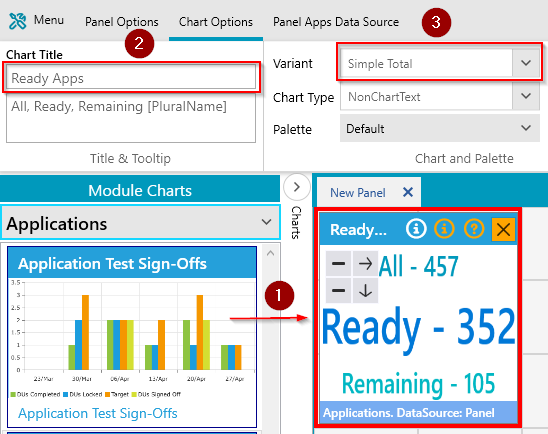
- In the chart picker ensure the dropdown is set to Applications.
- Drag the All, Ready, Remaining Applications chart onto the panel (1).
- Set the Chart Title as ReadyApps (2).
- Set the Variant as Simple Total (3).
- Optionally amend the size of the chart using the grey minus and arrow buttons
Step 2 - Set the Data Source
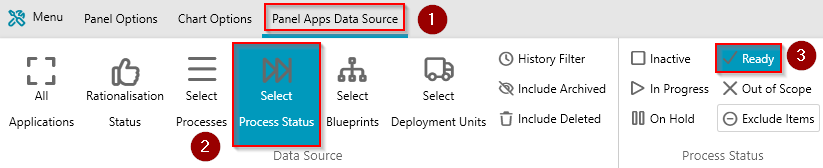
- Click on Panel Options -> Apps Data Source.
- Click on the Panel Apps Data Source tab (1).
- Click Select Process Status (2).
- Click Ready (3).
Step 3 - Save and View the Dashboard
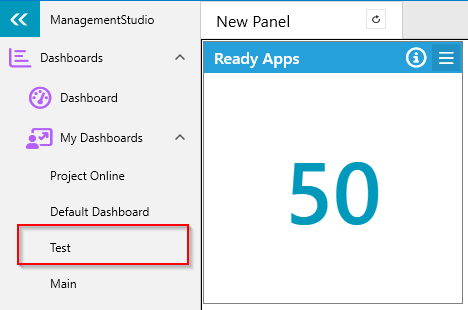
- Click Menu -> Save Dashboard -> Enter a Dashboard name if required -> Update Existing/Save New.
- Click on the Dashboard under My Dashboards.
- The Ready Apps chart will be displayed.
Add a Chart Showing Users in Processes
It is assumed that a custom dashboard has created.
Overview
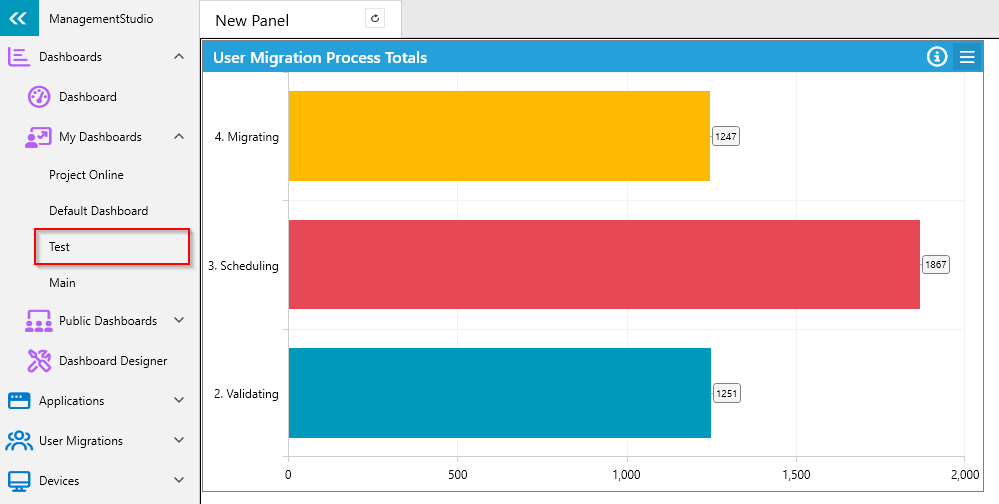
This example demonstrates how to add a chart to display the count of users in each process.
Step 1 - Add and Configure the Chart
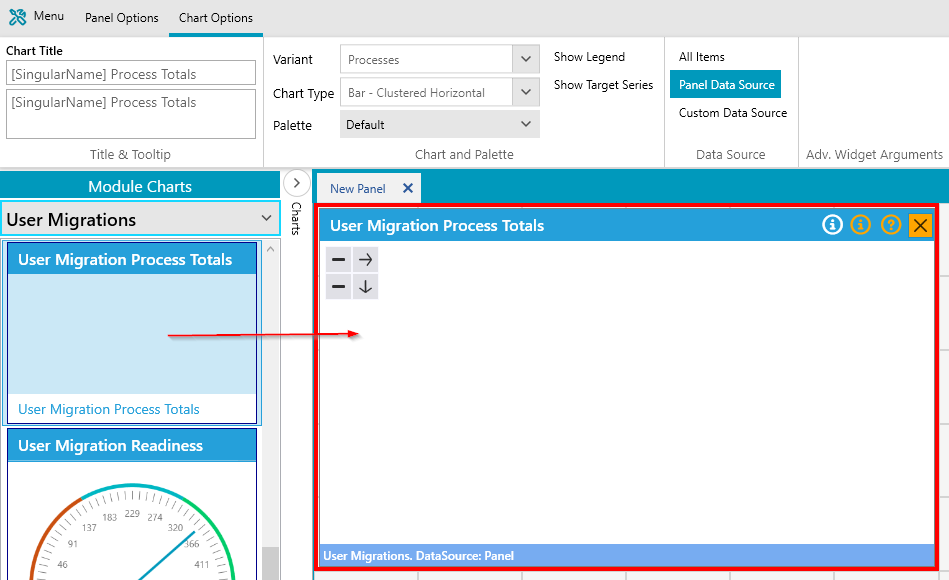
- In the chart picker ensure the dropdown is set to User Migrations.
- Drag the User Migration Process Totals chart onto the panel (1).
- Optionally amend the size of the chart using the grey minus and arrow buttons
Step 2 - Set the Data Source (Optional)
By default this chart will show users across all defined processes. If the chart should only display certain processes, the data source should be set as below:
- Click on Panel Options -> Users Data Source.
- Click on the Panel Users Data Source tab (1).
- Click Select Processes (2).
- Click Add Process to add the required processes (3).

Step 3 - Save and View the Dashboard
- Click Menu -> Save Dashboard -> Enter a Dashboard name if required -> Update Existing/Save New.
- Click on the Dashboard under My Dashboards.
- The Ready Apps chart will be displayed.
Add a Chart Showing Process History with Specific Processes
It is assumed that a custom dashboard has created.
Overview
This example demonstrates how to add a chart to a dashboard that the history of items across specific processes.
Step 1 - Add and Configure the Chart
- In the chart picker ensure the dropdown is set to Applications.
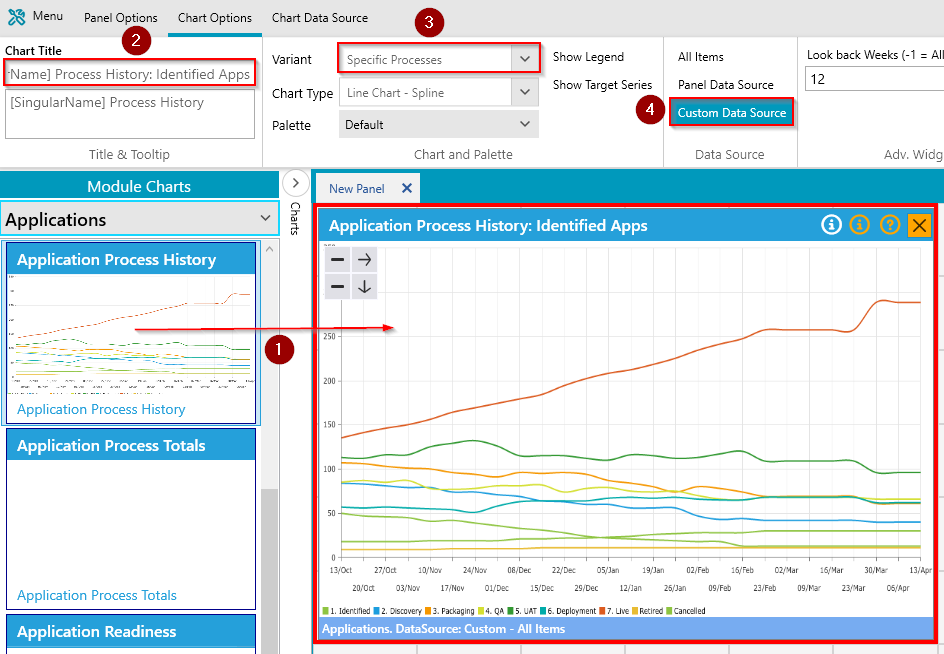
- Drag the Application Process History chart onto the panel (1).
- Set the Chart Title Process History: Identified Apps (2).
- Set the Variant as Specific Processes (3).
- Click on Custom Data Source (4).
Step 2 - Set the Data Source
- Click on the Chart Data Source tab (1).
- Click on Select Processes (2).
- Click on Add Process -> Choose some processes (3).

Step 3 - Save and View the Dashboard
- Click Menu -> Save Dashboard -> Enter a Dashboard name if required -> Update Existing/Save New.
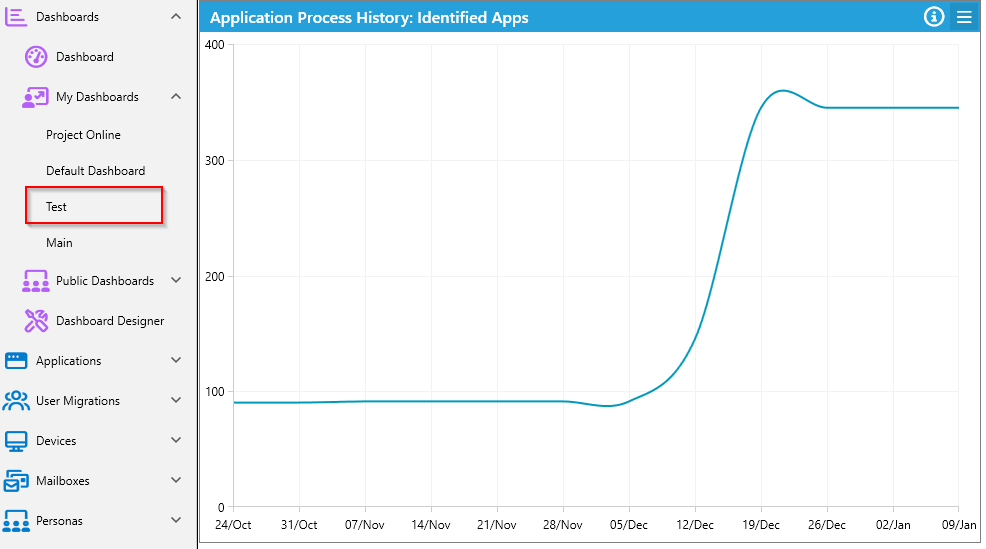
- Click on the Dashboard under My Dashboards.
- The Process History: Identified Apps chart will be displayed.
Further Support
If you require further support, please visit ManagementStudio's Service Desk to search the knowledge base or create a new support ticket.
Was this article helpful?
That’s Great!
Thank you for your feedback
Sorry! We couldn't be helpful
Thank you for your feedback
Feedback sent
We appreciate your effort and will try to fix the article