TABLE OF CONTENTS
- Assigning Primary User Email as Device Primary Contact
- Purpose
- Scenario
- Solution Overview
- Step-by-Step Instructions
- Further Support
Assigning Primary User Email as Device Primary Contact
Purpose
When a device has a user link with "Primary" affinity, you can automatically set that user's email address as the device's Primary Contact. This is especially useful when using device-based Deployment Units and requires emailing device contacts.
Scenario
For projects using device-based deployments, assigning the primary user's email as the device's Primary Contact allows for direct communication via email. This approach ensures that communications reach the user most directly associated with the device.
Solution Overview
Identify the Primary User for each device and copy their email address to the device's Primary Contact Email field using a PowerShell script.
Step-by-Step Instructions
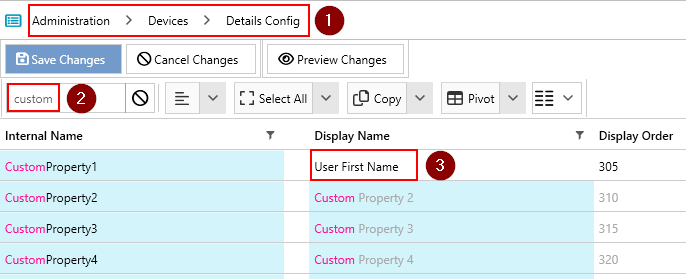
1. Configure Custom Property Display
- Navigate to
Administration→Devices→Details Config (1). - Make an available
CustomProperty (2)visible. - Re-order so that this property appears near the
Primary Contact Emailfield. - Change the
Display Namefor this custom property toUser First Name (3). - Click Save Changes.
Note: Record which
CustomPropertyyou used (e.g.,CustomProperty1). You will need this in a later step.
2. Create the PowerShell Script
- Go to
Administration→Devices→Powershell Scripts(1) - Click on the
Devices tree (2). - Click Click here to add new item.
- Name the script, for example:
Machine Primary User (3).
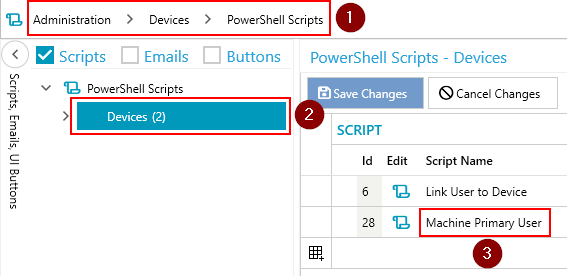
- Click the edit (scroll) button for the script.

- Copy and paste the script from the official ManagementStudio PowerShell Script Library into the PowerShell Editor.
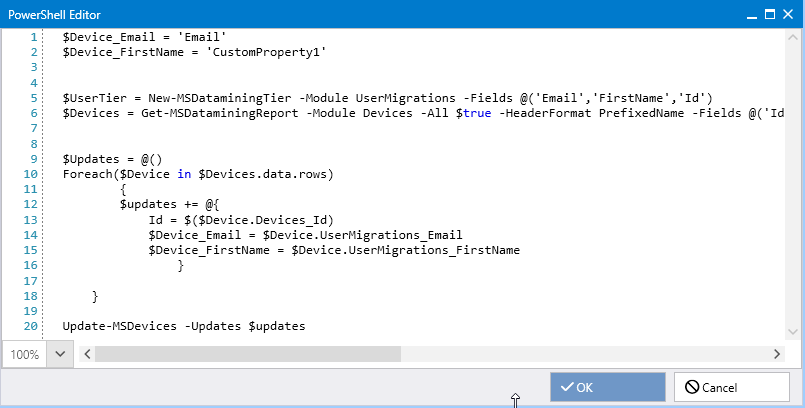
- In the script, set the variable on the second line to match your selected custom property:
(Replace$Device_FirstName = 'CustomProperty1'CustomProperty1with the actual property name used earlier.) - Click OK to save the script.
3. Set Permissions for Script Execution
- Use the column picker to enable the
Grant Access 2column.
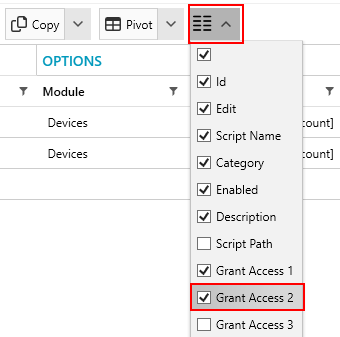
- Assign the
Project Adminrole toGrant Access 2to allow manual script execution by admins.
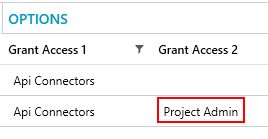
- Click Save Changes.
4. Execute the Script
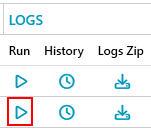
- Scroll to the right within the
Powershell Scriptsview. - Run the script manually by clicking the appropriate run button.
5. Verify Results
- Go to
Devices→All Devices. - Open a device record that has at least one associated user.
- Confirm that the
Primary Contact Emailfield now contains the primary user's email address.
6. Automate Script Execution (Optional)
- In
Administration→Devices→Powershell Scripts→Devices, locate your script. - In the
Schedule 1column, add or configure a schedule for the script to run automatically. - Click Save Changes.
Once scheduled, the script will update device records automatically, keeping the Primary Contact Email in sync with the linked primary user's email address.
Example Use Case
A project team needs to email deployment instructions to all device owners. By following this process, the correct user email is assigned to each device, allowing for accurate bulk communications.
Further Support
For additional assistance, visit the ManagementStudio Service Desk to search the knowledge base or to submit a support request.
Was this article helpful?
That’s Great!
Thank you for your feedback
Sorry! We couldn't be helpful
Thank you for your feedback
Feedback sent
We appreciate your effort and will try to fix the article