TABLE OF CONTENTS
Importing Applications with Contact Type Details
This article provides step-by-step instructions for importing applications and their associated contact type details (e.g., Primary Contact, Technical Lead, Project Sponsor) using ManagementStudio’s import tools. The process described also applies to importing other items, such as Devices, User Migrations, or Deployment Units, with contact type details.
Understanding the Data Model
In ManagementStudio, applications are core entities. Each application can be linked to multiple contacts, and every contact is assigned a contact type that categorises their role—such as Primary, Business Owner, or Technical Contact.
The structure is as follows:
- Application → linked to → Contact
- Contact → categorised by → Contact Type
Each contact associated with an application must include:
- Contact name
- Email address or unique identifier
- Contact type (must match an existing or predefined value in ManagementStudio)
Preparing the Import File
Create a spreadsheet file (CSV or Excel) structured as follows:
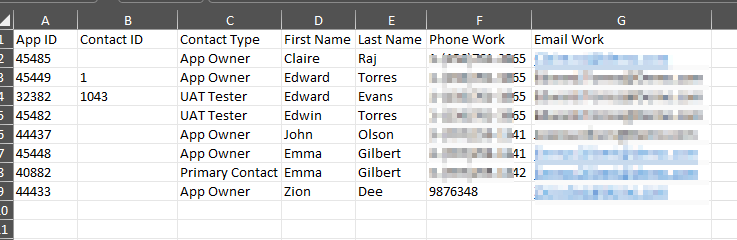
- One row per contact per application
- Include all required fields:
Application ID, Contact ID (if they already exist as a contact in ManagementStudio), contact name, contact type, contact email, and any additional required columns
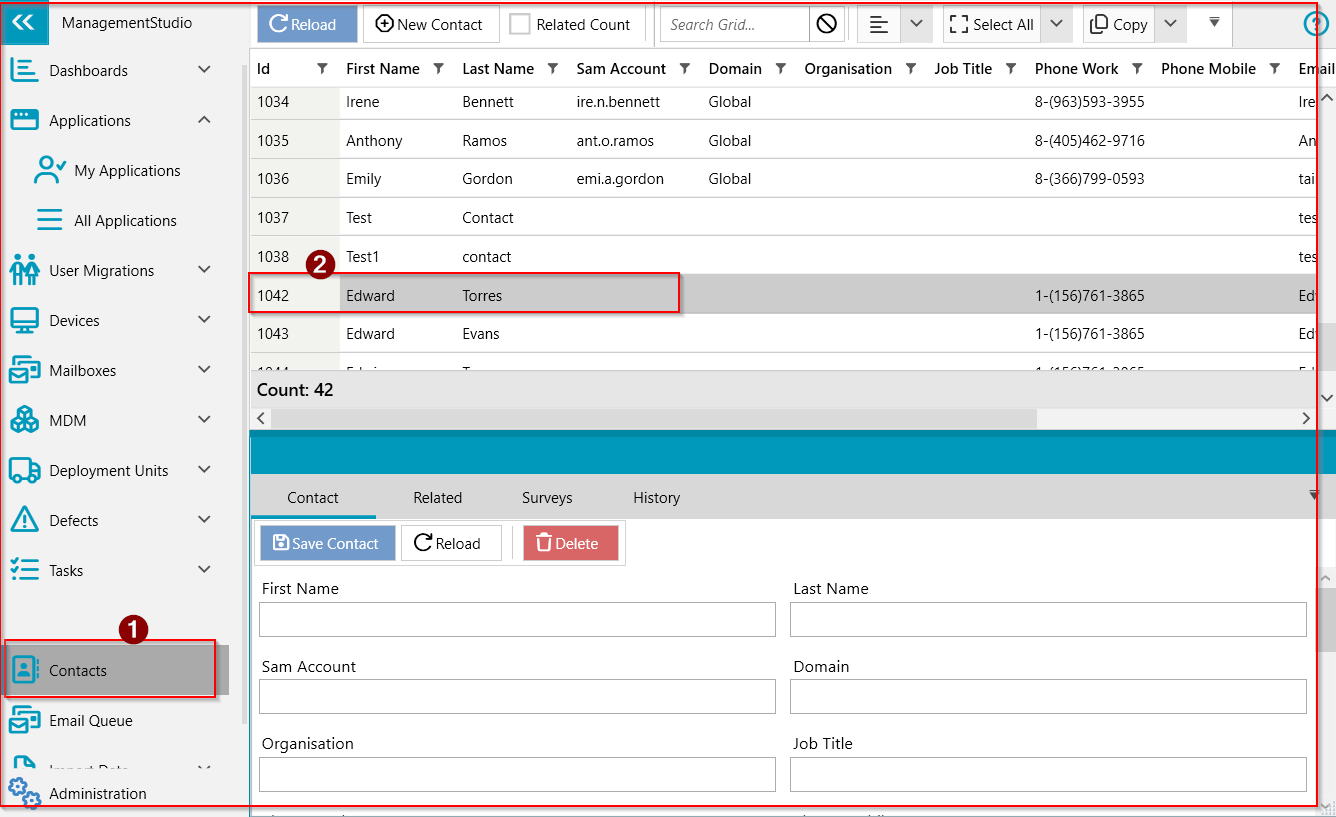
Retrieving a Contact ID
If the user already exist as a contact in Managementstudio, here's how to retrieve the info:
Navigate to Contacts->Search for the user in the grid->Make a note of their contact Id.
Recommendations:
- Use consistent naming for contact types that already exist in ManagementStudio.
- Include a unique
Application ID and Contact IDif available, for accurate data linking.
Example structure:
| Application ID | Contact ID | Contact First Name | Contact Last Name | Contact Email | Contact Type | Other Fields |
|---|---|---|---|---|---|---|
| APP001 | Jane | Smith | jane.smith@email.com | Primary Contact | ... | |
| APP001 | 1041 | Tom | Evans | tom.evans@email.com | Technical Lead | ... |
Importing the Data Using the Import Tool
- Navigate to
Import Data→Contacts. - Select and upload the prepared file.
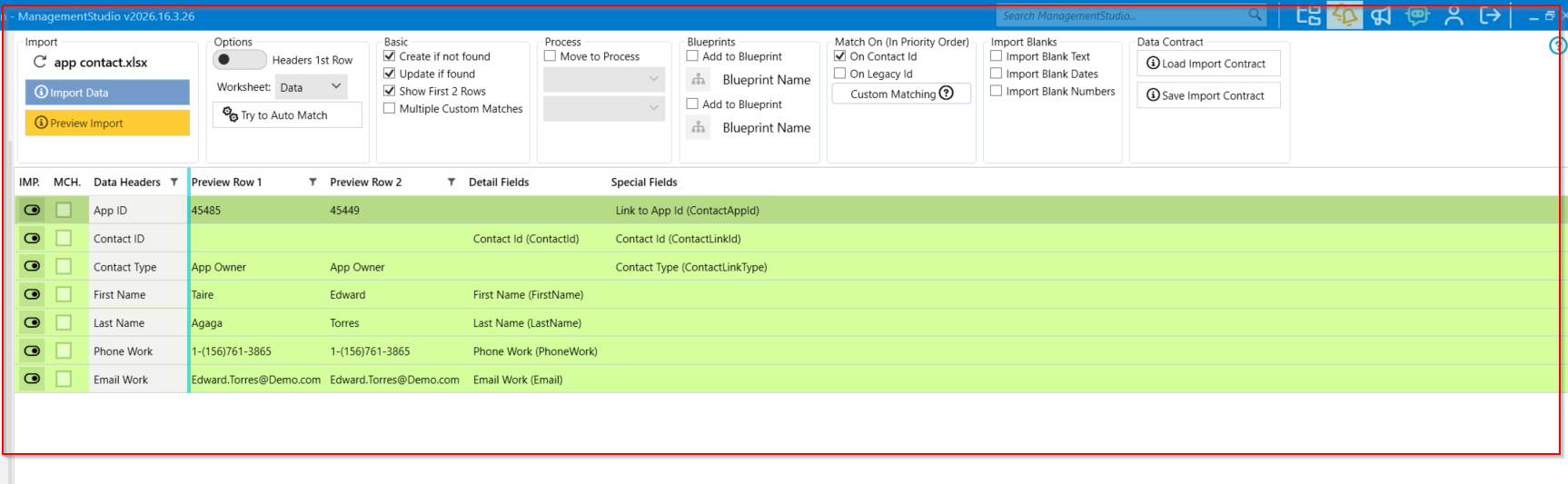
- Map columns as follows:
- Map
Application IDtoLink to App Id (ContactAppID) Map Contact ID to ContactId (ContactLinkId)- Map
Contact Typeto Contact Type (ContactLinkType) - Map contact details (e.g.,
First Name,Last Name,Email, etc.) as appropriate
- Map
Note: Applications must exist in ManagementStudio before you can associate contacts with them. If necessary, perform a two-step import:
- Import applications first
- Then import the application-contact relationships, ensuring proper role mapping
Validating Contact Types
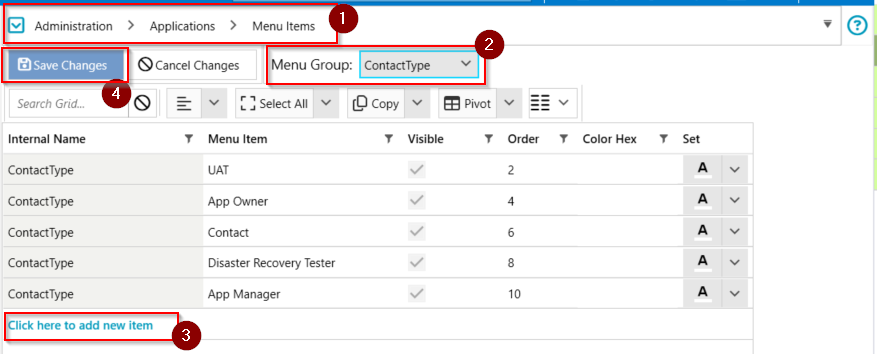
ManagementStudio enforces controlled vocabularies for fields like Contact Type. If your import file contains contact types not currently in the system:
- Add new contact types manually before importing via:
Administration→Application→Menu Items- Select
ContactTypefrom theMenu Groupdropdown - Click to add a new item and save changes
Alternatively, amend your spreadsheet to match the existing contact types in ManagementStudio exactly.
Post-Import Validation
After the import process:
- Use DataMining Reports to verify contact assignments.
- Open a selection of applications in ManagementStudio to confirm that the correct contact type roles are populated.
Further Support
For additional assistance, visit the ManagementStudio Service Desk to search the knowledge base or submit a support ticket.
Was this article helpful?
That’s Great!
Thank you for your feedback
Sorry! We couldn't be helpful
Thank you for your feedback
Feedback sent
We appreciate your effort and will try to fix the article