TABLE OF CONTENTS
- Managing User Accounts
- Accessing User Account Management
- User Accounts Main Screen Overview
- Creating a User Account
- User Grid Right-Click Menu
- Further Support
Managing User Accounts
All users require a unique ManagementStudio user account to log in. User accounts are created and maintained in the Administration area. Permissions are managed via Role Group membership, but the processes for Role Group configuration is separate from account creation and maintenance.
Accessing User Account Management
- Click the
Administrationicon in the lower left of the ManagementStudio screen. - On the Administration page, click the
User Accounticon in theUser Accounts, Roles and Permissionssection.
User Accounts Main Screen Overview
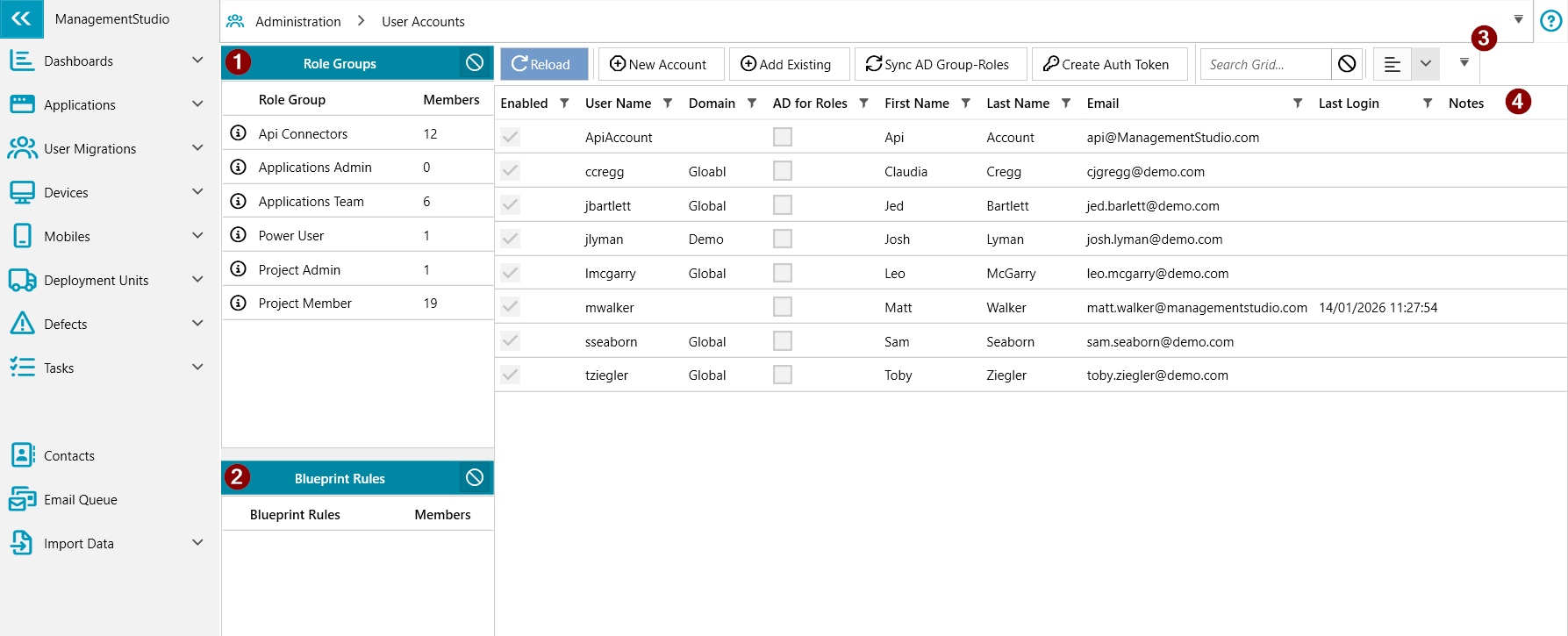
The main user management screen contains the following components:
Role Groups Summary
Displays all available role groups and the number of users in each. Click a role group to filter the users displayed in the User Summary panel.Blueprint Rules Panel
Shows the blueprint rules applied to each user.Toolbar
The toolbar contains general and user-specific functions, including options to create a new user account or add existing users from other projects. For more information on toolbar functions, see the Toolbar Solution Article.User Summary Panel
Shows essential information for each account, includingUser Name,Enabledstatus, andLast Login. The displayed users may be filtered by a selected role group.
Creating a User Account
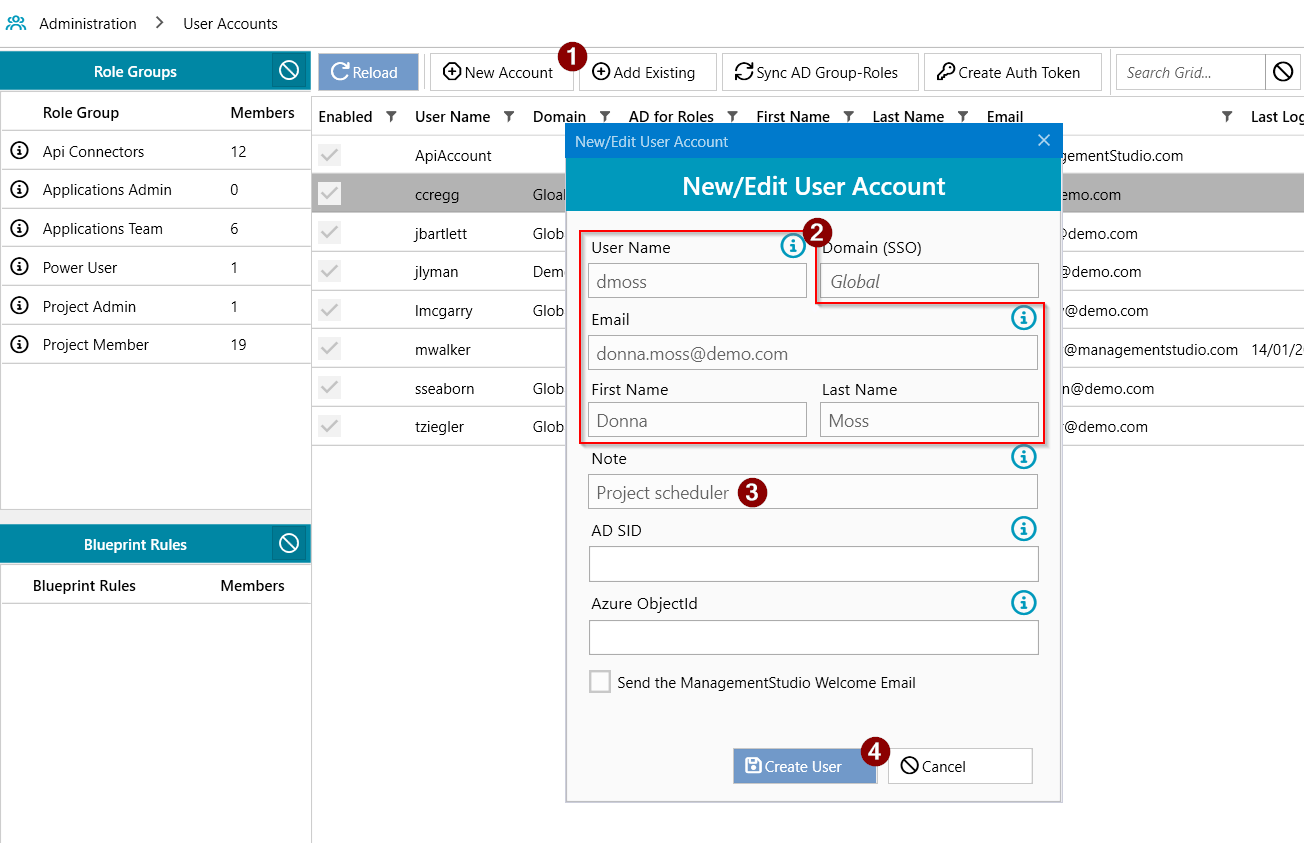
- Click the
New Accounticon on the toolbar. - Complete the required fields:
User Name,Email,First Name, andLast Name. - Optionally, enter a note describing the user or the reason for account creation.
- Click
Create Userto finalise the process.
Notes:
- AD SID and Azure ObjectId are populated by the AD and Azure AD (Entra ID) connectors respectively.
- Email addresses must be unique. Each user may have only one account per email.
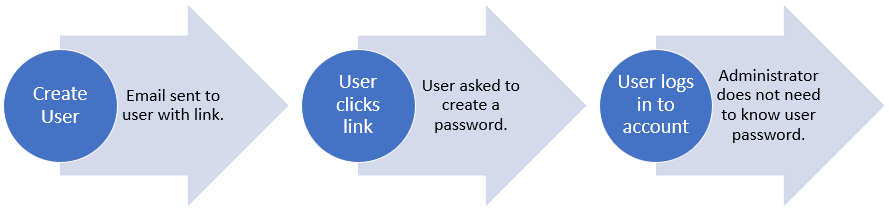
Administrators do not need to set passwords. Upon creation, ManagementStudio sends a welcome email inviting the user to set their password. Select Send the ManagementStudio Welcome Email to send this notification (the template can be configured in Administration → Project Settings).
Adding Existing Accounts from Other Projects
If a user already has an account in another ManagementStudio project, they can be added to the current project. User names are globally unique; the same user name cannot exist across multiple users or projects.
Attempting to add a duplicate user name will display an error indicating the user name is already in use.
User Grid Right-Click Menu
The right-click menu in the user grid provides actions to manage accounts:
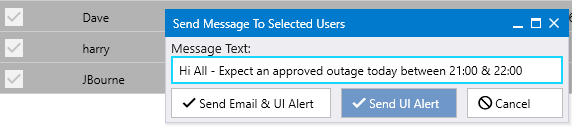
Send Notifications
- Send notifications via the User Interface or via both UI and email.
- Useful for informing users about system changes or planned outages.
- UI alerts are delivered within two minutes.
Add & Remove Role
- View existing roles by scrolling right in the grid.
- Assign roles:
- Select users (CTRL + Click for multi-select), right-click and choose
Add Roles. - Select one or more roles, then click
Add Roles.
- Select users (CTRL + Click for multi-select), right-click and choose
- Remove roles:
- Select users (CTRL + Click), right-click and choose
Remove Roles. - Select the roles to remove, then click
Remove Roles.
- Select users (CTRL + Click), right-click and choose
Add and Remove Blueprint Rules
- Blueprint rules restrict which records a user can view in ManagementStudio.
- Assign blueprint rules:
- Select users (CTRL + Click), right-click and choose
Add Blueprint Rules. - Select one or multiple rules, then click
Add Blueprints.
- Select users (CTRL + Click), right-click and choose
- Remove blueprint rules:
- Select users (CTRL + Click), right-click and choose
Remove Blueprint Rules. - Select rules to remove, then click
Remove Blueprints.
- Select users (CTRL + Click), right-click and choose
Reset User Password
- Select users (CTRL + Click), right-click and choose
Reset User Password. - Confirm by clicking
Reset Password. - The user will receive an email invitation to set a new password.
Resend Welcome Email
- Select users (CTRL + Click), right-click and choose
Resend Welcome Email. - Confirm by clicking
Resend Welcome Email. - The user will receive the original welcome email.
Remove User from Project
- Select users (CTRL + Click), right-click and choose
Remove User From Project. - Confirm removal by ticking the
Yes I'm surebox and clickingRemove User(s).
Enable/Disable Account
Multi-Project Caution:
Enabling or disabling an account affects all projects for that user. To restrict access to a single project, remove the user from other projects instead of toggling the account status.
- Enable:
- Select users (CTRL + Click), right-click and choose
Enable Account. - Confirm by clicking
Enable Account.
- Select users (CTRL + Click), right-click and choose
- Disable:
- Select users (CTRL + Click), right-click and choose
Disable Account. - Tick
Yes I'm sure, then clickDisable Accounts.
- Select users (CTRL + Click), right-click and choose
Set Account Note
- Add or edit the
Notefield for additional user information, such as job role. - Useful for filtering or identifying users (e.g., Project Manager, Planner).
Set Account Domain
- Add, update, or clear the Domain specified for the user(s).
Set Group Text
- Up to three additional, customisable
Groupfields can be enabled from the toolbar. - Populate Group fields with information such as Country, Business Team, or Line Manager.
- Allows easy filtering based on these fields.
API Tokens
- Create API Refresh Token
- Revoke API Refresh Token
- Create API JWT Token
Note: Requires the 'Create API Tokens / Certs' Role Group permission.
API Certificate Auth
- Upload Auth Certificate
- Revoke Auth Certificate
Note: Requires the 'Create API Tokens / Certs' Role Group permission.
Edit User Details
Change User Email Address
- Update the user's email address.
- Email addresses must remain unique and are required for login, notifications, and password resets.
Change User Account Name
- Change a user’s login ID.
- The account name may align with AD or Azure AD credentials, but does not have to.
Further Support
For additional assistance, visit the ManagementStudio Service Desk to search the knowledge base or create a support ticket.
Was this article helpful?
That’s Great!
Thank you for your feedback
Sorry! We couldn't be helpful
Thank you for your feedback
Feedback sent
We appreciate your effort and will try to fix the article