TABLE OF CONTENTS
- Associating Active Directory (AD) Groups with Applications
- Adding AD Groups to an Application
- Enabling AD Group Linking in the AD Connector
- Further Support
Associating Active Directory (AD) Groups with Applications
This article describes how to associate AD groups with applications in ManagementStudio. Associating AD groups allows administrators to assign user or device access to applications based on group membership. For example, you can create an AD group for a department and link it to an application required by that department.
Adding AD Groups to an Application
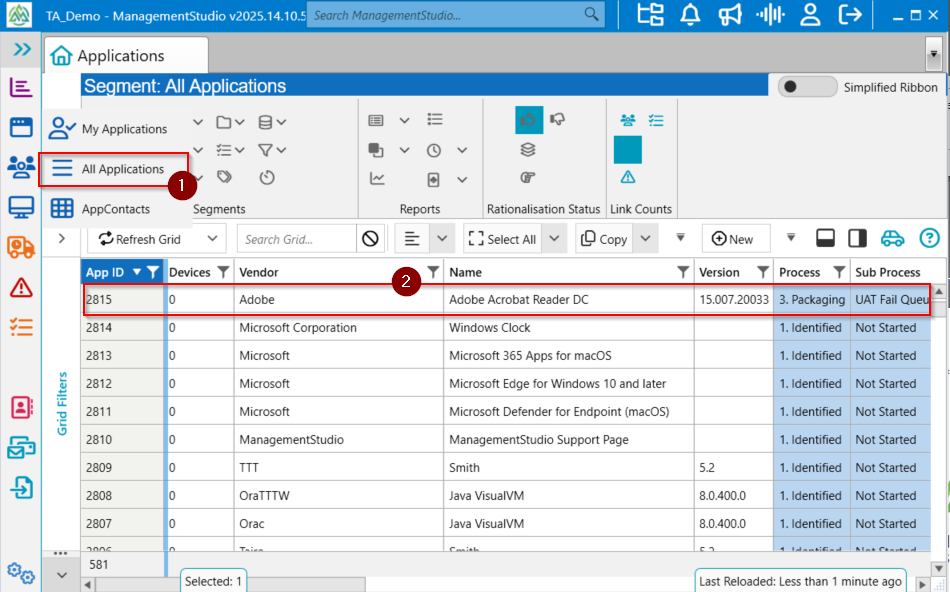
- Navigate to the
Applicationsmodule (1). - Double-click the required application (2) in the grid to open its details.
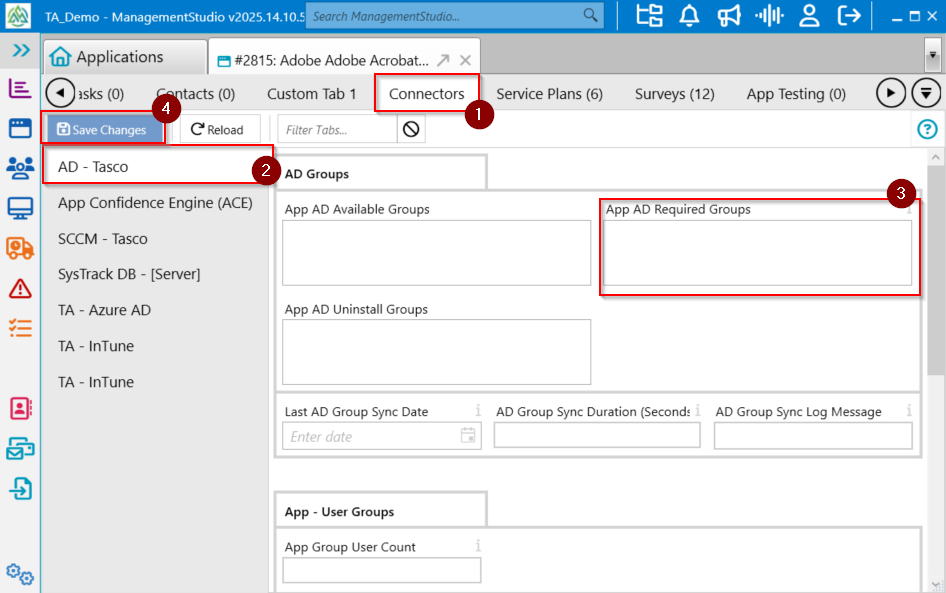
- Select the
Connectorstab (1). - Select the
AD Connector(2) sub-tab. - Enter the appropriate AD group in the
App AD Required Group(3) text field. - Click
Save Changes (4).
Enabling AD Group Linking in the AD Connector
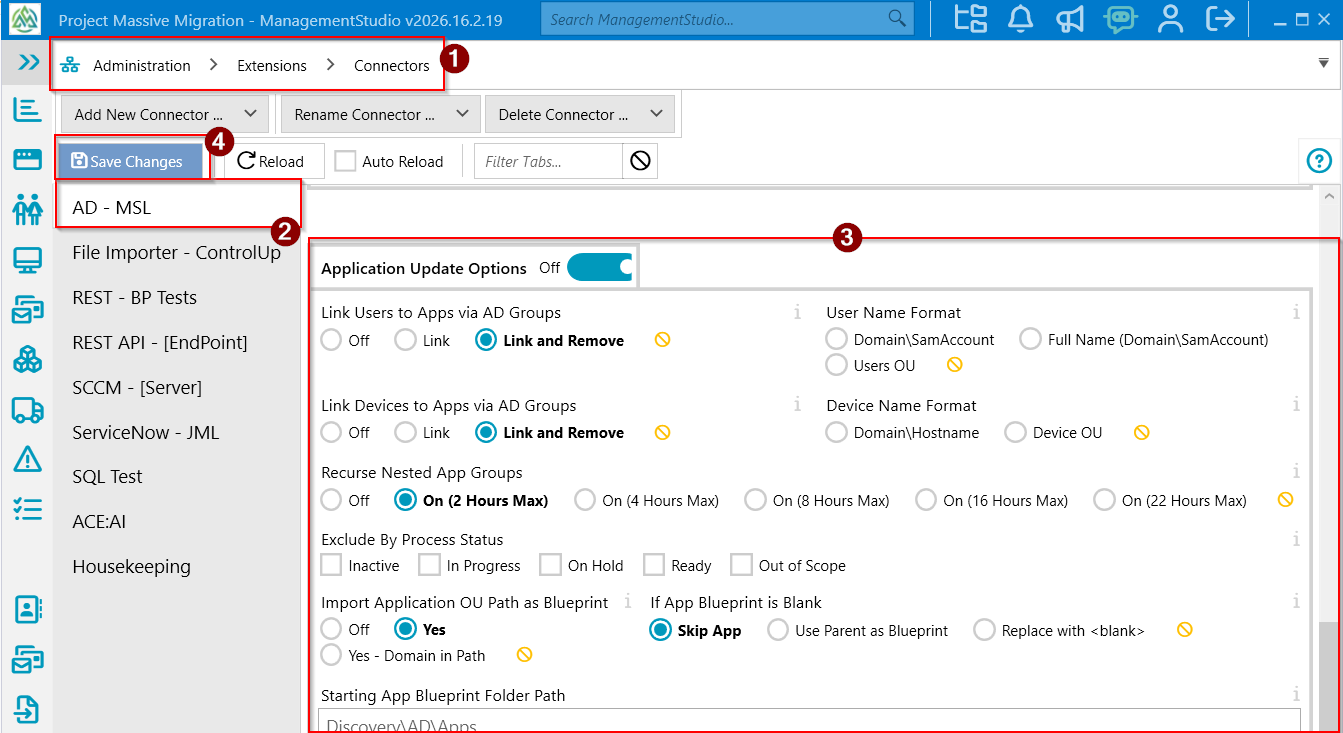
- Navigate to
Administration ->Extensions ->Connectors (1). - In the left menu, Select the
AD Connector(2) tab. - Scroll to the
Application Update Option(3) section and set it to enabled. - Configure the required options as described below.
- Click
Save Changes (4)at the top of the page to apply your settings.
When the AD connector next runs, it will establish links between the selected application and users or devices based on the specified AD groups.
AD Connector Configuration Options
| UI Element | Description |
|---|---|
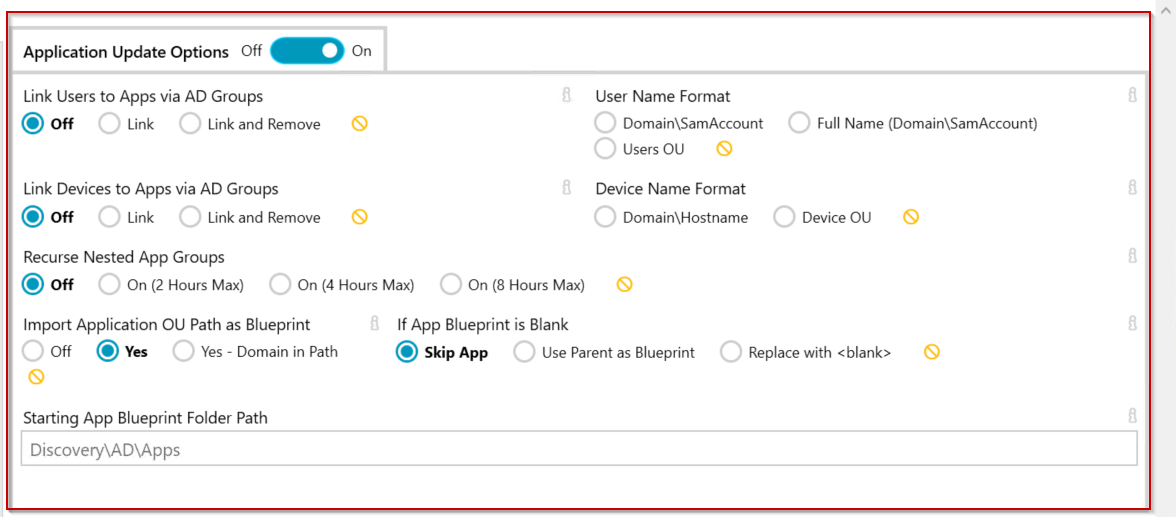
Link Users to Apps via AD Groups | Link: Creates user–application links if the user exists in ManagementStudio. Remove: Removes the application from the user if they are removed from the AD group. |
User Name Format | Defines the format used to display the list of users imported from the AD group. |
Link Devices to Apps via AD Groups | Link: Creates device–application links if the device exists in ManagementStudio. Remove: Removes the application from the device if it is removed from the AD group. |
Device Name Format | Specifies the format for listing devices imported from the AD group. |
Recurse Nested App Groups | Searches subgroups within the AD hierarchy for users or devices. Enabling this setting may impact performance and is recommended only if necessary. |
Import Application OU Path as Blueprint | Converts the application to a blueprint using the OU path, for example: AD Info\User\UK\Front Office. |
If App Blueprint is Blank | Determines the behaviour if the department field is blank. Options: Skip, use AD Info\Name, or use AD Info\,black.\Name. |
Starting App Blueprint Folder Path | Prefixes the blueprint in the mappings table with the specified root path, for example: AD Info\. |
Further Support
For additional assistance, visit the ManagementStudio Service Desk to search the knowledge base or create a new support ticket.
Was this article helpful?
That’s Great!
Thank you for your feedback
Sorry! We couldn't be helpful
Thank you for your feedback
Feedback sent
We appreciate your effort and will try to fix the article