TABLE OF CONTENTS
Overview
Version 15 of ManagementStudio introduced a suite of generic importers that enable importing data from varied sources, including Excel files, SQL databases, and REST APIs. This article outlines the common features shared across these importers. For detailed, source-specific instructions, refer to the documentation for each importer:
Import Status Panel
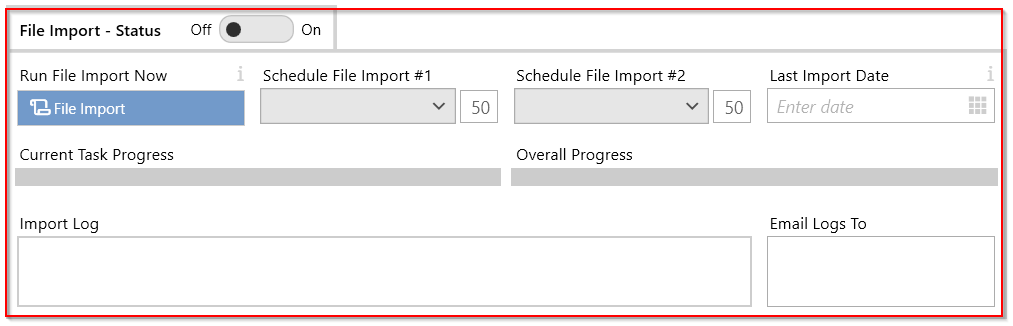
The Import Status panel provides information and actions common to all importers.
| UI Element | Description |
|---|---|
Run File Import | Initiates the file import synchronisation immediately. |
Schedule File Import #1 | Specify scheduled times to run the file import. |
Schedule File Import #2 | Additional scheduling option to run the file import at specified times. |
Last Import Date | Displays the date and time of the last successful file import. |
Current Task Progress | Shows the progress of the current import task. |
Overall Progress | Indicates the overall progress of the file import process. |
Import Log | Displays logs generated during the import process. |
Email Logs To | Specify email addresses to receive import logs upon completion. For multiple recipients, separate emails with a semicolon (e.g. a@contoso.com;b@contoso.com). |
Import Configuration (Import #1, #2, #3)
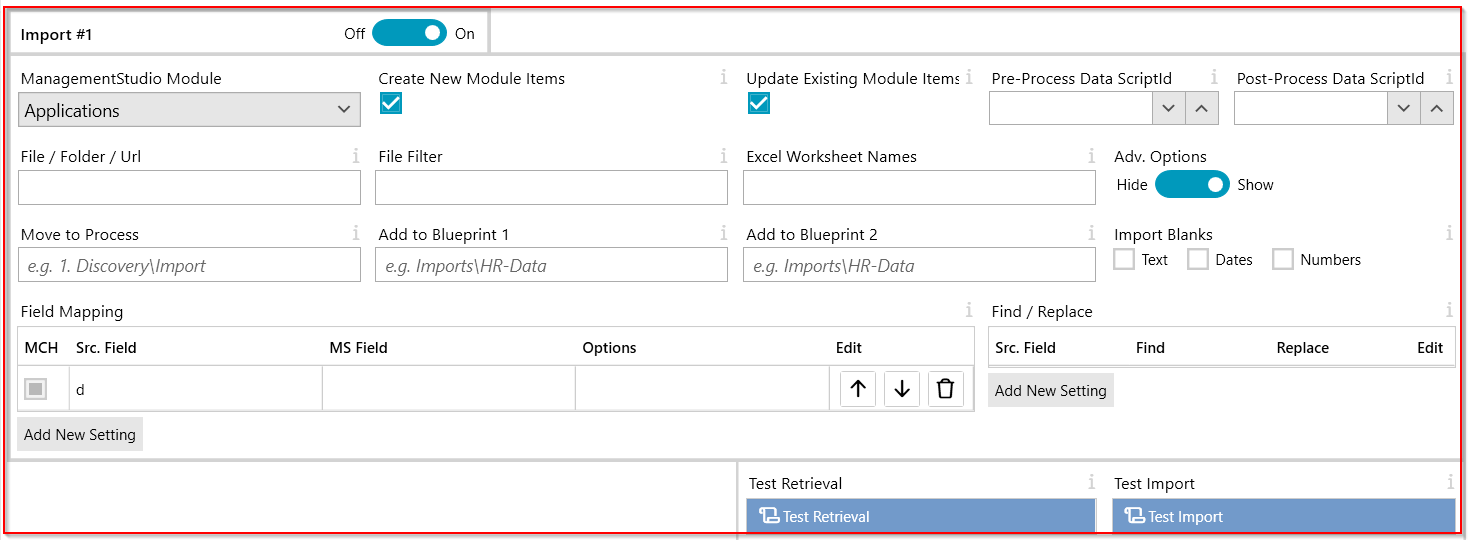
Each importer block includes the following configuration options:
| UI Element | Description |
|---|---|
ManagementStudio Module | Select the module to update with imported data. |
Create New Module Items | Create a new item if no matching record exists. |
Update Existing Module Items | Update an existing item if a matching record is found in the source data. |
Post-Process Data ScriptId | Script to process imported data before further processing. |
Pre-Process Data ScriptId | Script to execute before reading the import file (e.g. preparing files). |
File/Folder/Url | Specify the file, folder, or URL containing files to import. Path must be accessible from the ManagementStudio server. |
File Filter | Apply a filter on files to import when a folder is specified (e.g. My_Device_import_*.csv). |
Excel Worksheet Names | Comma-separated list of worksheet names to import when source is an Excel file. |
Adv. Options | Toggle display of advanced options. |
Move to Process | Move matched items to the specified process using a defined path (e.g. 1. Discovery\Import). |
Add to Blueprint 1 | Add new or existing items to this Blueprint via specified path (e.g. Imports\ServiceNow). |
Add to Blueprint 2 | Add new or existing items to a second Blueprint as needed. |
Import Blanks | Overwrite existing data with blank values from the import. |
Import Multiple Matched Rows | Import multiple matched rows per item. Use for importing related data such as Blueprints, Contacts, or Dependencies. |
Field Mapping | Define relationships between source fields and ManagementStudio fields. |
Find/Replace | Perform find and replace operations on source data before importing. |
Test Retrieval | Preview data retrieval results without importing. |
Test Import | Preview data import process; no data is committed. |
Field Mapping
The field mapping table defines how source data fields map to ManagementStudio fields.
- MCH (Match On)
- Tick to identify fields for matching existing items (e.g.
AppVendor,AppName,AppVersionorSamAccount,Domain).
- Tick to identify fields for matching existing items (e.g.
- Src. Field
- Name of the source column from incoming data.
- MS Field
- ManagementStudio field to insert or update data. Supports:
- Standard field names (e.g.
AppName,AppVendor,AppVersion) - Custom Field Id (e.g.
12324for Custom Field ID 1234) - Custom FieldPath (
APPDSC\General\My Text) - Special keywords:
BlueprintIdorBluePathfor Blueprint-related imports - Status fields (e.g.
AppStatus)
- Standard field names (e.g.
- ManagementStudio field to insert or update data. Supports:
- Options
- Control import behaviour, such as:
Static: Use a literal value, not read from import data- Example:
Src: '2. Imported' MS: 'Process' Opt: 'Static' - Example:
Src: '[Today]' MS: 'CustomDate1' Opt: 'Static'
- Example:
- Control import behaviour, such as:
Find / Replace
Find/Replace allows basic cleaning of source data before import. You can specify replacement rules or use built-in functions.
- Src. Field: Source column to process
- Find: Value to search for
- Replace: Replacement value
- Func: Function to apply
Regex-FullReplace: Replace the entire value if a match is found (e.g. replace 'AMD Ryzen 3 7330U' with 'AMD').Regex-PartialReplace: Replace only the matched value within the string (e.g. remove '7330U' from 'AMD Ryzen 3 7330U' to get 'AMD Ryzen 3').Convert-BitPackedNumberToVersion: Convert bit-packed integer to version string (common in Parquet files).Convert-Int96DateToDateTime: Convert Int96 date format (from Parquet files) to standard date and time.
Post Processor Script
You can run a custom script on the retrieved data (from file, SQL, or REST source) before it is passed into the importer for processing.
Pre / Post Processor Script
You may specify PowerShell scripts to execute before or after an import block runs. Script arguments available:
$ScriptArgs.EventArg1: Name of the import block (e.g.Import1-PreProcess,Import2-PostProcess)$ScriptArgs.EventArg2: Comma-separated list of files to process
Error Handling:
Ending a script with an Error result stops the current import block:
New-MSApiResult -Header "No files found to process" -Status ErrorReturn an Exception to stop all subsequent import blocks:
New-MSApiResult -Header "No files found to process" -Status Exception
Example Scripts
# EventArg1: Name of the import block (e.g. Import1-PreProcess)
$blockName = $ScriptArgs.EventArg1

# EventArg2: Files to process
$files = $ScriptArgs.EventArg2.Split(",", [System.StringSplitOptions]::RemoveEmptyEntries)

# Example 1: Stop if there are no files to import
if ($files.Count -eq 0) {
    New-MSApiResult -Header "No files found to process" -Status Exception
    return
}

# Example 2: Skip import if file has fewer than 3 data rows
foreach ($file in $files) {
    $lineCount = (Get-Content $file | Measure-Object -Line).Lines
    if ($lineCount -lt 3) {
        New-MSApiResult -Header "Bad import file, not enough data rows" -Status Error
    }
}
Further Support
For additional guidance or assistance, visit the ManagementStudio Service Desk to search the knowledge base or submit a support ticket.
Was this article helpful?
That’s Great!
Thank you for your feedback
Sorry! We couldn't be helpful
Thank you for your feedback
Feedback sent
We appreciate your effort and will try to fix the article