File Importer Features
This article describes features unique to the File Importer in ManagementStudio. For information about features common to all importers, refer to the relevant documentation.
Key Features
Pre-Process Data Script
Execute a script before reading the import file. Useful for preparing or moving files into the correct location on the server.Post-Process Script
Run a script after the import completes to finalise or transform data.File/Folder/URL Input
Specify the data source by file, folder, or URL. The location must be accessible from the ManagementStudio server.Field Mapping
Map imported data fields to ManagementStudio fields to ensure correct data placement.Find/Replace Functions
Perform find and replace operations on data during import for inline data cleaning.Scheduling
Automate imports by scheduling the File Importer to run at set times.
Example: Importing Employee Records from a CSV or Excel File
Scenario
An HR department maintains employee records in an Excel file exported from a payroll system. You need to import these records into ManagementStudio to link them to projects or migration activities.
Step-by-Step Walkthrough
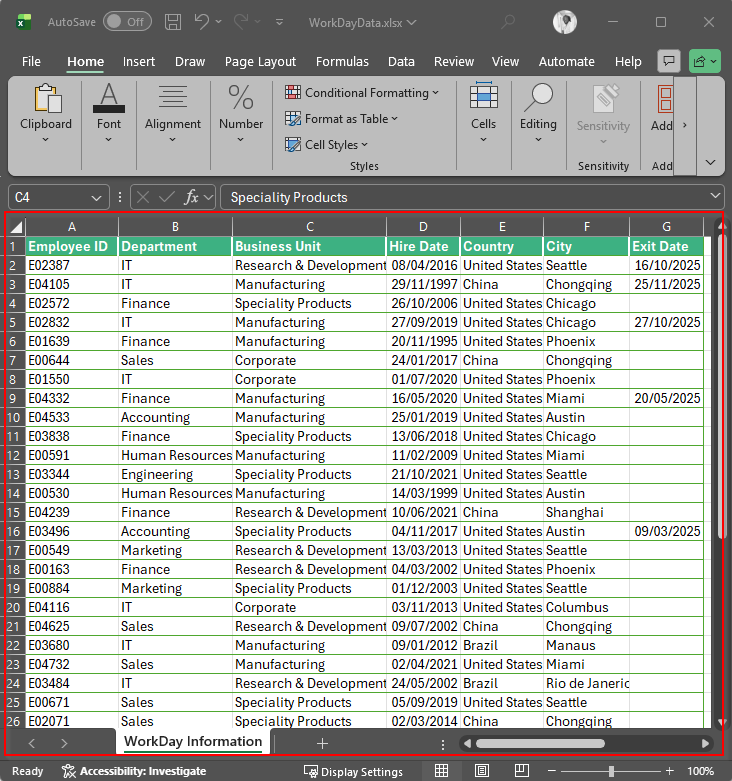
1. Prepare the Excel File
- Ensure the file contains clear, consistent headers (e.g.,
Employee ID,Department,Email). - Place the file in a location accessible by the ManagementStudio server, such as a shared network folder.
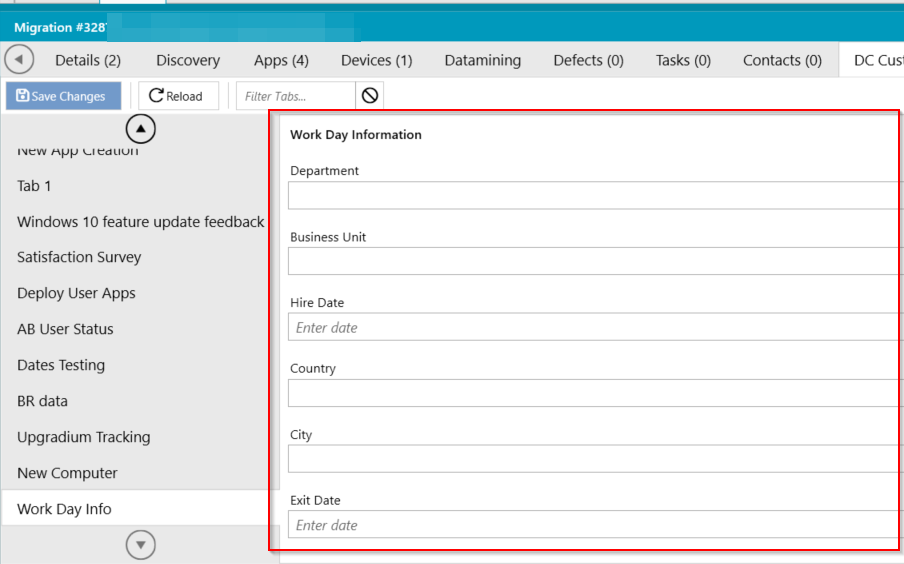
- Confirm that corresponding fields exist in ManagementStudio to receive the imported data.
- Test with a small sample file before full import.
2. Access the File Importer
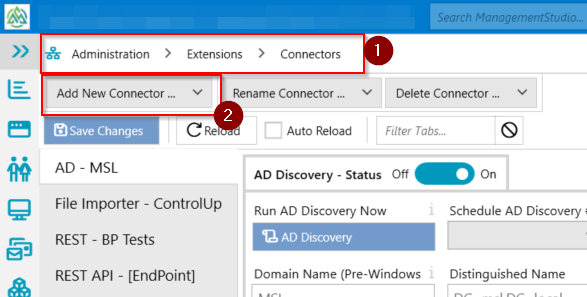
- Navigate to
Administration → Extensions → Connectors. - Select Add New Connector and choose File Importer from the list.
- Enter a connector Name and click OK.
- Configuration options for input source, field mapping, and scripts will be displayed.
3. Configure the Import
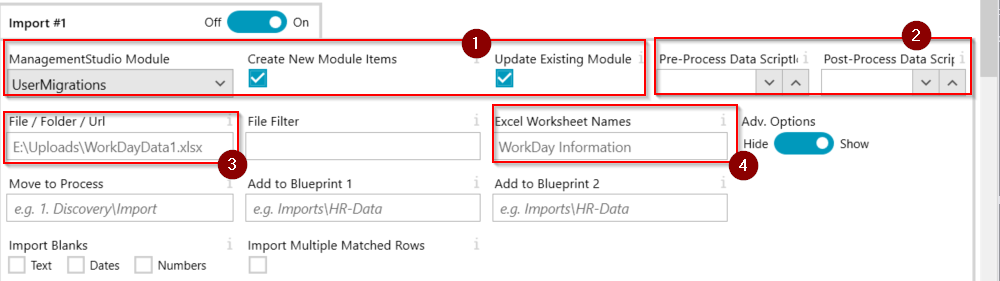
- Under Import #1, select the ManagementStudio module to create or update items in.
- Ensure
Create New Module ItemsandUpdate Existing Module Itemsare enabled. - Enter a script ID for
Pre-processingorPost-processingif required (optional). - Set the input source by selecting a file, folder, or URL (e.g.,
E:\Uploads\WorkDayData1.xlsx). - Specify the Excel worksheet name(s).
- Enable Adv. Options if you require additional configuration settings.
Field Mapping
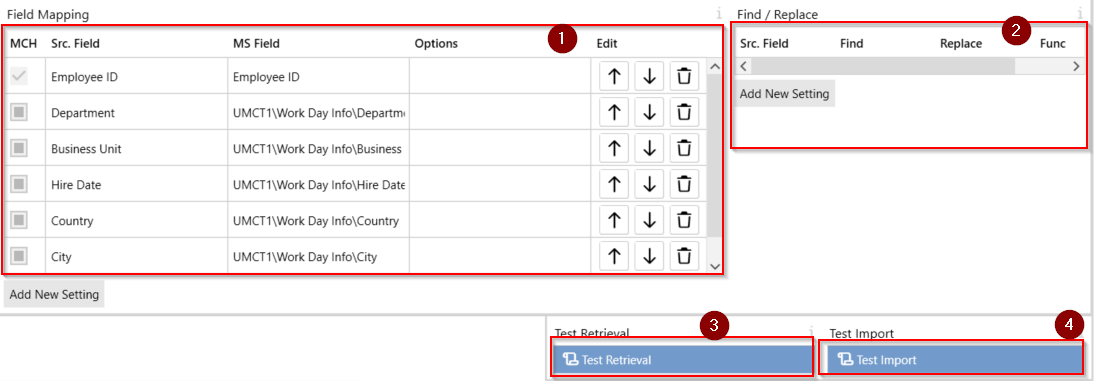
- Link Excel fields to ManagementStudio fields:
- The
Src Fieldcolumn refers to the Excel file header. - The
MS Fieldcolumn is the corresponding field in ManagementStudio. - Paths can be used for custom fields (e.g.,
UMCT1\Work Day Info\Department). - For full details, see Field Mapping.
- The
Find/Replace
- Use the Find/Replace table to clean data during import.
See Find/Replace documentation for details.
Testing
- Use the Test Retrieval button to preview retrieved data without performing an import.
- Use the Test Import button to simulate a full import and preview results.
- Select Save Changes at the top to store your configuration.
4. Run or Schedule the Import
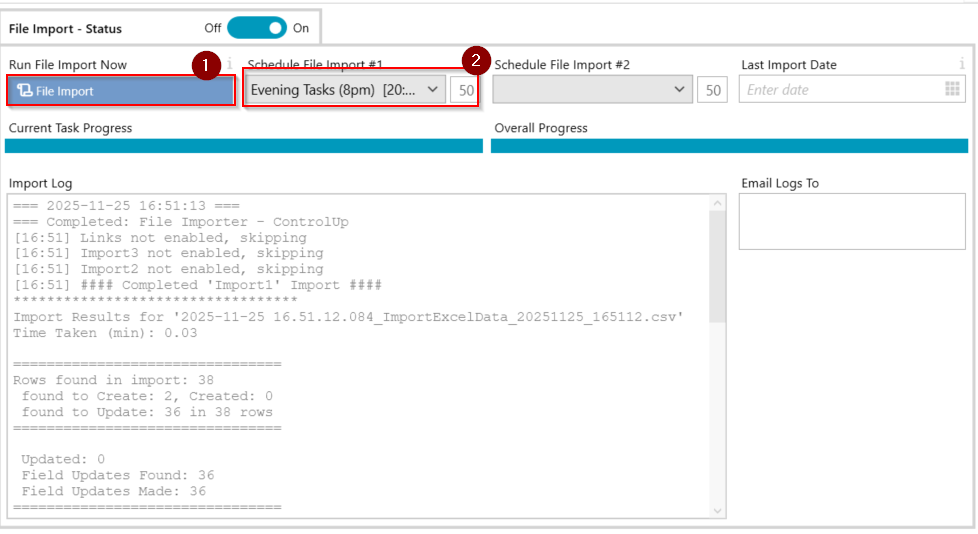
- Click File Import for immediate import execution.
- Confirm the imported records appear within the relevant ManagementStudio module.
- To automate future imports, set a Schedule (e.g., daily at 8 PM). For detailed scheduling setup, refer to Recurring Schedules.
Further Support
For additional assistance, visit the ManagementStudio Service Desk to consult knowledge base articles or submit a support request.
Was this article helpful?
That’s Great!
Thank you for your feedback
Sorry! We couldn't be helpful
Thank you for your feedback
Feedback sent
We appreciate your effort and will try to fix the article