Allow Users to Select Their Primary Device from the Portal
Overview
This article explains how to create a ManagementStudio Portal Form (Survey) that allows users to select their own primary device.
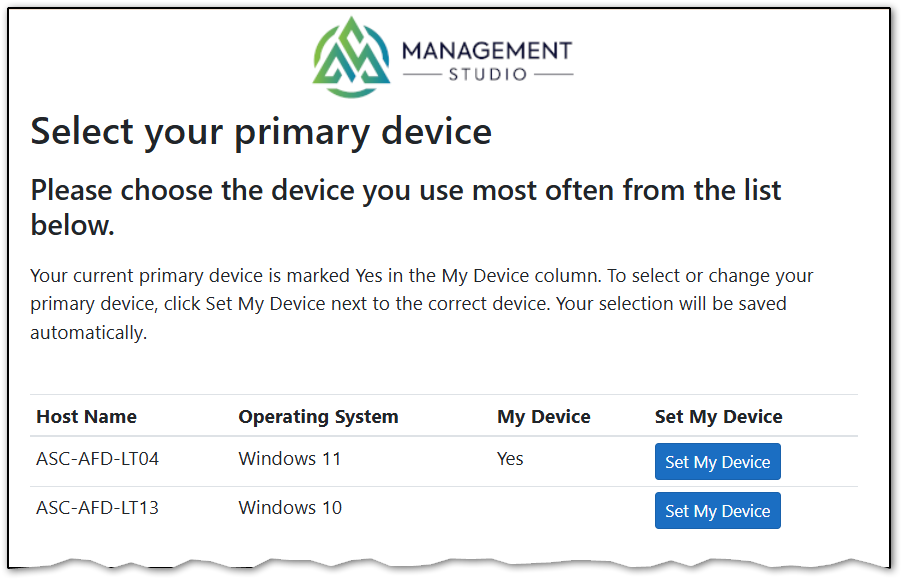
The Portal page displays the devices associated with the current user in a Datamining Report. Each device includes a Set My Device button. When the user selects a device, ManagementStudio:
Removes the User Selected Device link tag from the user’s other device links.
Adds the link tag to the selected device.
Optionally saves the selected device’s hostname to a User Migration property.
Refreshes the Portal Form (Survey) to show the newly selected device.
Prerequisites
Before starting, ensure that:
You have permission to create Link Tags, PowerShell scripts, Datamining Reports, and Portal Forms.
You have identified the User Migration property that will optionally store the selected device hostname.
1. Create the Link Tag
Create a Link Tag that will identify the device selected by the user.
Navigate to:
Administration > Project Settings > Link Tags
Create a new Link Tag. For example:
User Selected Device
Save the Link Tag.
Take note of the Link Tag ID. You will need this ID when configuring the PowerShell script.
The Link Tag must exist before the PowerShell script is used.
2. Create the PowerShell Script
Create a PowerShell script that removes the selection tag from the user’s existing device links and applies it to the selected device.
Create the script record
Open the User Migration PowerShell scripts area.
Create a User Migration PowerShell script named:
Allow User to Select Primary Device
Enable the Portal Btn option.
Set the script’s Internal Name to:
ps-set-user-device-from-portalUse the column picker to make the Internal Name column visible if it is not already displayed.
Select Edit Script.
Replace the script contents with the following:
<#
.SYNOPSIS
    Records a user-selected device and optionally saves its hostname to a user property.

.DESCRIPTION
    This ManagementStudio event script processes a device selected for a user migration.

    The script:
    1. Retrieves the user migration and selected device using the event arguments.
    2. Optionally writes the selected device hostname to a configured user property.
    3. Removes the configured link tag from the user's existing device links.
    4. Reuses an existing direct User-Device link when available, or creates a new link.
    5. Applies the configured link tag to identify the selected device.

    Script event arguments:
        EventArg1 - Migration ID of the user.
        EventArg2 - Device ID of the selected device.

.VERSION
    1.0

.NOTES
    The link tag specified by $USER_SELECTED_DEVICE_LINK_TAG_ID must already exist in:
    Administration > Project Settings > Link Tags

    Set $SAVE_HOSTNAME_TO_USER_PROPERTY to an empty string to prevent the hostname
    from being written to a user property.

    Intended environment: ManagementStudio Datamining Report Web Button.
#>

## Name of the User Property to write the hostname, leave blank to skip
$SAVE_HOSTNAME_TO_USER_PROPERTY = "ProjectProperty1"

## Name of Link Tag to add to the Device the User has selected
## * Note: Ensure this Tag has already been created. Administration\Project Settings : Link Tags
$USER_SELECTED_DEVICE_LINK_TAG_ID = 3040

#========== DO NOT EDIT BELOW THIS LINE ============#

$migrationId = $ScriptArgs.EventArg1
$deviceId = $ScriptArgs.EventArg2

## Get User and Device Records
$user = Get-MSUserMigrations -MigrationIds @($migrationId)
$device = Get-MSDevices -DeviceIds @($deviceId)

if($null -eq $user -or $null -eq $device)
{
    Write-MSDebug -LogText "Error: Invalid User or Device. MigrationId: $($migrationId), DeviceId: $($deviceId)."
    return
}
Write-MSDebug -LogText "Info: User #$($migrationId) $($user.FirstName) $($user.LastName) ($($user.SamAccount)) selected the Device #$($deviceId) $($device.HostName)."


## Write the Hostname to a User Property
if (![string]::IsNullOrWhiteSpace($SAVE_HOSTNAME_TO_USER_PROPERTY))
{
    $user.$("$SAVE_HOSTNAME_TO_USER_PROPERTY") = $device.HostName
    Update-MSUserMigrations -Updates $user | Out-Null
}

## Process the Link Tag if present
if (![string]::IsNullOrWhiteSpace($USER_SELECTED_DEVICE_LINK_TAG_ID))
{
    ## Get a list of Links from this User to any Device
    $userLinks = Search-MSModuleLinks -LimitToMigrationIds @($migrationId)
    $linkIds = $userLinks | Select-Object -ExpandProperty LinkId

    ## Remove all existing User Selected Device link tags
    if ($linkIds.Count -gt 0)
    {
        Remove-MSModuleLinkTags `
            -LinkIds $linkIds `
            -TagIds @($USER_SELECTED_DEVICE_LINK_TAG_ID) |
            Out-Null
    }

    ## Reuse an existing two-part User-Device link if available; otherwise create one
    $directLinksIds = $userLinks |
        Where-Object {
            $_.MigrationId -eq $migrationId -and
            $_.DeviceId -eq $deviceId -and
            $_.IsRejected -eq $false -and
            $_.AppId -eq $null -and
            $_.MailId -eq $null -and
            $_.BespokeId -eq $null
        } |
        Select-Object -ExpandProperty LinkId

    if ($directLinksIds.Count -gt 0)
    {
        ## Tag the existing User-Device Links
        Add-MSModuleLinkTags `
            -LinkIds $directLinksIds `
            -TagIds $USER_SELECTED_DEVICE_LINK_TAG_ID |
            Out-Null
    }
    else
    {
        ## Create a new simple User-Device Link and tag it
        $newLink = @{
            MigrationId = $migrationId
            DeviceId    = $deviceId
        }

        Import-MSUserAppDeviceLinks `
            -Links @($newLink) `
            -LinkTagId $USER_SELECTED_DEVICE_LINK_TAG_ID |
            Out-Null
    }
}
Configure the script
Update the two settings at the beginning of the script.
User property
Set $SAVE_HOSTNAME_TO_USER_PROPERTY to the internal name of the User Migration property that should store the selected hostname.
For example:
$SAVE_HOSTNAME_TO_USER_PROPERTY = "ProjectProperty1"
To prevent the script from saving the hostname to a User Migration property, leave the value empty:
$SAVE_HOSTNAME_TO_USER_PROPERTY = ""
Link Tag ID
Set $USER_SELECTED_DEVICE_LINK_TAG_ID to the ID of the Link Tag created earlier.
For example:
$USER_SELECTED_DEVICE_LINK_TAG_ID = 3040
Select Save Changes when the configuration is complete.
3. Create the Datamining Report
Create a Datamining Report that displays the current user’s devices and provides the device-selection button.
Add the report tiers
Create a new Datamining Report containing the following tiers:
User Migration
Device
Dynamic Column
Enable the Link Metadata & Behaviour\Include Link Tags option so that the report can identify the currently selected device.
Select the report columns
Add the following columns:
User Migration ID
Device ID
Hostname
Operating System — optional
Run the report once to load the columns into the report editor.
Add the selected-device indicator
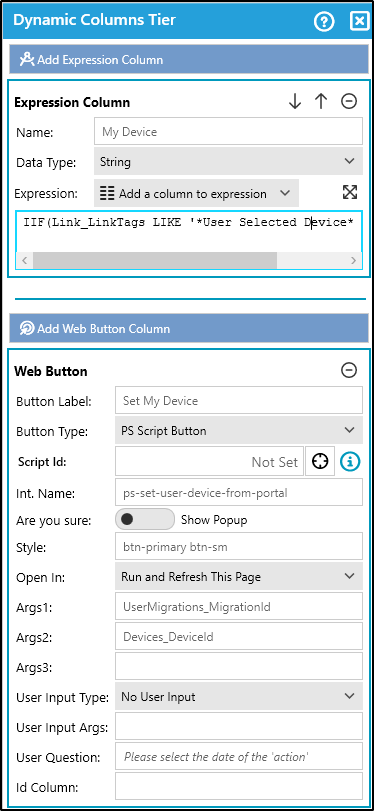
In the Dynamic Column tier, add an Expression Column with the following settings:
Name:
My DeviceExpression:
IIF(Link_LinkTags LIKE '*User Selected Device*', 'Yes', '')
Replace User Selected Device in the expression if you created the Link Tag with a different name.
This column displays Yes against the device currently carrying the selection Link Tag.
Add the PowerShell button
In the Dynamic Column tier, add a Web Button with the following settings:
| Setting | Value |
|---|---|
| Button Label | Set My Device |
| Button Type | PS Script |
| Int. Name | ps-set-user-device-from-portal |
| Open In | Run and Refresh This Page |
| Args1 | UserMigrations_MigrationId |
| Args2 | Devices_DeviceId |
All other settings can remain at their default values.
The arguments passed to the script are:
Args1: the current user’s Migration ID.Args2: the Device ID from the selected report row.
Configure the report layout and filters
Open Edit Column Layout, Filter, Sort and make the following changes:
Hide the Migration ID column.
Hide the Device ID column.
Add an IS NOT NULL filter to the Device ID column.
Position the My Device and Set My Device columns where users can easily see them.
Add any additional filters required by your project.
Possible additional filters include:
Limiting results to devices with a specific Link Tag.
Showing only devices whose hostnames begin with a particular prefix, such as
LAP.Excluding retired, rejected, or otherwise ineligible devices.
Save and close the Datamining Report.
4. Create the Portal Form
Create a Portal Form that contains the Datamining Report.
Create a new Portal page. For example:
Select Your Primary Device
The report can also be added to an existing user-validation survey or another suitable Portal Form.
Add a Special Control.
Configure the control as follows:
Type: Datamining Report
Report ID: Select the Datamining Report created in the previous section.
DMR Scope: Self
Save the Portal Form.
The Self scope ensures that the report is restricted to the user viewing the Portal page.
5. Test the Portal Form
To test the configuration:
Open a User Migration record that has one or more associated devices.
Open the Portal Form link for the new page.
Confirm that the page displays the user’s devices.
Confirm that each eligible device has a Set My Device button.
Select the button beside one of the devices.
Confirm that the page refreshes.
Confirm that the My Device column displays Yes beside the selected device.
Select a different device and confirm that the indicator moves to the new selection.
If hostname storage is enabled, confirm that the configured User Migration property contains the selected device’s hostname.
Expected Result
The user should see a list of their associated devices, including:
The device hostname.
Any optional device information included in the report.
A My Device column identifying the current selection.
A Set My Device button for each eligible device.
Only one of the user’s device links should carry the User Selected Device Link Tag after each selection.
Troubleshooting
No devices are displayed
Confirm that:
Devices are linked to the User Migration.
The report’s Device ID filter is configured correctly.
Additional report filters are not excluding the devices.
The Portal control’s DMR Scope is set to Self.
The button does not run the script
Confirm that:
Portal Btn is enabled on the PowerShell script.
The script’s Internal Name is exactly:
ps-set-user-device-from-portalThe Web Button is configured as a PS Script button.
Args1is set toUserMigrations_MigrationId.Args2is set toDevices_DeviceId.
The selected-device indicator does not appear
Confirm that:
The Link Tags option is enabled in the Datamining Report.
The expression uses the correct Link Tag name.
The configured Link Tag ID belongs to the expected Link Tag.
The
Link_LinkTagscolumn is available to the Dynamic Column expression.
The hostname is not saved
Confirm that:
$SAVE_HOSTNAME_TO_USER_PROPERTYcontains the correct internal property name.The property exists on the User Migration record.
The value has not been left empty.
The script completed without an error.
More than one device appears selected
Confirm that the script is receiving the correct Migration ID and that the configured Link Tag ID is correct. Review the PowerShell debug output to verify that the previous Link Tags are being removed before the selected device link is tagged.
Was this article helpful?
That’s Great!
Thank you for your feedback
Sorry! We couldn't be helpful
Thank you for your feedback
Feedback sent
We appreciate your effort and will try to fix the article