Overview
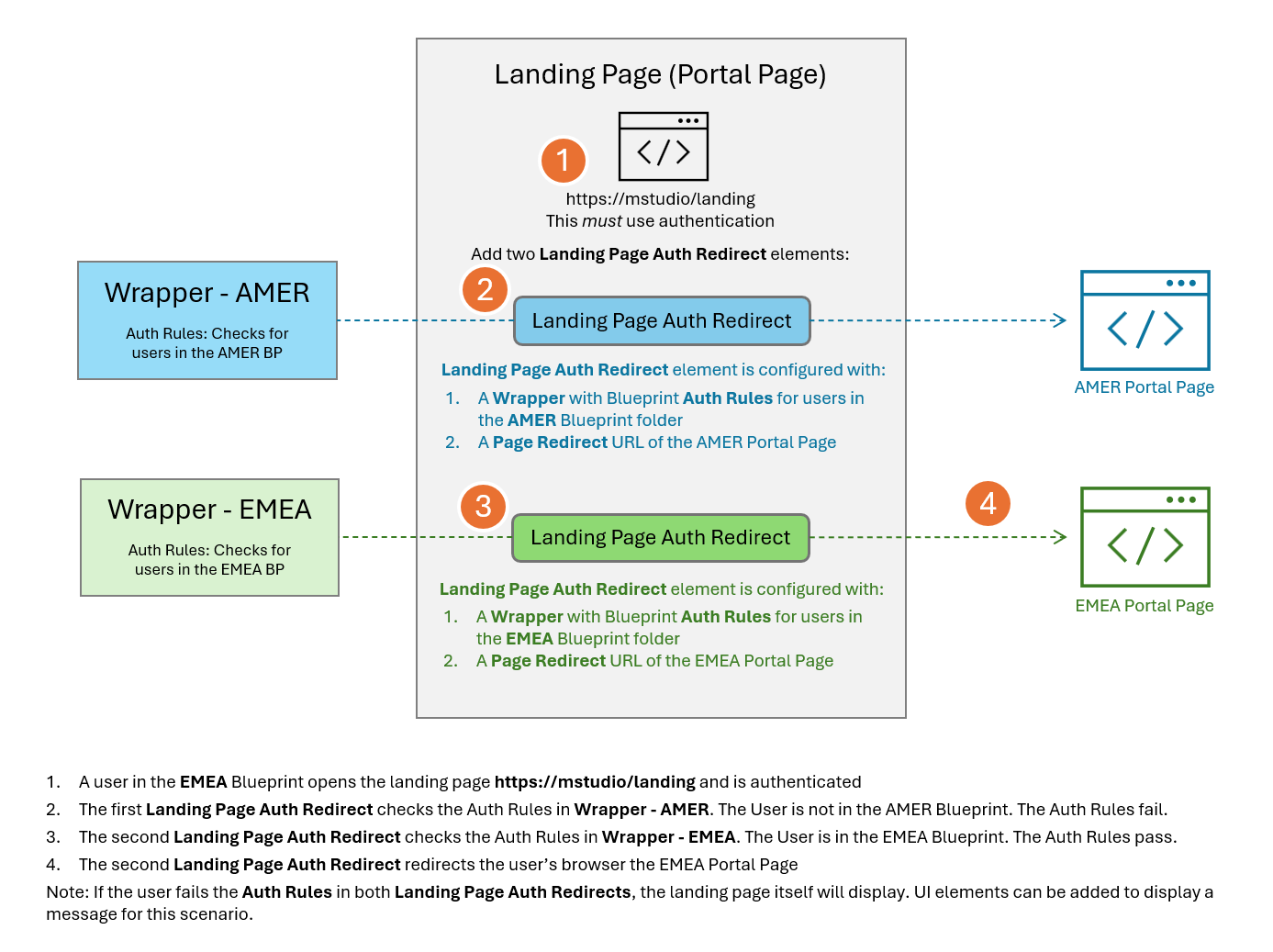
The Landing Page Auth Redirect UI element lets you publish a single URL that redirects users to different Portal Pages based on their Blueprint membership, Deployment Unit or Role Group. One link for everyone - ManagementStudio handles the routing.
The user must be authenticated so ManagementStudio can resolve their Blueprint. The wrapper on the landing page must use the Grid User with AD/Azure Login auth level.
Quick Setup
Note that this uses an example of two user Blueprints: AMER and EMEA.
1. Create your destination pages
One Portal Page per Blueprint/DU etc. In this case one for AMER, one for EMEA.
- Administration → Portal Pages → New Page
- Name this AMER Page
- Assign a Portal Wrapper which uses authentication
- Build the page content in the Page Builder
- Save Changes
- Repeat the above steps for the EMEA page
- Repeat the above steps for non-AMER and non-EMEA users
2. Create wrappers with authentication
Redirects require wrappers (one per redirect) with an authentication rule
- Administration → Portal Settings → New Wrapper
- Authentication → New
- Use a name such as Redirect - AMER
- Enable This page requires authentication
- Set Authentication Level to Grid User with AD/Azure Login
- Pick your auth type (Local AD, Azure AD, or One-Time-Pass)
- Under Add further restrictions... add the ID for the AMER Blueprint (or Deployment Unit ID/Role ID etc)
- Click Save
- The name of the ID/ DU ID/Role ID should be shown
- Close the Portal Authentication Rule Editor window
- Save Changes on the Wrapper
- Create a second wrapper for EMEA
Blueprint and DU restrictions are only available at the Grid User w/ AD/Azure Login level, not ManagementStudio Login.
3. Create the landing page
- Administration → Portal Pages → New Page
- The name should include the word Landing for clarity but should not include AMER, EMEA etc as there is only one landing page for all users
- Assign the same wrapper as used in step 1
- Save Changes
4. Add the redirect element
- Change to the Page Builder tab in the Landing Page
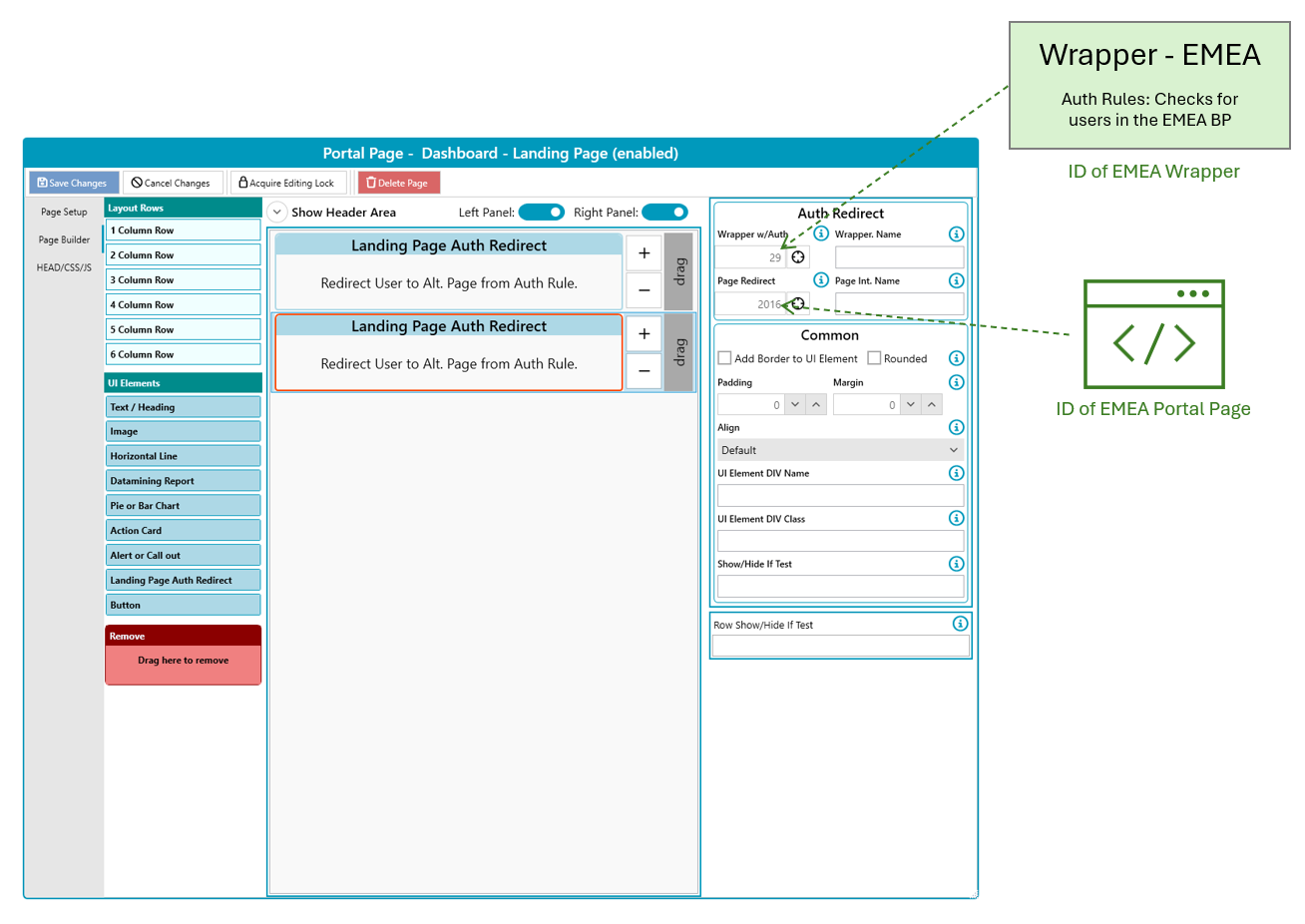
- Drag in a Landing Page Auth Redirect element
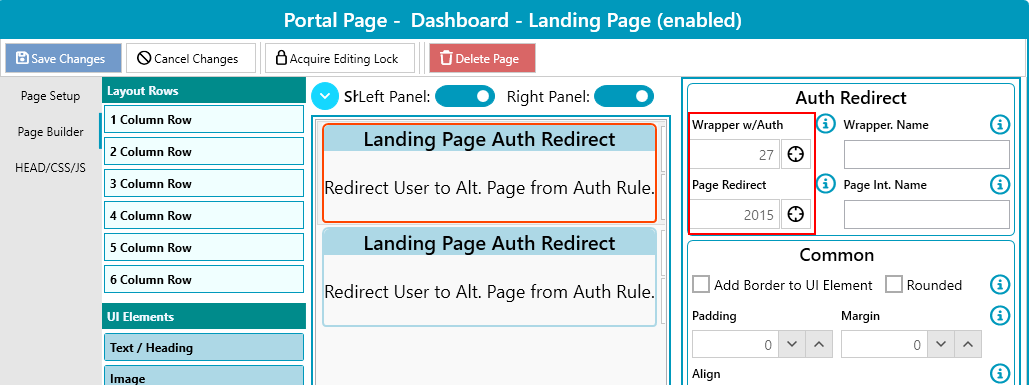
- Add the AMER wrapper created in step 2 into Wrapper W/Auth
- Add the AMER destination page created in step 1 in the Page Redirect
- Repeat for EMEA, adding the Landing Page Auth Redirect element under the AMER one
- Add a third Landing Page Auth Redirect element to the bottom of the page
- This final redirect will catch users who are not in either AMER or EMEA
- Add the wrapper used in step 1 into Wrapper W/Auth
- Add the non-AMER and non-EMEA users Portal Page in the Page Redirect
- Save Changes
6. Test
- Add the user record currently authenticated with to the AMER Blueprint
- Browse to the URL for the Landing Page
- The AMER Portal Page should be displayed
- Repeat the test by removing yourself from the AMER Blueprint and adding yourself to the EMEA Blueprint
- Finally repeat the test by removing yourself from both blueprints
Further Support
If you require further support, please visit ManagementStudio's Service Desk to search the knowledge base or create a new support ticket.
Was this article helpful?
That’s Great!
Thank you for your feedback
Sorry! We couldn't be helpful
Thank you for your feedback
Feedback sent
We appreciate your effort and will try to fix the article