TABLE OF CONTENTS
- Survey Email Templates
- Accessing Email Templates
- Email Template Settings
- Email Template Types
- Creating and Modifying Email Content
- Further Support
Survey Email Templates
ManagementStudio allows project administrators to collect additional information from end-users using web forms known as Surveys. For example, an application owner may use a survey to gather application licensing details from end-users. Since most end-users do not have ManagementStudio login accounts, they receive an email notification with a link to the webform.
Test Sign-Off emails are available in the following modules: Applications, Users, Devices, Mailboxes, Bespoke, Deployment Units, and Defects. The examples in this guide use the Application module.
Accessing Email Templates
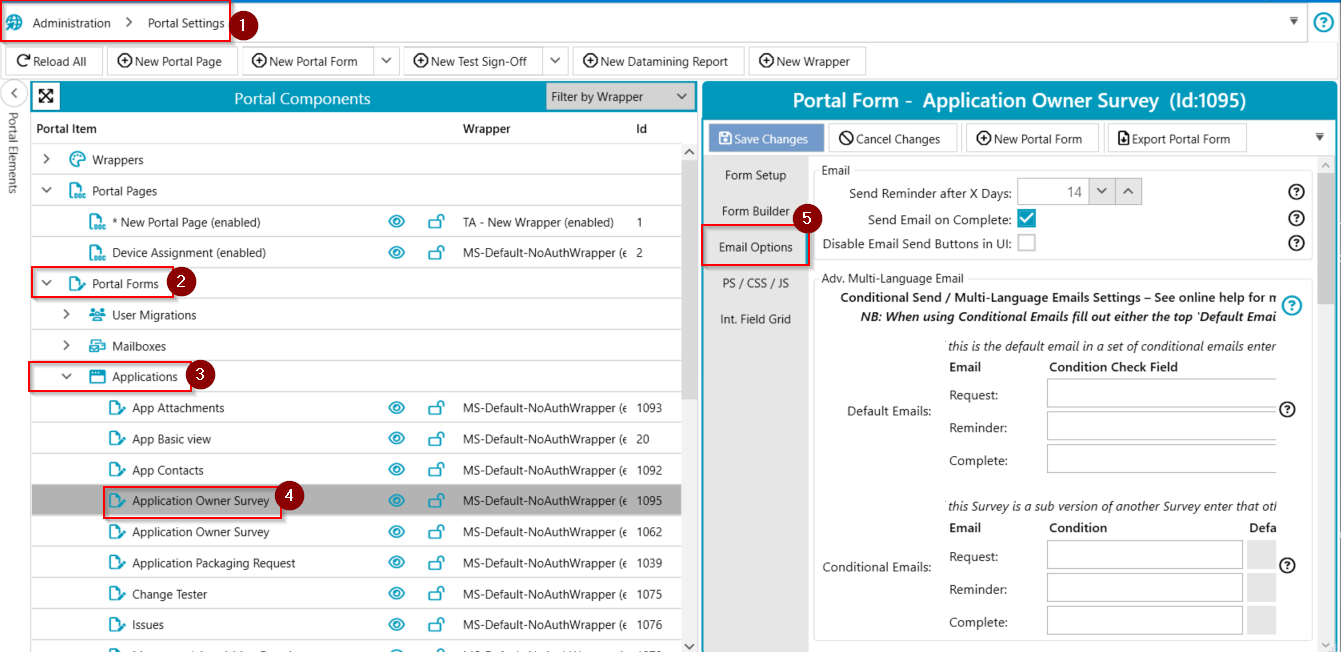
Email templates are managed within the portal form sections of supported modules. To access email templates for the Applications module:
- Navigate to
Administration → Portal Settings. (1) - Expand
Portal Forms. (2) - Expand
Applications. (3) - Select the relevant portal form or click
New portal format the top. (4) - Go to the
Email Optionstab. (5)
Email Template Settings
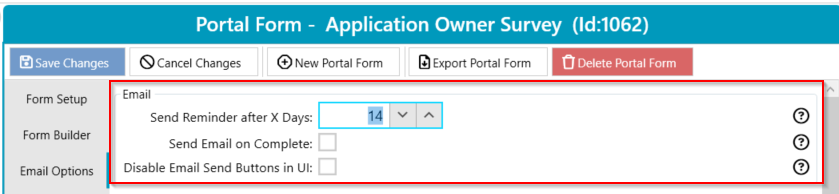
Email Tab
| UI Element | Description |
|---|---|
Send Reminder after X Days | Sends a reminder email to users who have not completed their survey after X days. Set to 0 to disable reminders. |
Send Email on Complete | Sends a 'Complete' email when the user submits the survey. |
Disable Email Send Buttons in UI | Removes the option to send emails from the context menu on the main grid. |
Advanced Multi-Language Email
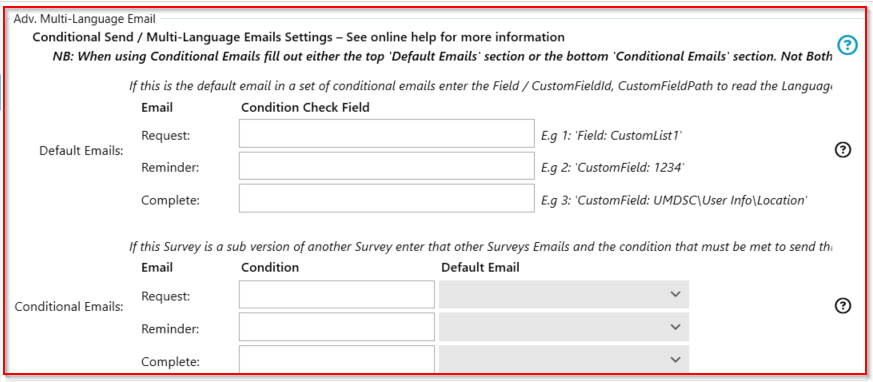
Conditional send and multi-language email settings are available. For detailed information, refer to the Conditional Emails and Multi-language Support.
Note: When configuring conditional emails, complete either the
Default Emailssection or theConditional Emailssection—do not use both.
Email Template Types
Each portal form (survey) includes three types of email templates used at different process stages:
| Template Name | Function |
|---|---|
Request Email | Invites the end-user to participate in the survey and provides a link to the webform. |
Reminder Email | Reminds the end-user to complete the survey if they have not done so. By default, sent after 14 days (customisable in the Emails section). |
Complete (Confirmation) Email | Confirms receipt of the user's submission in ManagementStudio. |
Creating and Modifying Email Content
Main Body
Each email template contains editable content for the email body. This process applies to both Surveys and Test Sign-Offs. For instructions on editing content, refer to:
Email in Surveys and Test Sign-Offs
Email Template Wrappers
All emails sent from ManagementStudio use a global wrapper that defines their style, layout, header, and footer. The main content of the email is inserted into this wrapper at the time of sending.
For information on modifying the email template wrapper, see:
Project Settings – Email Template Wrappers
Further Support
For additional assistance, visit the ManagementStudio Service Desk to search the knowledge base or submit a support ticket.
Was this article helpful?
That’s Great!
Thank you for your feedback
Sorry! We couldn't be helpful
Thank you for your feedback
Feedback sent
We appreciate your effort and will try to fix the article