TABLE OF CONTENTS
Alert Notifications
Overview
ManagementStudio allows users to configure notifications so that alerts are automatically sent when specific events occur. Example notifications include:
- Email notification when an application has been tested
- In-app alert when a task is completed
- Email and in-app alert when a Deployment Unit is assigned to you
Setting Up a New Alert
To create a new alert:
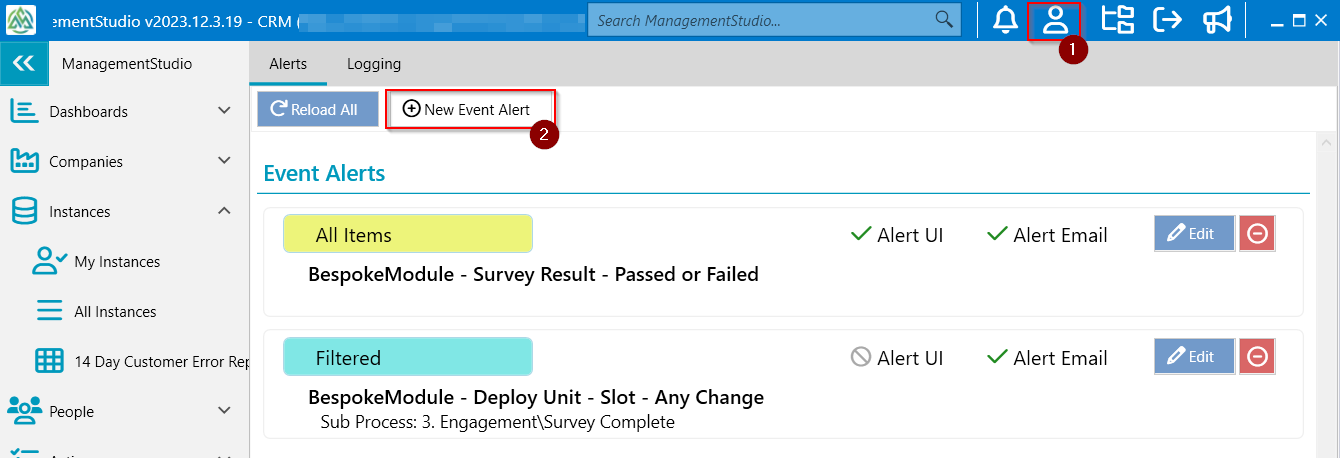
Click the user icon (1).
Select
New Event Alert (2).Note: If the
New Event Alertbutton is greyed out, your Role Group may not have permission to create alerts. For more information, see Role Groups.
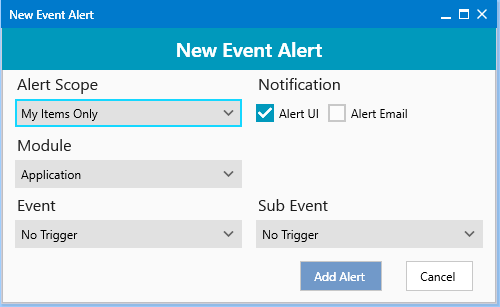
- Configure the alert using the following settings:
| Setting | Options and Description |
|---|---|
Alert Scope | Set the alert target:
|
Notification | Choose delivery method(s):
|
Module | Select the module that will trigger the alert:
|
Event | Choose the event that triggers the alert. Event options depend on the selected module, such as Created, Updated, Deleted, and others. |
Sub Event | Refine the event further where applicable, for example:
|
Click
Add Alertto save the new alert.
Editing an Existing Alert
To modify an alert:
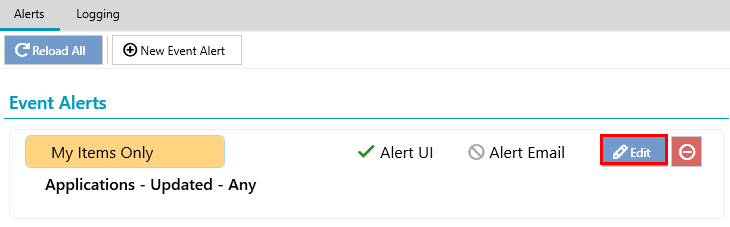
- Click the user icon.
- Click
Editnext to the desired alert. - Adjust the alert settings as needed.
- Click
Add Alertto save your changes.
Deleting an Alert
To remove an alert:
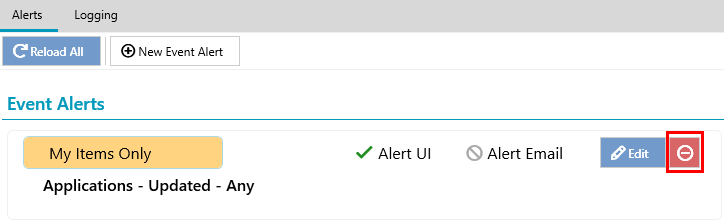
- Click the user icon.
- Click the
Deletebutton next to the relevant alert. - Click
Removeto confirm the deletion.
Further Support
For additional assistance, visit the ManagementStudio Service Desk to search the knowledge base or submit a support ticket.
Was this article helpful?
That’s Great!
Thank you for your feedback
Sorry! We couldn't be helpful
Thank you for your feedback
Feedback sent
We appreciate your effort and will try to fix the article