TABLE OF CONTENTS
Overview
ManagementStudio supports extending portal forms, formerly known as surveys, by allowing administrators to customise presentation and functionality using the following technologies:
| Technology | Description |
|---|---|
| PowerShell | Automate ManagementStudio tasks and interact with external applications via API. |
| Cascading Style Sheets (CSS) | Control the visual presentation of HTML elements, such as font, text colour, or background colour. |
| JavaScript (JS) | Programmatically modify the structure of HTML and add dynamic functionality, e.g., inserting standard footer text. |
Accessing the Portal Form Editor
Portal forms are available for all migration modules and can be accessed via the Administration module.
Navigation:
- For all modules:
Administration → [Module] → Surveys (moved)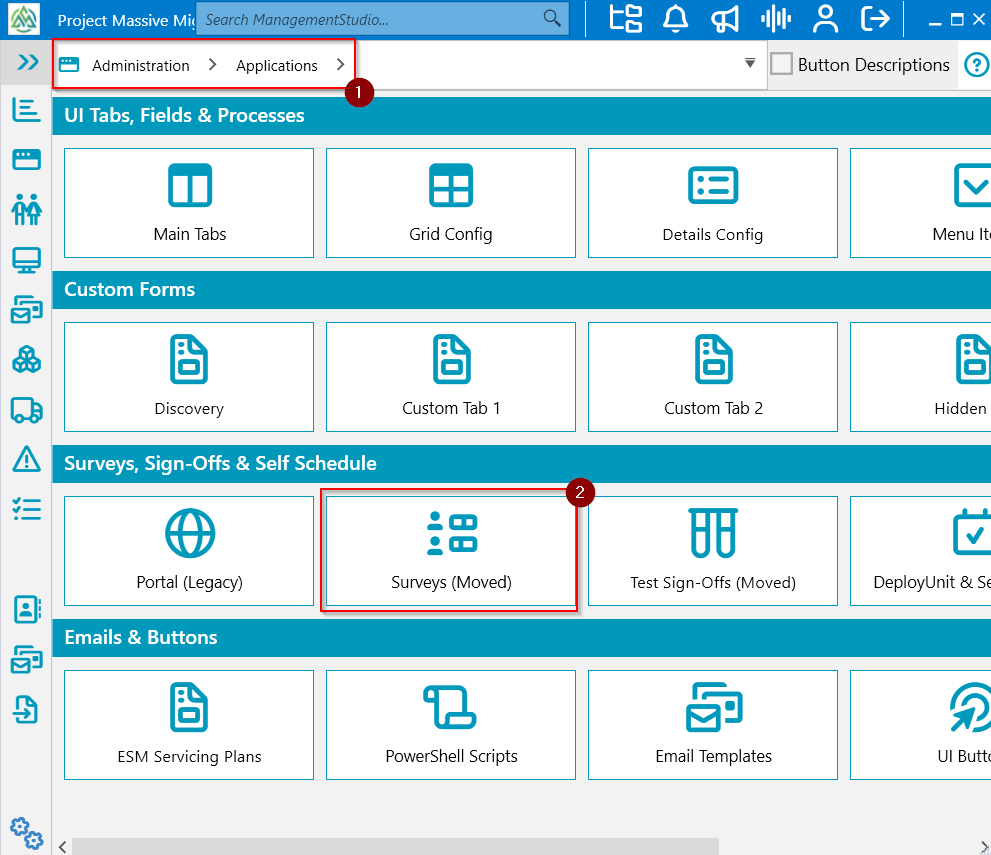
orAdministration → Portal Settings → Portal Forms → [Module]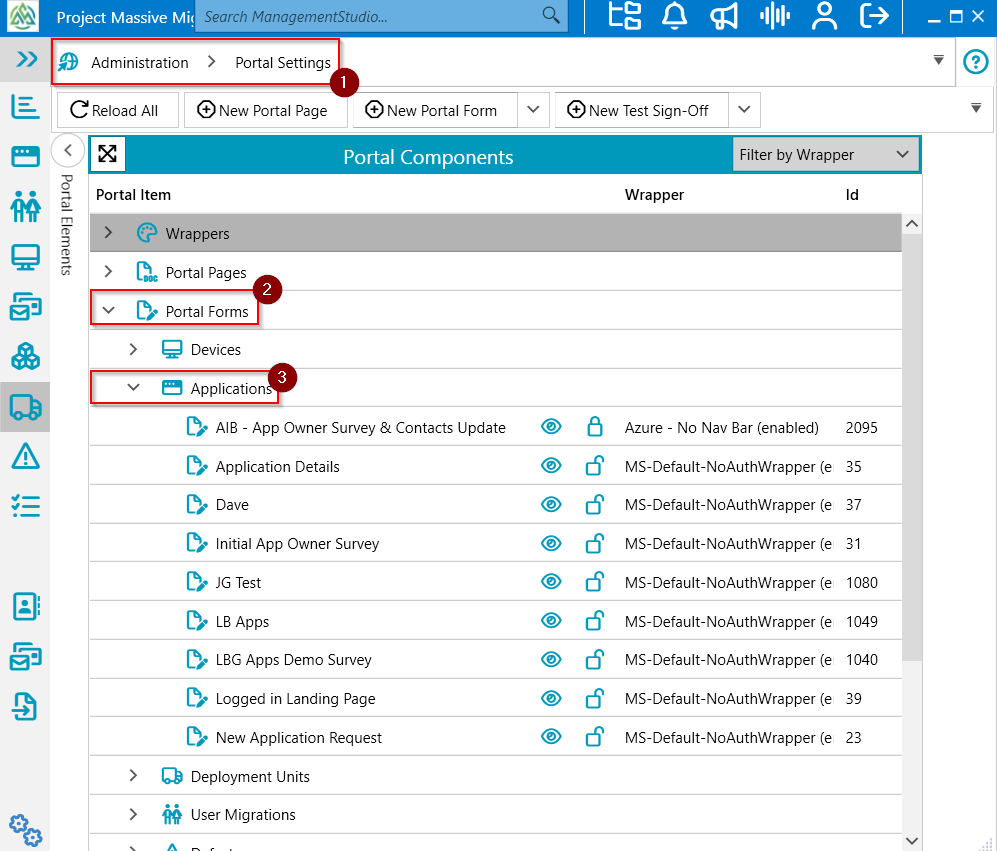
Example – Applications Module:
Administration → Application → Surveys (moved)
From the Portal Forms page:
- Create a new portal form or select an existing one by expanding the relevant module.
- Load the portal form.
- Select the
PS / CSS / JStab from the vertical menu on the left.
Using PowerShell, JavaScript, and CSS
You can enhance portal forms using:
- JavaScript (JS): Manipulate UI elements and add interactive features.
- CSS: Customise the visual style of survey components.
- PowerShell (PS): Automate actions and interact with ManagementStudio data.
Example Scenario: IT Policy Acceptance Workflow
A company wants to use a portal form to distribute a new IT policy and track user acceptance.
JavaScript (JS)
- Disable the
Submitbutton until the user acknowledges the terms and conditions.
Example: Make the portal form use 100% width
Paste the following code into the Custom JS box:
document.getElementById('header-container').setAttribute("class", "container-fluid");
document.getElementById('body-container').setAttribute("class", "container-fluid");
CSS
- Highlight important sections of the policy using a custom background colour.
Define this in the survey's CSS and reference it in the survey content.
PowerShell (PS)
- Automate tracking and processing with custom workflows.
| Workflow | Description |
|---|---|
| 5.1 - Email Policy | When users enter this workflow, a custom automation rule emails the survey to users and moves them to the next process. |
| 5.2 - Users Received Policy | Marks users who have received the policy. Upon submitting the form, a PowerShell script records policy acceptance and advances the user. |
| 5.3 - Policy Accepted | Contains all users who have accepted the new IT policy. |
This setup allows project administrators to monitor policy distribution and acceptance.
Additional Information
For more examples and detailed guidance on using PS/JS/CSS in surveys, refer to:
PS/JS/CSS in Surveys – Tests
Further Support
For additional assistance:
- Visit the ManagementStudio Service Desk to search the knowledge base or submit a support ticket.
Was this article helpful?
That’s Great!
Thank you for your feedback
Sorry! We couldn't be helpful
Thank you for your feedback
Feedback sent
We appreciate your effort and will try to fix the article