TABLE OF CONTENTS
Saving Reports as Favourites
Overview
Users can save most intelligence reports as favourites for easy access. This includes:
- Standard reports
- Drill-down reports
- Detail reports customised to specific requirements
Favourite reports can be run at any time or scheduled to run on specific days and times. This guide outlines the steps to create a favourite report within the User Migrations module. The same steps apply across other modules in ManagementStudio.
Saving a Report as a Favourite
Generate the Report
- Create or customise your report with the desired format and information.
Save the Report
- At the top of the report, select the spanner (wrench) symbol.
- Choose either
Save ReportorSave As. - Enter a descriptive name for the report.
- Click
Save.
Add to Favourites
- Click the spanner symbol again to access your saved reports.
- Locate your newly created report.
- Click the
heartsymbol next to the report to add it to your favourites.
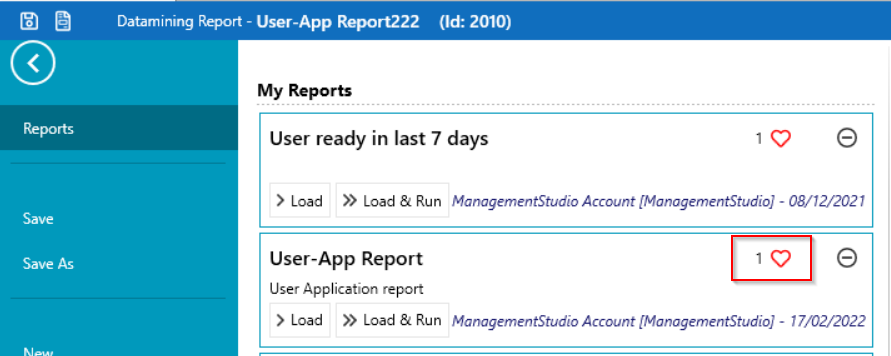
Verify Favourites
- Close the report window.
- Restart the ManagementStudio client.
- Navigate to the
User Migrationsmodule. The favourite report should now be visible under your favourites.
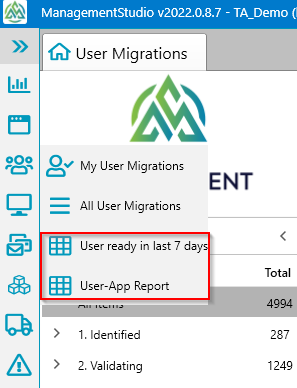
Example: User Migration module showing a user's favourite report.
- Running and Managing Favourites
- To run a favourite report, select the relevant module and click the favourite report.
- To remove a report from favourites, click the
heartsymbol next to the report again.
Further Support
For additional assistance, visit the ManagementStudio Service Desk to search the knowledge base or create a support ticket.
Was this article helpful?
That’s Great!
Thank you for your feedback
Sorry! We couldn't be helpful
Thank you for your feedback
Feedback sent
We appreciate your effort and will try to fix the article