Overview
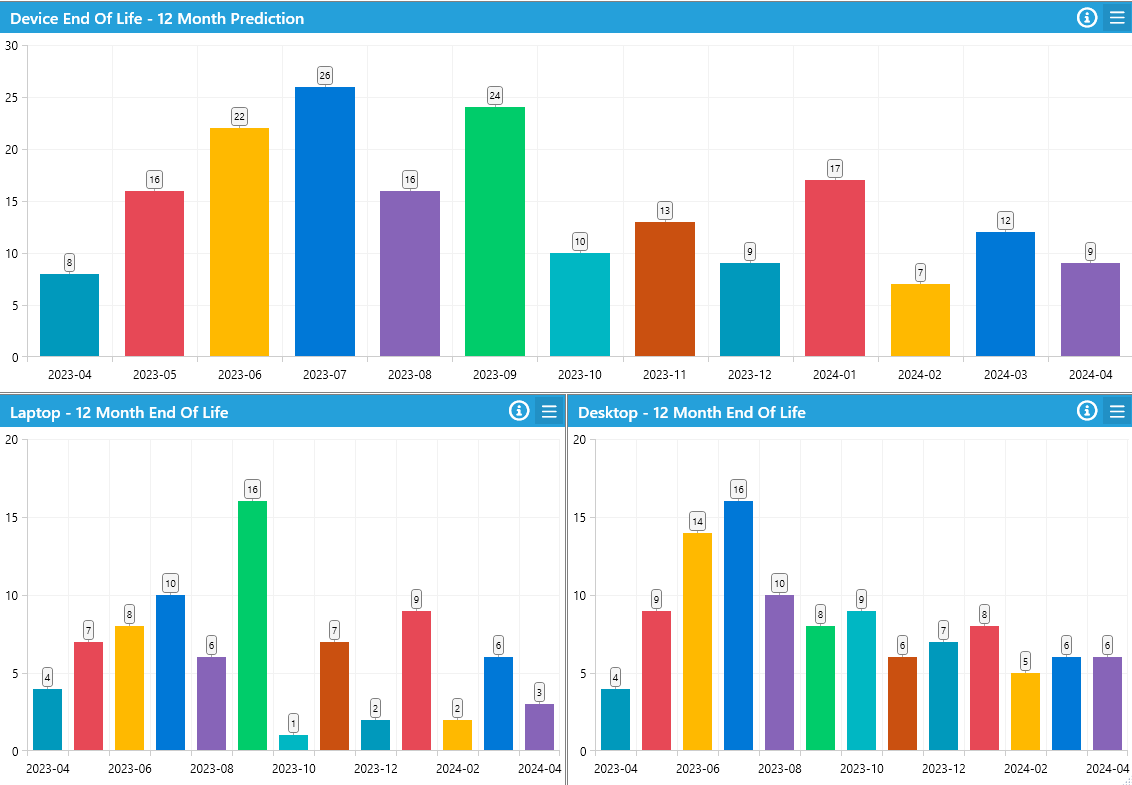
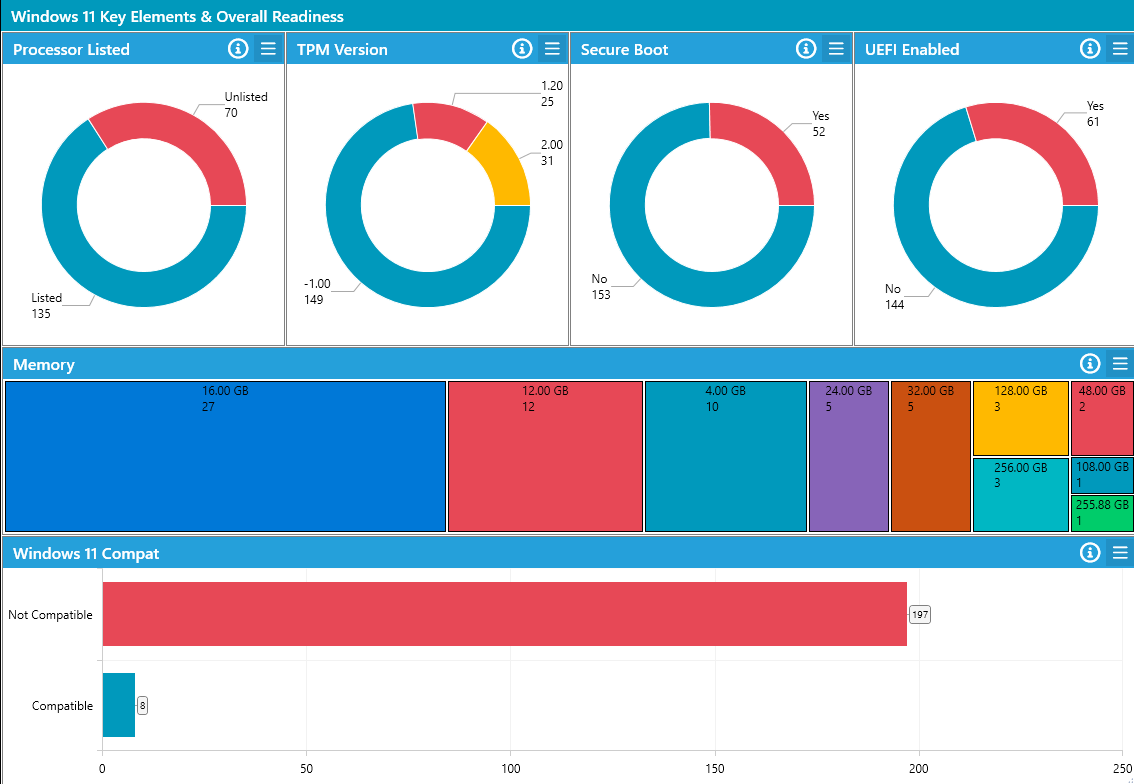
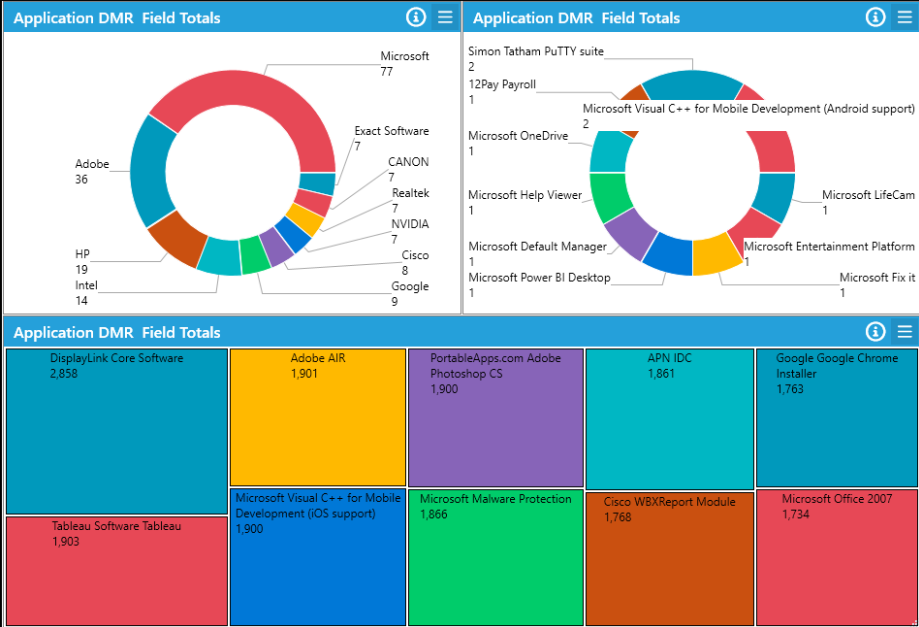
The DMR Field Totals chart enables you to sum or count columns from a Datamining Report (DMR) and display the results on a dashboard chart. By default, the data source is the one defined in the DMR, not the dashboard's data source. This ensures any filtering or logic configured within the DMR is maintained in the visualisation, while dashboard-wide data source controls can still apply.
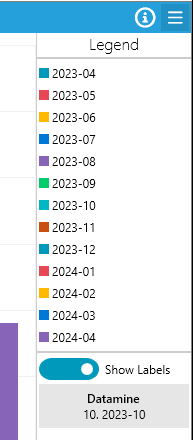
Any column from the DMR, including expression columns, can be used in the chart. Selecting a chart's bar/segment then clicking Datamine within the expanded legend panel of the dashboard will launch the Datamining Report responsible for the data set.
Configuration
The following arguments can be specified to configure the behaviour and display of the DMR Field Total Widget:
| Argument | Description | Required |
|---|---|---|
Datamining Report Id | The ID of the Datamining Report to run. | Yes |
Group By Column | The internal column name(s) to group or sub-group the data in the chart. For example, grouping by Applications_AppVendor will group by vendor; adding Applications_PackageType will sub-group data. | Yes |
Count | Count the specified column, such as Applications_AppId. Cannot be used with Sum. | No |
Sum | Sum the specified column, such as UserMigrations_Total. Cannot be used with Count. | No |
Top | Limit results to top X entries. For example, Top: 20 shows the top 20 results. Defaults to top 10. | No |
Sort | Control result sorting: - Sort: Asc (ascending by total)- Sort: Desc (descending by total)- Sort: Label Asc (ascending by label)- Sort: Label Desc (descending by label) | No |
Filter | Add a chart-specific filter. Overrides the DMR's filter. Example: Filter: Devices_HostName like 'PC0006*'. Combine with the DMR filter using &&, e.g. && Devices_DeviceType like 'Desktop'. | No |
DataSource: DMR | Use the DMR's specified data source, overriding the dashboard data source. | No |
Notes:
- Only one of
CountorSumcan be used at a time. - Separate parameters with a semicolon (
;). - Carriage returns are permitted between
Sum/Filterarguments. - Multiple filters can be applied, but the columns must exist in the DMR.
Example Configurations
Sum: UserMigrations_Total; Top: 15; Sort: Desc;
Count: UserMigrations_HostName; Filter: Devices_HostName like 'PC0006*'
Supported Modules
The DMR Field Total chart can be used with the following modules:
- Applications
- User Migrations
- Devices
- Mailboxes
- BespokeModule
- Deployment Units
- Defects
- Tasks
Supported Chart Types
- Clustered Bar
- Stacked Bar
- Pie
- Doughnut
Additional Information
- Multiple graphical widgets can be created from one or more Datamining Reports within the same dashboard.
- The DMR filter will always be applied unless specifically overridden via the widget's filter parameter.
Usage Scenario
Example:
You wish to display the total number of user migrations per host restricted to devices whose host name starts with "PC0006". Use the following argument configuration:
Count: UserMigrations_HostName; Filter: Devices_HostName like 'PC0006*'
Example:
To show the sum of total user migrations, limiting results to the top 15 values in descending order:
Sum: UserMigrations_Total; Top: 15; Sort: Desc;
Note:
Ensure all columns referenced in arguments are present in the referenced Datamining Report.
Further Support
For further assistance, visit ManagementStudio's Service Desk to search the knowledge base or create a new support ticket.
Was this article helpful?
That’s Great!
Thank you for your feedback
Sorry! We couldn't be helpful
Thank you for your feedback
Feedback sent
We appreciate your effort and will try to fix the article