DMR Fast Caching allows external services that require expensive and frequently accessed reports to be generated once and then cached for a set period of time. The cache includes a short-lived, very fast in-memory layer as well as a longer-lasting, yet still fast, on-disk layer.
Changes to DMR settings, including enabling Fast Caching, can take up to 10 minutes to be reflected at the endpoint. Changes to DMR data may take up to the maximum cache age to be reflected. Both settings and data caches can be forced to recalculate from Global Settings → Global Policies → DMR Fast Cache.
TABLE OF CONTENTS
Configuration
Global Policy
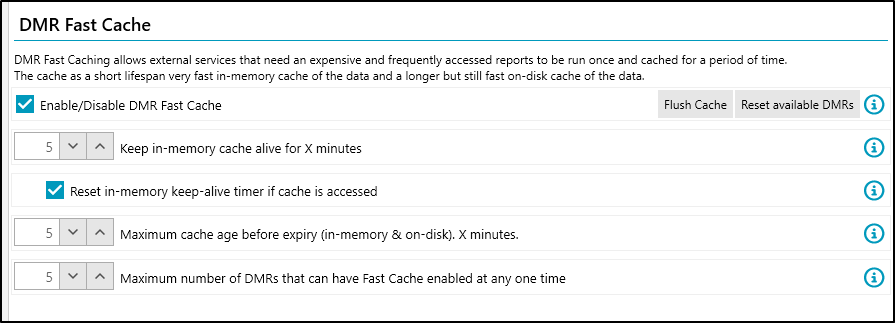
- Enable/Disable DMR Fast Cache
- Turns the DMR Fast Cache feature on or off for this environment.
- Keep in-memory cache alive for X minutes
- Defines how long data is retained in the in-memory cache.
- Recommended in-memory cache duration is 5 minutes.
- Reset in-memory keep-alive timer if the cache is accessed
- When enabled, each cache access refreshes the in-memory cache timer, extending its lifespan while it remains actively used.
- Maximum cache age before expiry (in-memory & on-disk). X minutes.
- Sets the maximum lifetime of cached data across both cache layers.
- Recommended maximum cache age is 60 minutes. After this period, cached data expires, and the next request will trigger regeneration of the report.
- Maximum number of DMRs that can have Fast Cache enabled at any one time
- Because cached DMRs require additional server memory, only a limited number can have Fast Cache enabled simultaneously.
- The oldest (least recently edited) DMRs are loaded first to prevent a newly enabled DMR from unintentionally evicting an older DMR from the cache.
Per DMR Settings
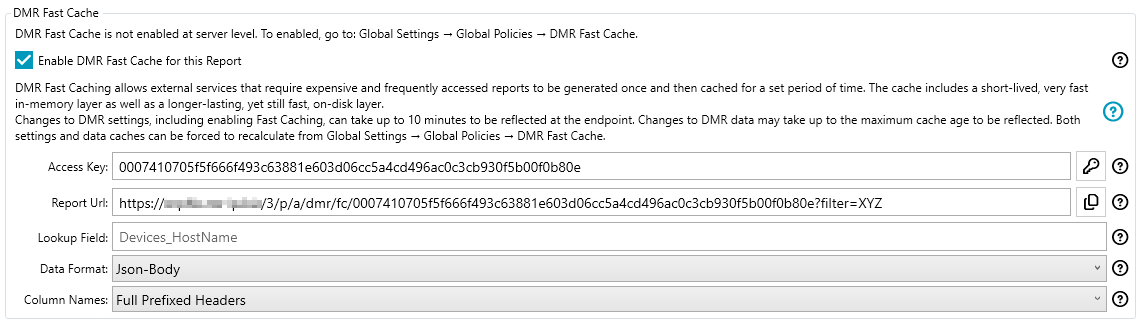
- Enable DMR Fast Cache for this Report
- Enables Fast Cache for this specific report, allowing it to be generated once and served efficiently to external services.
- Access Key
- Generates an access key that allows external services to read this report anonymously. Only one key can be active at a time. Generating a new key invalidates the previous key and may cause existing services to receive a 401 Unauthorised error until they update to the new key.
- Report Url
- This is the endpoint URL for this Fast Cached report.
- The endpoint also supports passing the AccessKey and Fitler via headers
- Example PowerShell:
$accessKey = '0007410705f5f666f493c63881e603d06cc5a4...'
$baseUrl = 'http://MsServer/3/p/a/dmr/fc'
Invoke-WebRequest -Uri $baseUrl -Headers @{ 'accessKey' = $accessKey; 'filter' = 'PC001' }
- Lookup Field
- Enter the name of a report column that external services are allowed to filter by (for example, Devices_Hostname). The filter value is supplied via the Fast Cache URL. If no column is specified, request-time filtering is not available.
- To use the lookup field, append ?filter=XYZ to the endpoint URL, where XYZ is the value to search for (for example, PC00001).
- If a lookup field has been specified, a valid filter value is required. This prevents users from modifying the URL to retrieve all data in the report.
- If a lookup field has not been specified, then the full report will be returned.
- Data Format
- Select the format in which the data will be returned to consuming services. For example, JSON-Body returns a JSON text block, while JSON-File and CSV-File return downloadable files.
- Column Names
- Choose how returned columns will be named. For example:
- Prefixed: Applications_AppName
- Internal: AppName
- Display: App Name
- Choose how returned columns will be named. For example:
Postman Application
Example
In Postman the query would look like this
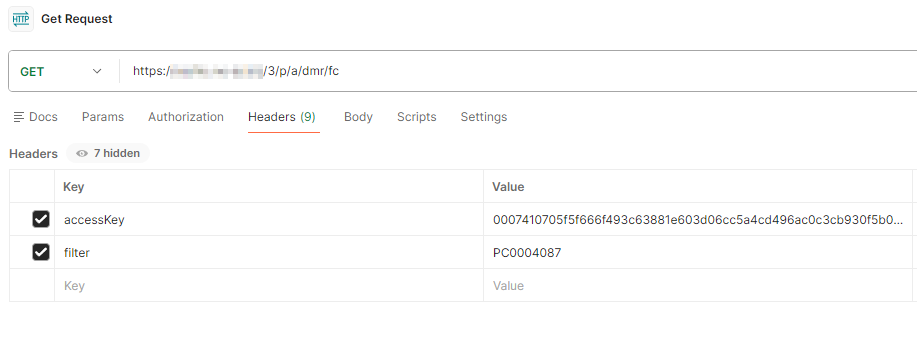
Postman Generated Powershell
$headers = New-Object "System.Collections.Generic.Dictionary[[String],[String]]"
$headers.Add("accessKey", "0007410705f5f666f493c63881e603d06cc5a4cd496ac0c3cb930f5b00f01234")
$headers.Add("filter", "PC0004087")

$response = Invoke-RestMethod 'https://MSserver/3/p/a/dmr/fc' -Method 'GET' -Headers $headers
$response | ConvertTo-Json
Further Support
If additional assistance is required, visit the ManagementStudio Service Desk to search the knowledge base or submit a support ticket.
Was this article helpful?
That’s Great!
Thank you for your feedback
Sorry! We couldn't be helpful
Thank you for your feedback
Feedback sent
We appreciate your effort and will try to fix the article