TABLE OF CONTENTS
Introduction
This guide explains how to configure automated email alerts that are sent whenever an item is moved into a process or sub‑process. These notifications ensure the correct teams are informed as soon as an item enters their workflow stage.
The example that follows will use the Applications module to illustrate the concept although this approach applies to all modules within ManagementStudio.
Overview
When an app is reassigned to a new process or sub‑process, the system can trigger an email notification. Each sub‑process can be mapped to a specific team, allowing targeted communication without manual intervention.
You will configure:
- The trigger: “App moved to a process/sub‑process”
- The routing logic: Which team receives the email
- The email template: What the notification contains
Step 1: Identify the Processes and Sub‑Processes
Before creating notifications, list the exact process structure used in your environment.
- Main process (e.g., Application Review)
- Sub‑processes (e.g., Initial Triage, Technical Review, Compliance Check, Approval)
- Make a note of the internal ids for each of the processes
Each sub‑process should have a corresponding team or distribution list.

Step 2: Confirm Team Email Groups
Ensure each team has a valid email address or distribution list. Examples:
- Technical Review Team →
techreview@teeconsultingcompany.com - Compliance Team →
compliance@teeconsultingcompany.com - Approval Team →
approvals@teeconsultingcompany.com
These addresses will be used in the send email.
Step 3: Build the Email Template
Create a clear, informative email that includes key details about the application.
- Navigate to Administration->Applications->Email Templates
- Click here to add new item
- Enter a descriptive name and category
- Click on the Edit icon
- Populate the email as required
- App name
- App ID
- New process/sub‑process
- Date/time of movement
- Assigned owner (if applicable)
- Link to the app record
Example subject line:
App Moved to Technical Review – [App-AppName]
Example body:
The app [App-AppName] has been moved to Technical Review.
• App ID: [App-AppID]
• Description:[App-Description]
• Date/Time: [Timestamp]You can view the app here: [Link]
Step 4: Configure the Notification Trigger
- Navigate to Administration->Applications->PowerShell Scripts
- Click here to add new item to create a new script
- Click on the Edit button
- Enter the following code
Write-MSDebug -LogText "Id= $($ScriptArgs.EventData.Id)"

if ($ScriptArgs.EventData.ToSubProcessId -in @(257, 256)) {
    Send-MSEmails -Module Applications -ToIds $ScriptArgs.EventData.Id -ScheduleSendAt (Get-Date) -SpreadOverHours 0 -EmailTemplateId 508
    Write-MSDebug -LogText "Sending Email Template Initial Triage"
}

if ($ScriptArgs.EventData.ToSubProcessId -in @(257)) {
    Send-MSEmails -Module Applications -ToIds $ScriptArgs.EventData.Id -ScheduleSendAt (Get-Date) -SpreadOverHours 0 -EmailTemplateId 509
    Write-MSDebug -LogText "Sending Email Template Technical Review Team"
}

if ($ScriptArgs.EventData.ToSubProcessId -in @(258)) {
    Send-MSEmails -Module Applications -ToIds $ScriptArgs.EventData.Id -ScheduleSendAt (Get-Date) -SpreadOverHours 0 -EmailTemplateId 510
    Write-MSDebug -LogText "Sending Email Template Compliance Check Team"
}

if ($ScriptArgs.EventData.ToSubProcessId -in @(259)) {
    Send-MSEmails -Module Applications -ToIds $ScriptArgs.EventData.Id -ScheduleSendAt (Get-Date) -SpreadOverHours 0 -EmailTemplateId 511
    Write-MSDebug -LogText "Sending Email Template Approval Team"
}- Change the sub-process ids and email template ids as required
- Click OK
- Within the Trigger column, select 'Process Changed' as the trigger for the created script
- Click Save Changes
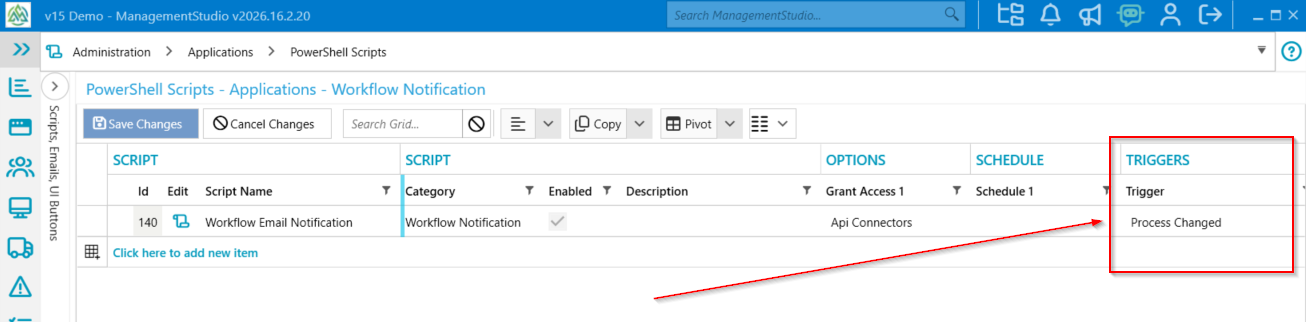
- This ensures the script is triggered only when an app transitions into the relevant sub-process
Conditional Routing Logic
Example logic:
- If app enters Initial Triage → it triggers a send to the Triage Team
- If app enters Technical Review → it triggers a send to the Technical Team
- If app enters Compliance Check → it triggers a send to the Compliance Team
- If app enters Approval → it triggers a send to the Approvals Team
This ensures the correct team is notified automatically.
Step 5: Test the Notification
Move a test app through the process to confirm:
- The trigger fires correctly
- The correct team receives the email
- The email content displays as expected
Step 6: Activate and Monitor
Once testing is successful:
- Enable the automation
- Monitor the first few real transitions
- Confirm teams are receiving notifications consistently
Further Support
For additional assistance, visit the ManagementStudio Service Desk to search the knowledge base or to submit a support request.
Was this article helpful?
That’s Great!
Thank you for your feedback
Sorry! We couldn't be helpful
Thank you for your feedback
Feedback sent
We appreciate your effort and will try to fix the article