TABLE OF CONTENTS
Importing Device Processor Core Count From SCCM
This guide outlines how to import a device's processor core count from SCCM into ManagementStudio. Any fields stored in the SCCM database or Active Directory can be brought into ManagementStudio following similar steps.
Creating a Custom Field for Processor Core Count
- Navigate to
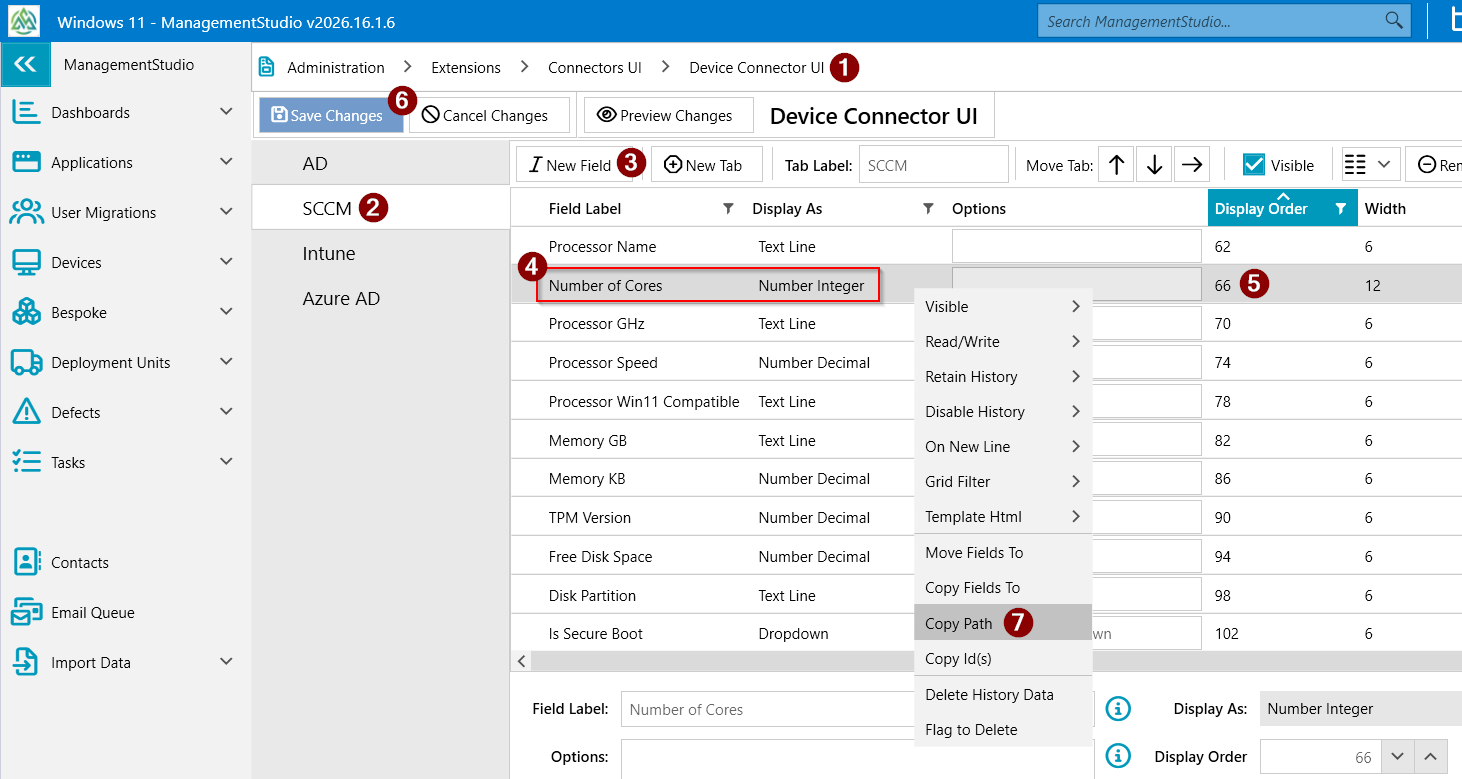
Administration → Extensions → Connectors → Devices Connector UI. - Select the
SCCMtab from the menu on the left. - Click
New Field. - Set the field label to
Number of Coresand set the field type toNumber of Integer. - Adjust the display order to position the field alongside existing processor fields.
- Click
Save Changes. - Right-click the new field, scroll down, and select
Copy Pathfrom the context menu.
Configuring the SCCM Connector to Import the Field
- Navigate to
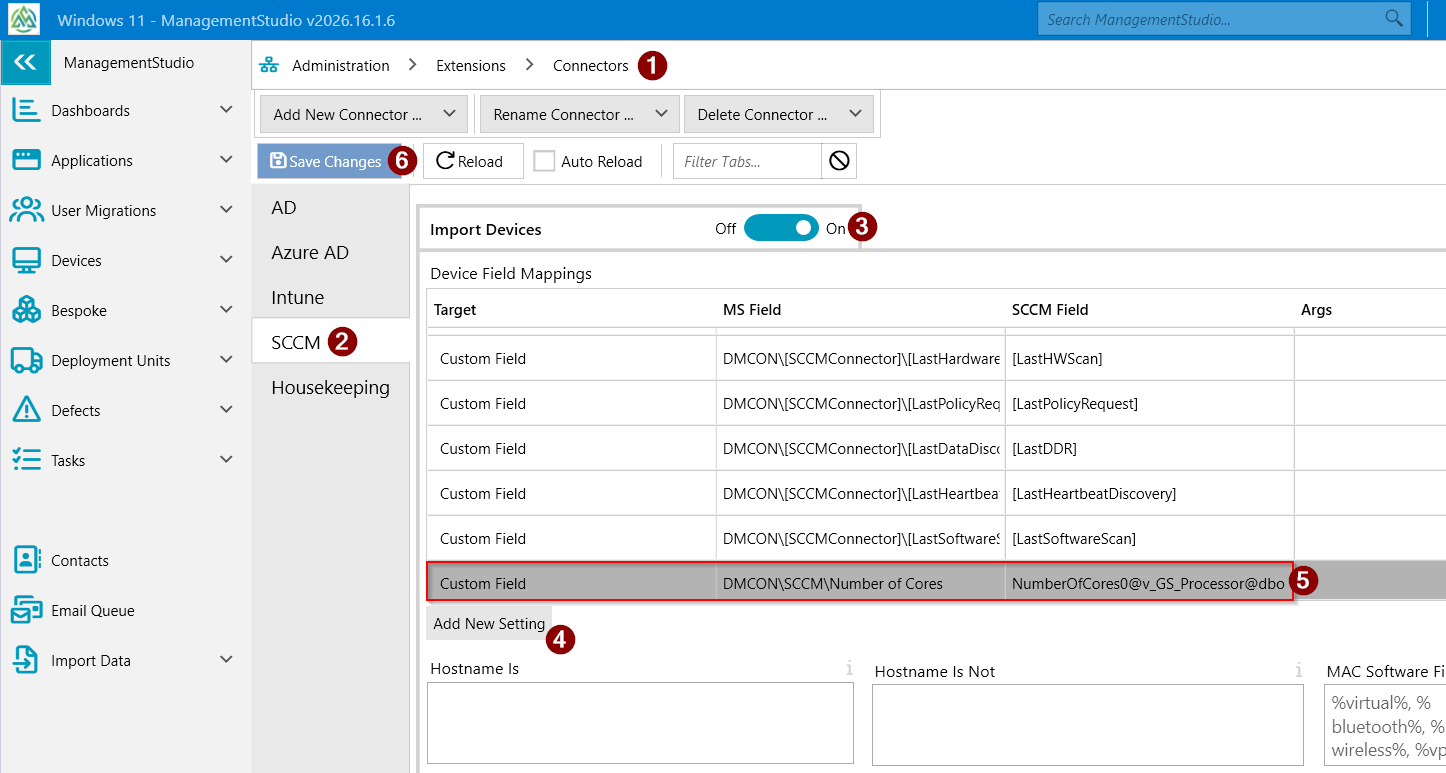
Administration → Extensions → Connectors. - Select the SCCM connector.
- Open the
Import Devicespanel. - Click
Add New Settingto add a new row to the mapping table. - Complete the new mapping with the following values:
- Target:
Custom Field - MS Field:
[Paste the path copied from the previous step] - SCCM Field:
NumberOfCores0@v_GS_Processor@dbo
- Target:
- Click
Save Changes. - Run the SCCM Connector.
When the connector run completes, the processor core count will be imported and available in the specified custom field in ManagementStudio.
Further Support
For additional assistance, visit the ManagementStudio Service Desk to search the knowledge base or submit a support ticket.
Was this article helpful?
That’s Great!
Thank you for your feedback
Sorry! We couldn't be helpful
Thank you for your feedback
Feedback sent
We appreciate your effort and will try to fix the article