TABLE OF CONTENTS
- Overview
- Create a Custom Field in User Migrations
- Create the PowerShell Script
- Configure the Survey
- Further Support
Overview
This guide outlines the steps to configure a User Migration survey that enables end users to select their main device from a list of devices currently linked to their profile.
Create a Custom Field in User Migrations
- Navigate to
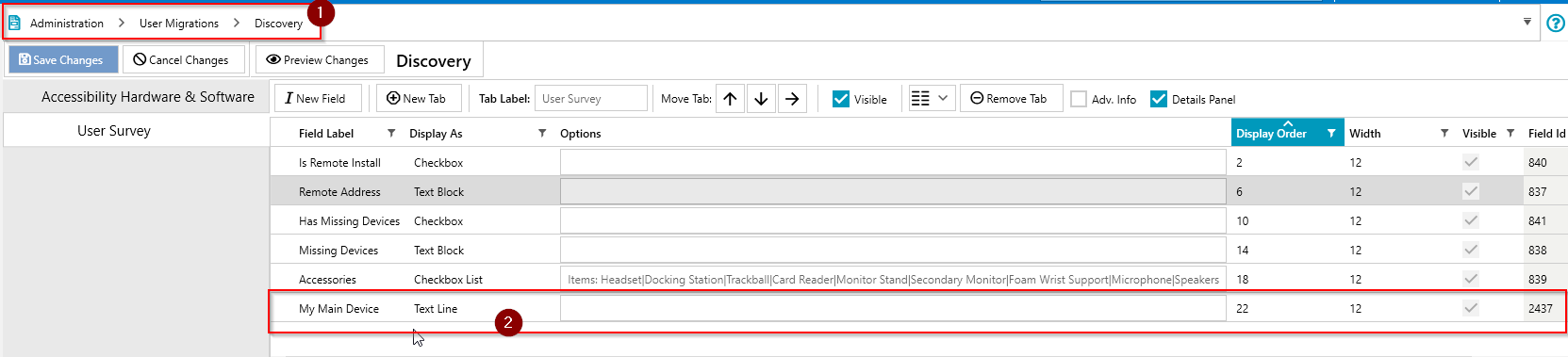
Administration → User Migrations → Discovery Form (1)(or any custom form where you wish to add the field). - Select New Field to add a custom field (2).
- Click Save Changes.
- Note the
FieldIdof the custom field (e.g.,2437). You will need this identifier later.
Create the PowerShell Script
Go to
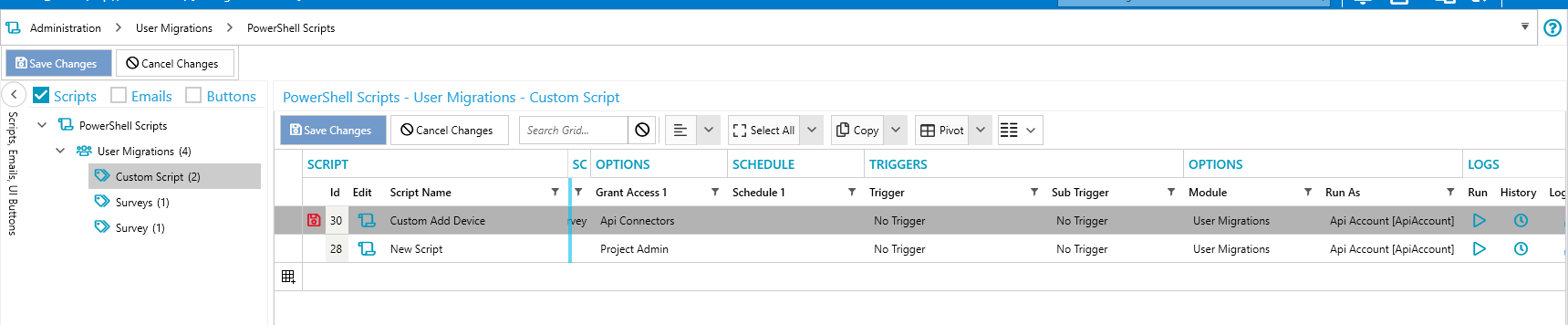
Administration → User Migrations → PowerShell Scripts.Create a new PowerShell script using the template below. Replace
2437in the last command with your actual custom field ID from the previous step.## Get Ids from Script Args $userId = $ScriptArgs.items[0] $deviceId = $ScriptArgs.AltItems[0] ## Get Hostname of selected Device $hostname = Get-MSDevices -DeviceIds $deviceId | Select-Object -ExpandProperty Hostname -First 1 ## Save Hostname to a Custom Field Update-MSUserMigrationsCustomFields -FieldId 2437 -FieldInstanceId $userId -DataValue $hostnameClick Save Changes.
Note the
ScriptId(e.g.,30). You will use this in the survey configuration.
Configure the Survey
Navigate to
Administration → User Migrations → Surveys (Moved) or Administration → Portal Settings.Expand the Portal Forms tree and expand the User Migrations tree.
Select the desired Portal form (Survey).
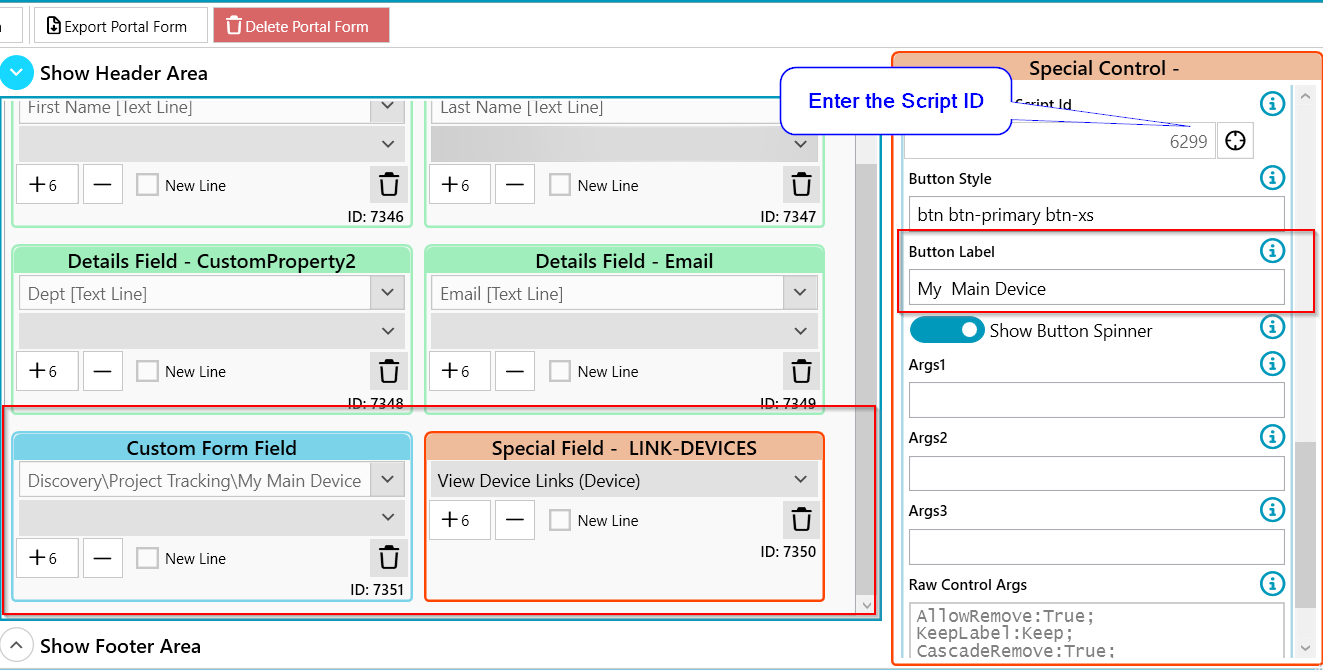
Drag the Custom Form Field onto the builder and select the Custom field created in step 1
Drag the Special Control field to the form builder and select 'View Device Links (Devices)'.
Select the Special Control Field and enter the script id
Click Save Changes.
Survey Output Example
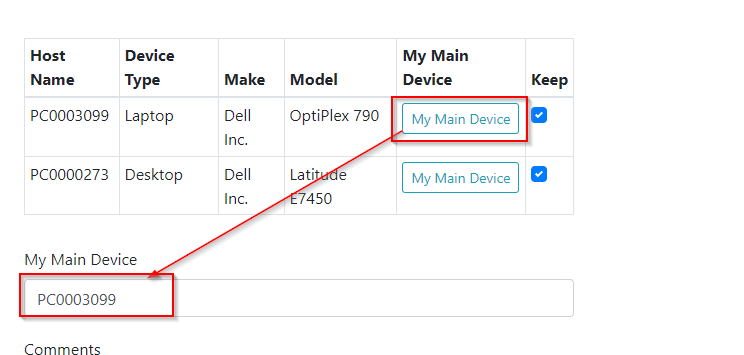
When a user clicks the My Main Device button, the hostname of the selected device is added to the My Main Device custom field.
Further Support
For additional assistance, visit the ManagementStudio Service Desk to search the knowledge base or raise a support ticket.
Was this article helpful?
That’s Great!
Thank you for your feedback
Sorry! We couldn't be helpful
Thank you for your feedback
Feedback sent
We appreciate your effort and will try to fix the article