TABLE OF CONTENTS
- Overview
- Creating Conditional Emails
- Creating a UI Button to Test Emails
- Testing the Email
- Further Support
Overview
Conditional Emails in ManagementStudio allow you to send targeted HTML email content based on specific criteria, including language preferences. This feature supports multi-language communication for project teams and other stakeholders, enabling automated or event-triggered emails such as notifications for application readiness or survey completion.
Prerequisites
- ManagementStudio user account with Project Administrator role
Creating Conditional Emails
Conditional emails consist of a default email (parent) and alternate "child" emails that are sent if certain conditions are met. Conditions can be based on Detail Fields, Custom Form Fields, Blueprints, or Blueprint Folders.
To configure conditional emails:
- Create all required email templates (e.g., English, French, German invitations).
- For each "child" email, set the
Conditional Parentto the default (parent) email. For example, set the English version as the parent. - Save your changes. Child emails will now appear nested under the parent email in the interface.
- On the default (parent) email, specify the condition field.
- On each child email, enter the appropriate value in the
Send Conditionfield. ManagementStudio will use this to determine which child email to send instead of the default. - Ensure that every child email has a valid send condition.
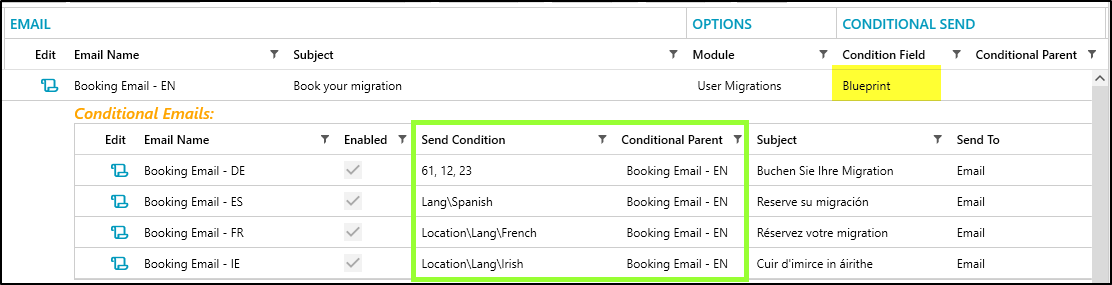
Condition Field Options
The Condition Field determines which data source ManagementStudio will reference when evaluating the condition.
- Detail Fields
- Format:
DetailField: Field Name- Example:
DetailField: Language - Example:
DetailField: CustomList1
- Example:
- Format:
Custom Fields- Format:
CustomField: Custom Field Id(e.g.,CustomField: 1234) - Format:
CustomField: Custom Field Path(e.g.,CustomField: APPDSC\Location\Country)
- Format:
Blueprints- Use
Blueprint. No additional parameters required.
- Use
Blueprint Folders- Use
BlueprintFolder. No additional parameters required.
- Use
Condition Send Options
The Send Condition specifies the values that trigger each child email. Enter one or more values as needed.
- Detail Fields:
Enter a single value or a comma-separated list.
Example:ENorEN,IE,DE - Custom Fields:
Enter a single value or a comma-separated list.
Example:ENorEN,IE,DE - Blueprints:
Enter a single Blueprint ID, a comma-separated list of IDs, or Blueprint Path IDs.
Partial paths are supported; the first matching folder is selected. - Blueprint Folders:
Enter a single Folder ID, a comma-separated list, or Folder Path IDs.
Partial paths are supported; the first matching folder is selected.
Creating a UI Button to Test Emails
To create a UI button for testing the conditional emails:
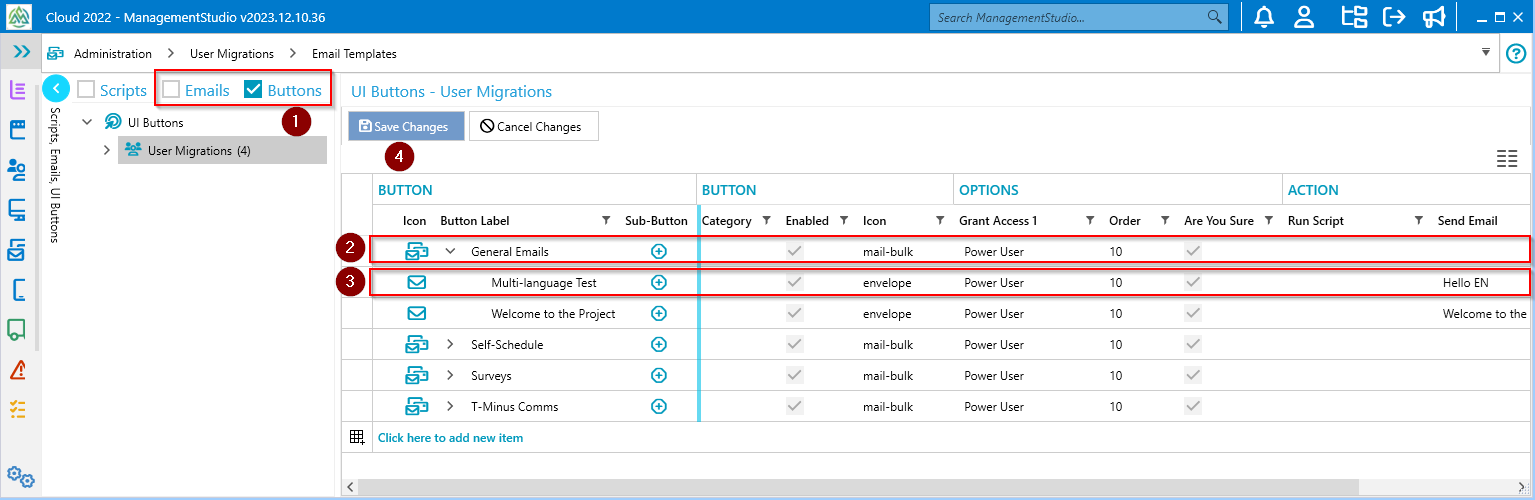
- Disable
Emailsand enableButtons. - Create a folder for the button.
- Create the new button and set
Send Emailto the parent email (e.g.,Booking Email - EN). - Select
Save Changes.
Testing the Email
Follow these steps to test the multi-language conditional email setup:
- Restart your ManagementStudio client to apply the new UI button.
- Navigate to
User Migrations → All User Migrations. - Create a test User Migration:
- Select
New - Add
First Name,Last Name, andSamAccount - Click
New
- Select
- Set the
Primary Emailto your email address. - Set
LanguagetoFR. - Click
Save User Migration. - In the
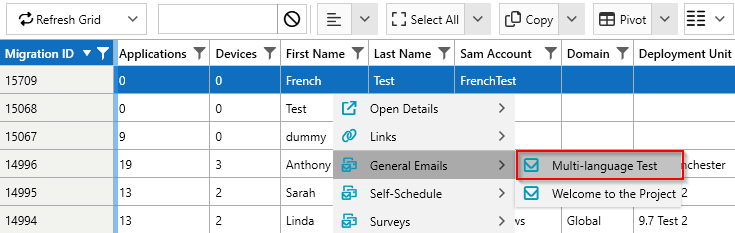
User Migrationsgrid, select your test user. - Right-click the user and choose
General Emails → Multi-language Test.
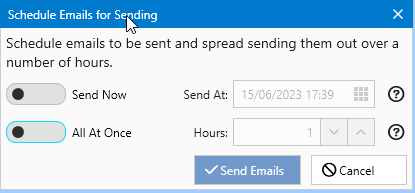
- Configure and send the email using the relevant settings as shown in the provided interface screenshots.
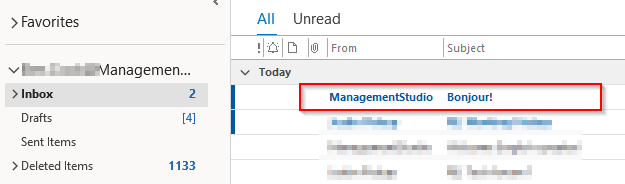
- The system should queue and send the French version of the email as specified by your test condition.

Further Support
For additional assistance, visit the ManagementStudio Service Desk to search the knowledge base or to submit a support request.
Was this article helpful?
That’s Great!
Thank you for your feedback
Sorry! We couldn't be helpful
Thank you for your feedback
Feedback sent
We appreciate your effort and will try to fix the article