TABLE OF CONTENTS
- Overview
- Enabling Deployment Units at the Module Level
- Creating a New Deployment Unit
- Deployment Unit Tabs
- Further Support
For advanced information on Deployment Units, see Deployment Units - Advanced.
Overview
Deployment Units (DUs) streamline the planning and execution of the deployment phase during migrations. DUs allow you to assign users or assets into logical groups, which typically represent locations or departments scheduled for migration within a specific timeframe.
By default, Deployment Units are enabled for User Migrations. The functionality also extends to the Applications, Devices, Mailboxes, and Bespoke modules.
Enabling Deployment Units at the Module Level
To enable Deployment Units:
| Step | Example |
|---|---|
| Navigate to Administration and select the required module (User Migrations, Applications, Devices, Mailboxes, or Bespoke). In the Surveys, Sign-Offs & Self Schedule panel, click DeployUnit & Self-Schedule. | 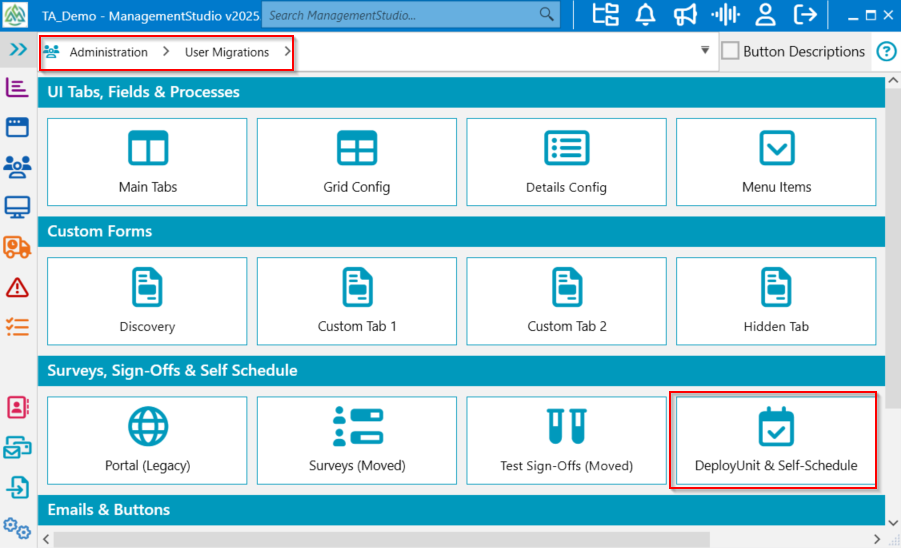 |
| Use the toggle at the top to change the DU status from Disabled to Enabled. Click Save Changes to apply. | 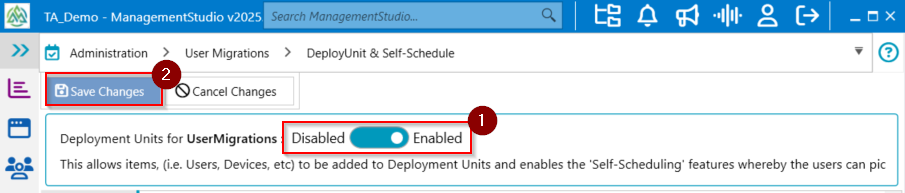 |
Creating a New Deployment Unit
To create a new Deployment Unit:
- Switch to the Deployment Unit module.
- Click the New button in the Toolbar.

Information Required for a New Deployment Unit
The Create New Deployment Unit wizard requires the following information:
- Target Module: Select from the list of supported modules. Only User Migrations is enabled by default.
- Deployment Unit: Enter the name for the DU (e.g. area, campus, office, or building).
- Location: Enter the geographic location of the DU.
- Process: Select the appropriate project workflow process. Commonly, the default process represents a newly created DU.
- Sub Process: Select the relevant subprocess for the DU.

Deployment Unit Tabs
Each Deployment Unit contains multiple tabs for managing and tracking associated information:
Details
The Details tab displays key information about the DU:
| Field | Description |
|---|---|
Deploy Unit Id (read-only) | Internal identifier used throughout ManagementStudio. |
Target Module (read-only) | Target module specified at creation. |
Deployment Unit | Name of the Deployment Unit. |
Location | Geographic location. |
Start Date | DU start date and time. |
All Day (SD) | Tick if Start Date is an all-day event. |
End Date | DU end date and time. |
All Day (ED) | Tick if End Date is an all-day event. |
Use Global Schedule | Applies the global schedule by default. Untick to define a local schedule. |
Process | Current workflow process (e.g. "3. Scheduling"). |
Sub Process | Relevant sub-process for the workflow. |
Process Status (read-only) | Current internal status: Inactive, In Progress, or Complete. |
Date Entered Process (read-only) | Date and time the DU entered the current process. |
Primary Contact Email | Email of the main contact for the DU. |
Secondary Contact Email | Email of the secondary contact. |
Is Base Line Locked | Locks users within the DU. Users cannot be added/removed, but slot assignment and DU updates remain possible. |
Is Signed Off | Indicates the schedule and migration slots have been signed off. |
Is Completed | Marks when all users in the DU have been migrated. |
Base Line Locked Date (read-only) | Timestamp when base line locked. |
Signed Off Date (read-only) | Timestamp when signed off. |
Completion Date (read-only) | Timestamp when marked as completed. |
Status | Overall DU status: GO, No GO, or Reschedule. |
Priority | DU priority (Low, Medium, High). |
Assigned To | Project user assigned to the DU (defaults to creator). |
Created By (read-only) | Project user who created the DU. |
Created On (read-only) | Creation date. |
Archived | Tick to mark the DU as archived. |
Locked | Tick to prevent further changes. |
Prevent New Links | Prevents new links to users, applications, or devices. |
Description | Free-text description. Add notes via "New Note" Quick Action or the Notes panel. |
Blueprints (read-only) | Associated blueprints. |
Attachments (read-only) | Linked attachments (managed in Attachments tab). |
Contacts (read-only) | Associated contacts (managed in Contacts tab). |
Defects (read-only) | Associated defects (managed in Defects tab). |
Deleted (read-only) | Indicates if the record is deleted. |
Tasks (read-only) | Associated tasks (managed in Tasks tab). |
Dependencies (read-only) | List of DU dependencies (managed in Dependencies tab). |
Discovery
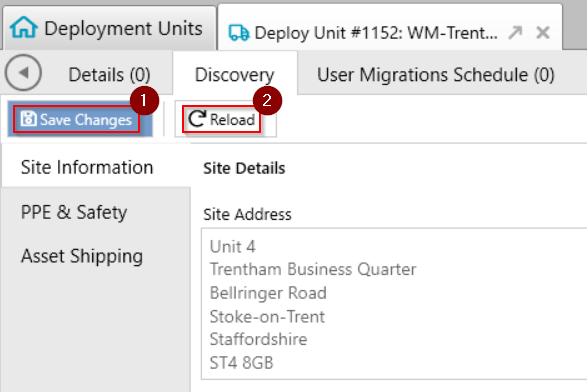
The Discovery tab contains information not directly related to scheduling, such as address and key contacts. Default sub-tabs include:
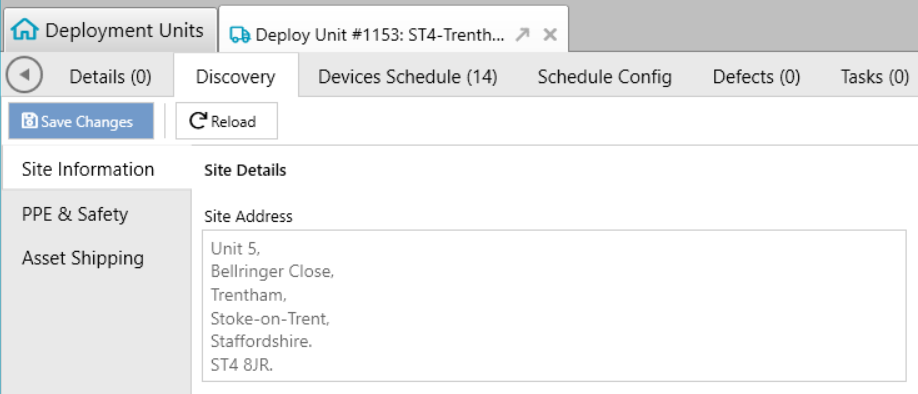
- Site Information: Site address, contacts, site type, DR site details, and operating hours.
- PPE & Safety: Health and safety, contacts, access prerequisites, allergy, and site restrictions.
- Asset Shipping: Information about assets delivered to the site.
For further details, refer to Discovery Tab Help.
Schedule
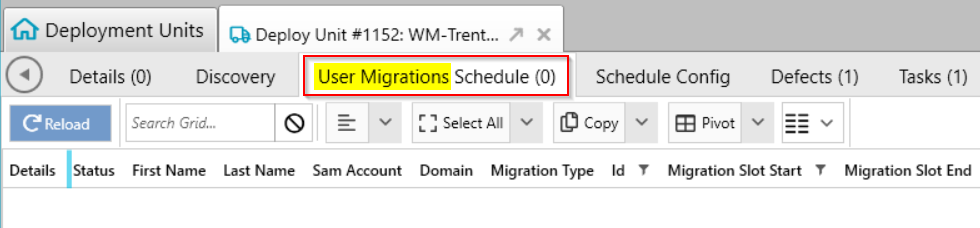
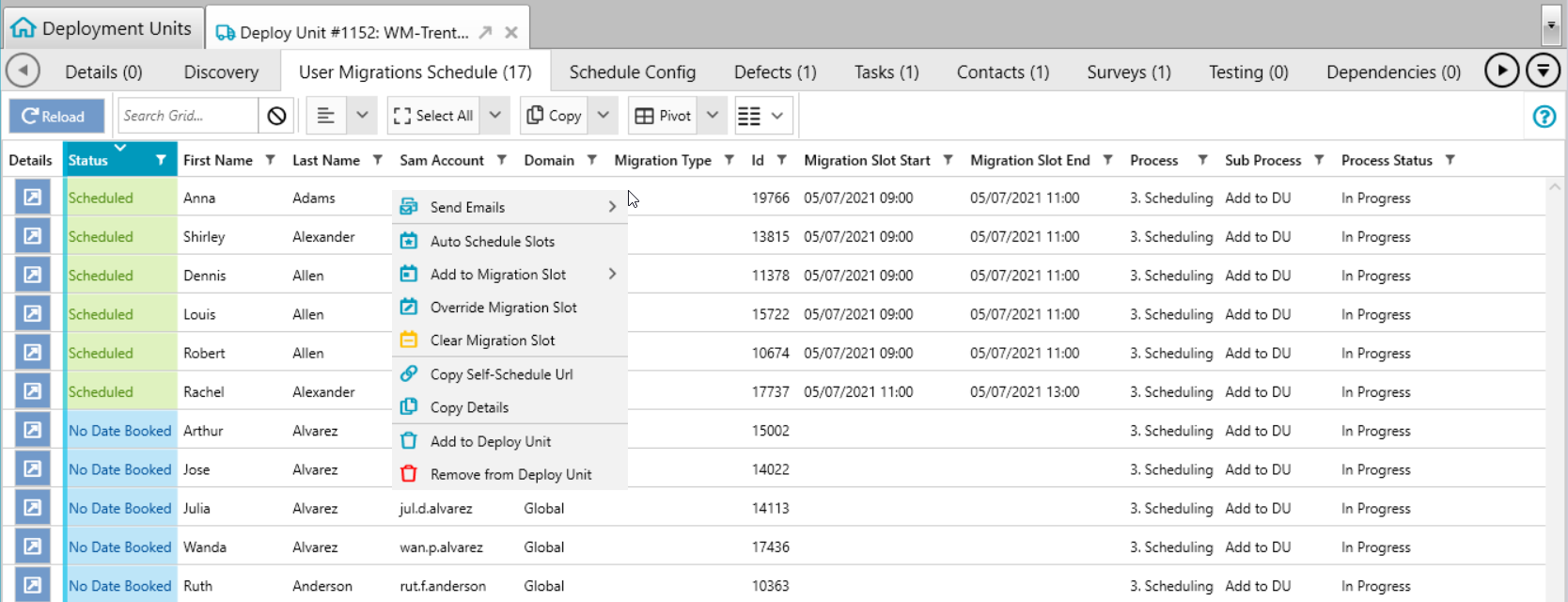
The Schedule tab—titled according to the DU's target type (e.g. User Migrations Schedule)—provides a summary of all items in the DU, including migration status and timings.
For more information, refer to Schedule Tab Help.
Schedule Config
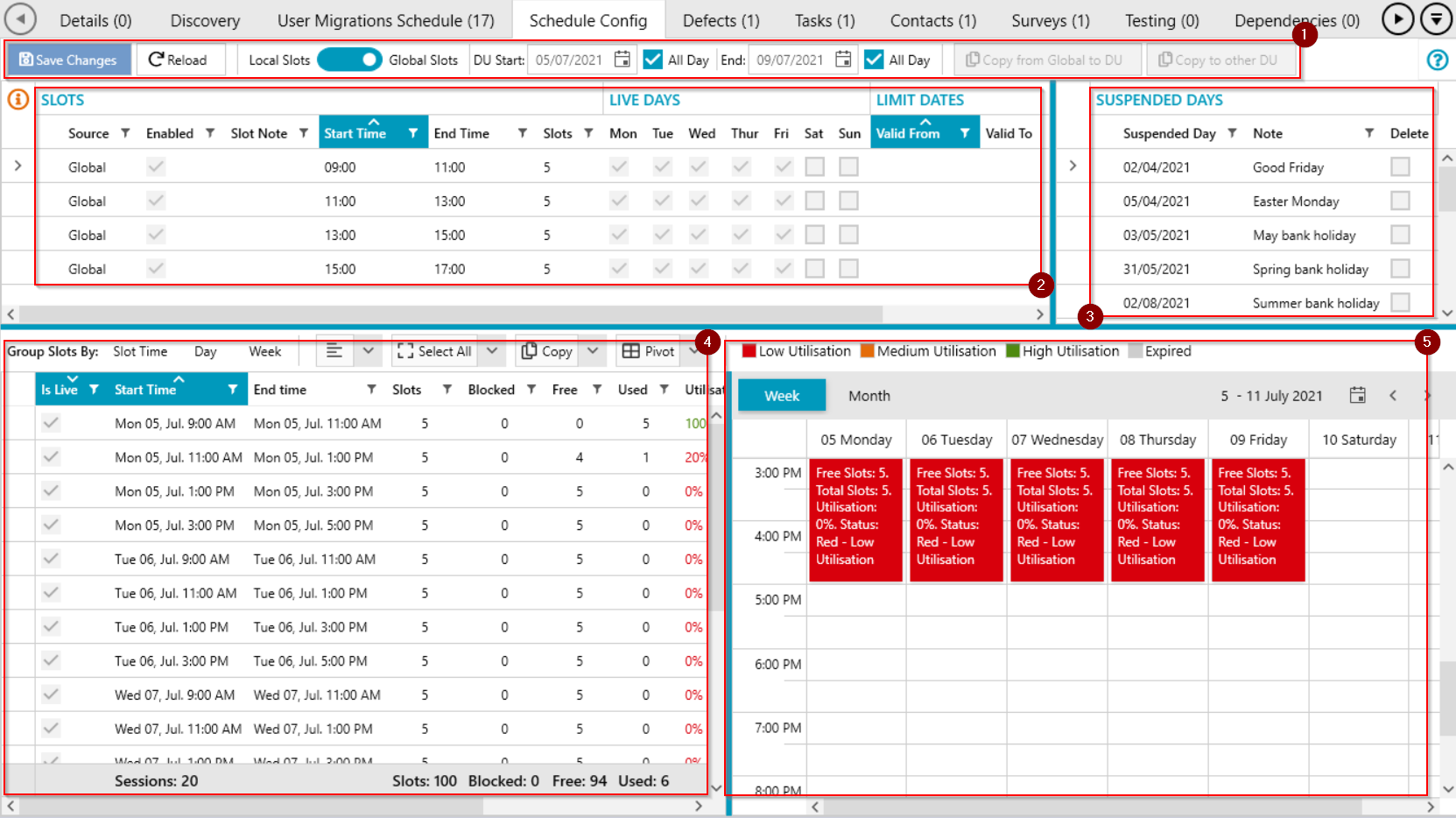
By default, the DU schedule is based on a global configuration. The Schedule Config tab allows application of the global schedule or creation of a custom local schedule, exclusion of certain days, and review of slot usage.
Core sections:
- Toolbar
- Slot Configuration Grid
- Suspended Days Grid
- Slot Utilisation
- Slot Calendar
Refer to Schedule Config Tab Help for details.
Defects
The Defects tab is used to view and manage defects related to the DU, such as required application issues or site compliance concerns.
Refer to Defects Tab Help.

Tasks
Use the Tasks tab to view and manage tasks associated with the DU. Assigned users receive notifications.
Refer to Tasks Tab Help.

Contacts
The Contacts tab lists individuals linked to the deployment site, such as site managers or health and safety coordinators. Linking contacts helps identify key personnel and access their details.
Refer to Contacts Tab Help.

Surveys
Surveys are web-based forms gathering information about a DU from users without ManagementStudio access. For instance, a DU may require office opening times and PPE information, which the primary contact can submit via the portal.
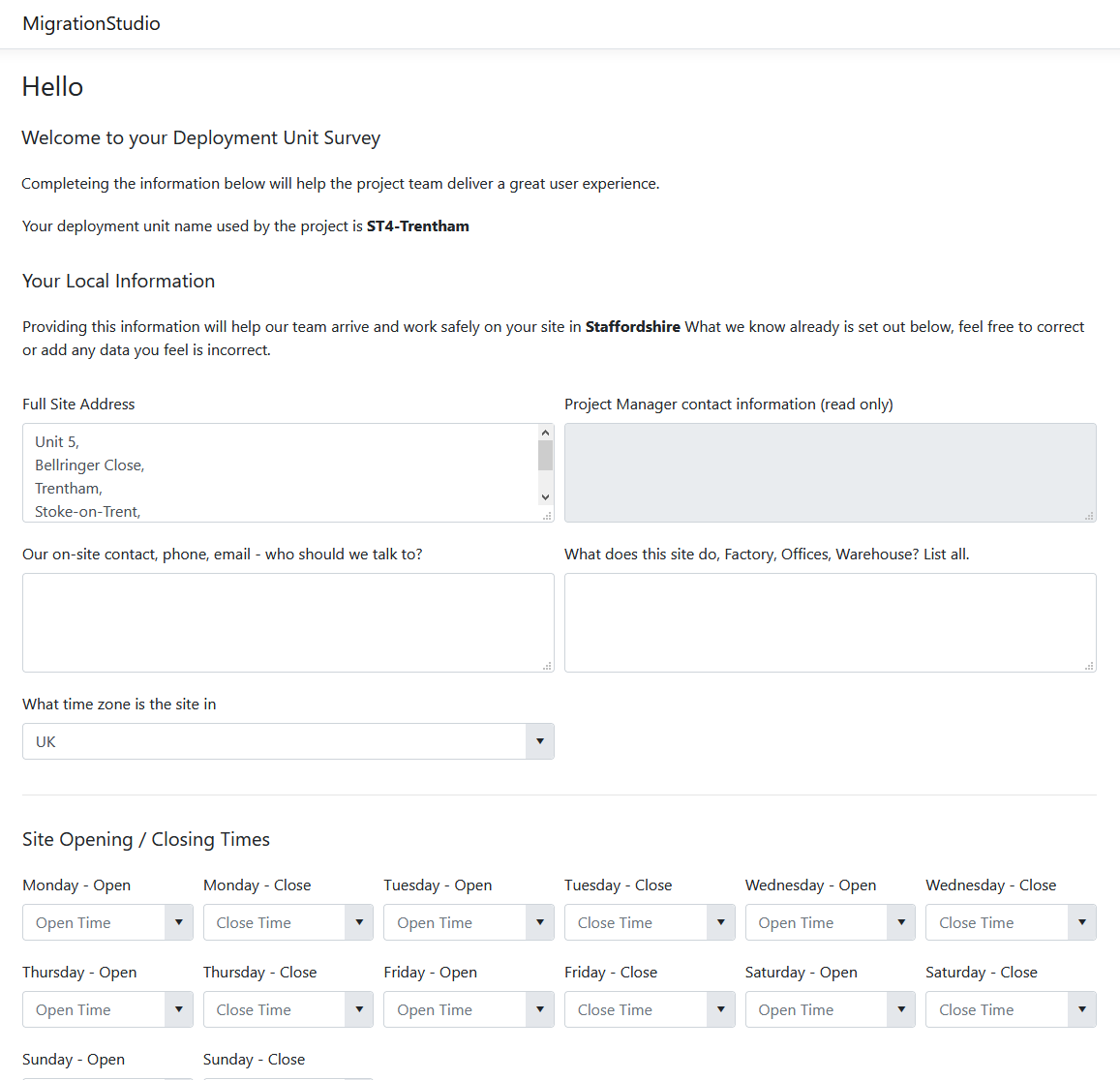
Survey results appear in the Discovery tab.
Refer to Surveys Tab Help.
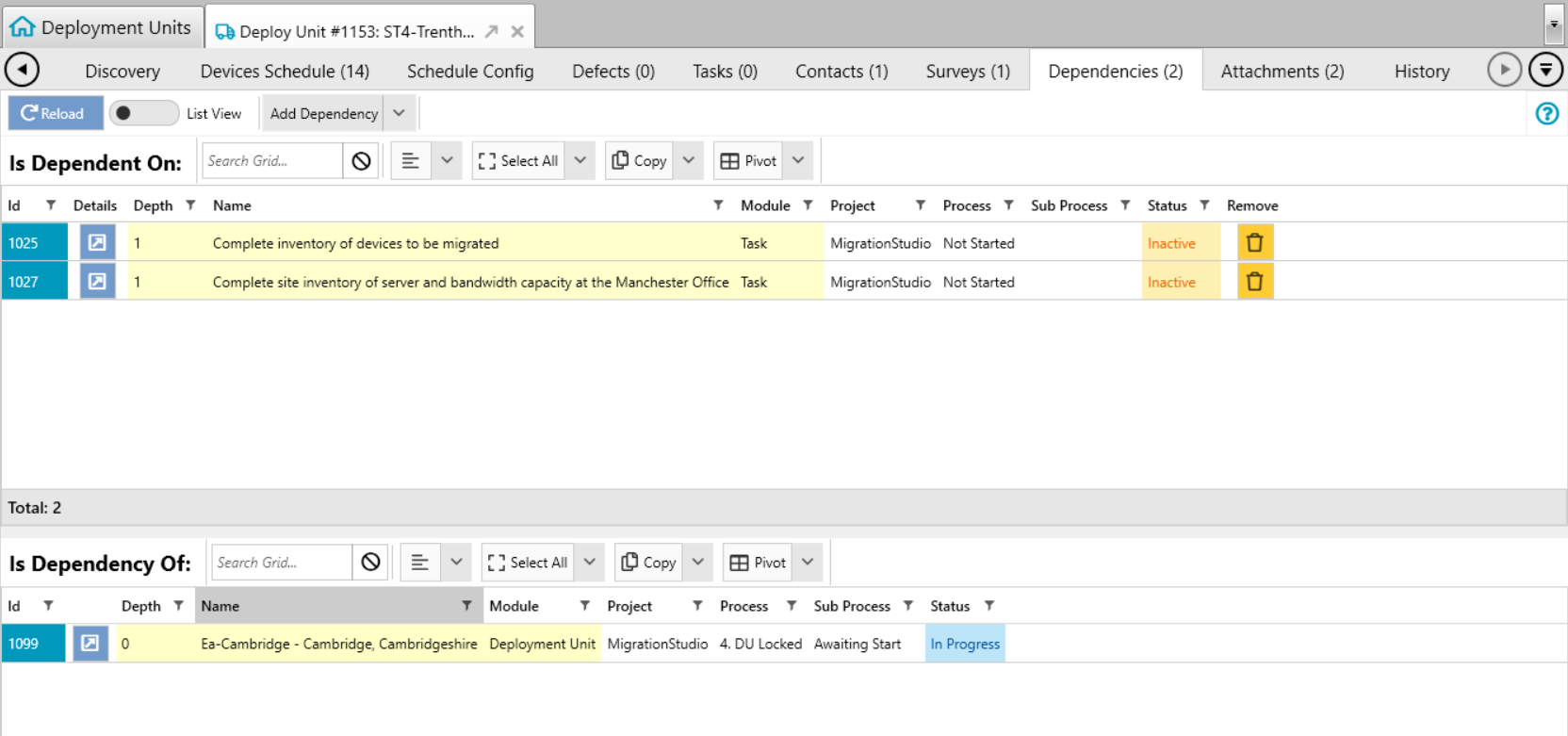
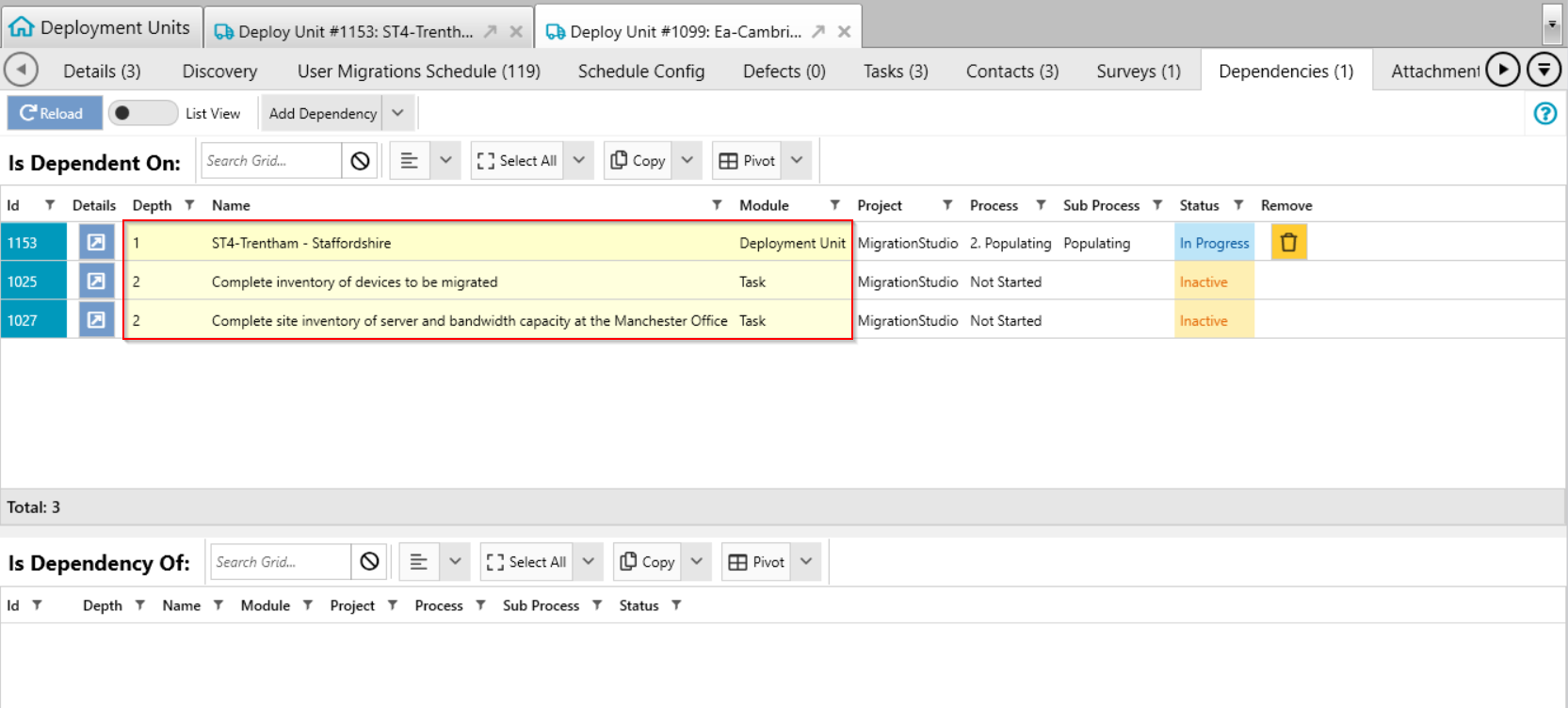
Dependencies
The Dependencies tab lists all dependencies of a DU and others that depend on it (e.g. site upgrades requiring new links).
Refer to Dependencies Tab Help.
Attachments
Use the Attachments tab to upload supporting documents for deployments (e.g. certificates, induction documents). Survey responses are also stored as PDFs here.
Refer to Attachments Tab Help.

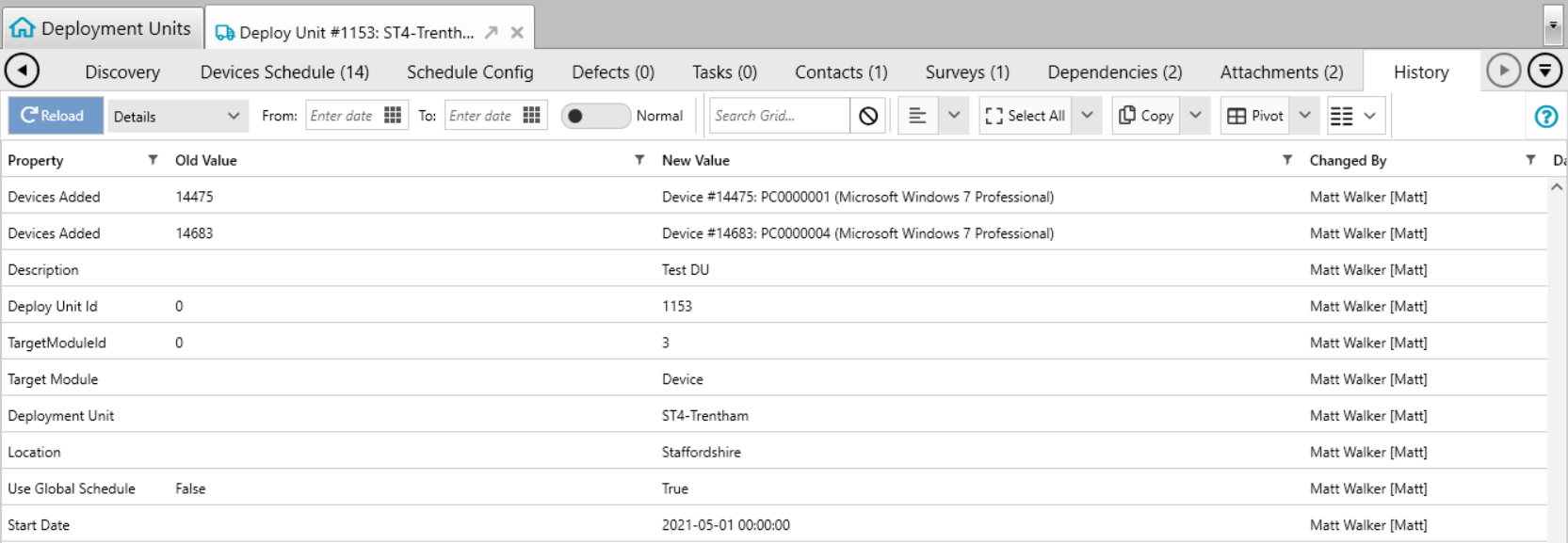
History
The History tab logs all activities and changes to the DU, supporting audit requirements and reporting for specific events.
Refer to History Tab Help.
Further Support
For further assistance, visit the ManagementStudio Service Desk to search the knowledge base or create a support ticket.
Was this article helpful?
That’s Great!
Thank you for your feedback
Sorry! We couldn't be helpful
Thank you for your feedback
Feedback sent
We appreciate your effort and will try to fix the article